
The MatGoat app for iPhone, iPad and Android
Install MatGoat, sign in with your academy account, and find classes, content, messages and teacher tools on your phone.
Where: Home
Updated on
Open in MatGoatThe MatGoat app uses the same account as your academy’s website. You do not need another account to check classes on your phone. Students, family members and teachers see different options according to their relationship with the academy.
Install the app and sign in
Find MatGoat in the App Store for iPhone or iPad, or in Google Play for Android. You can also use the download buttons on MatGoat’s mobile apps page.
- Install the app and open the sign-in screen
- Enter the email and password you use for your academy
- If you belong to several academies, check which one is selected
If you do not have an account yet, ask your academy for its signup link. If you already have one but cannot remember the password, use account recovery; registering again may create a separate profile.
Find everyday features
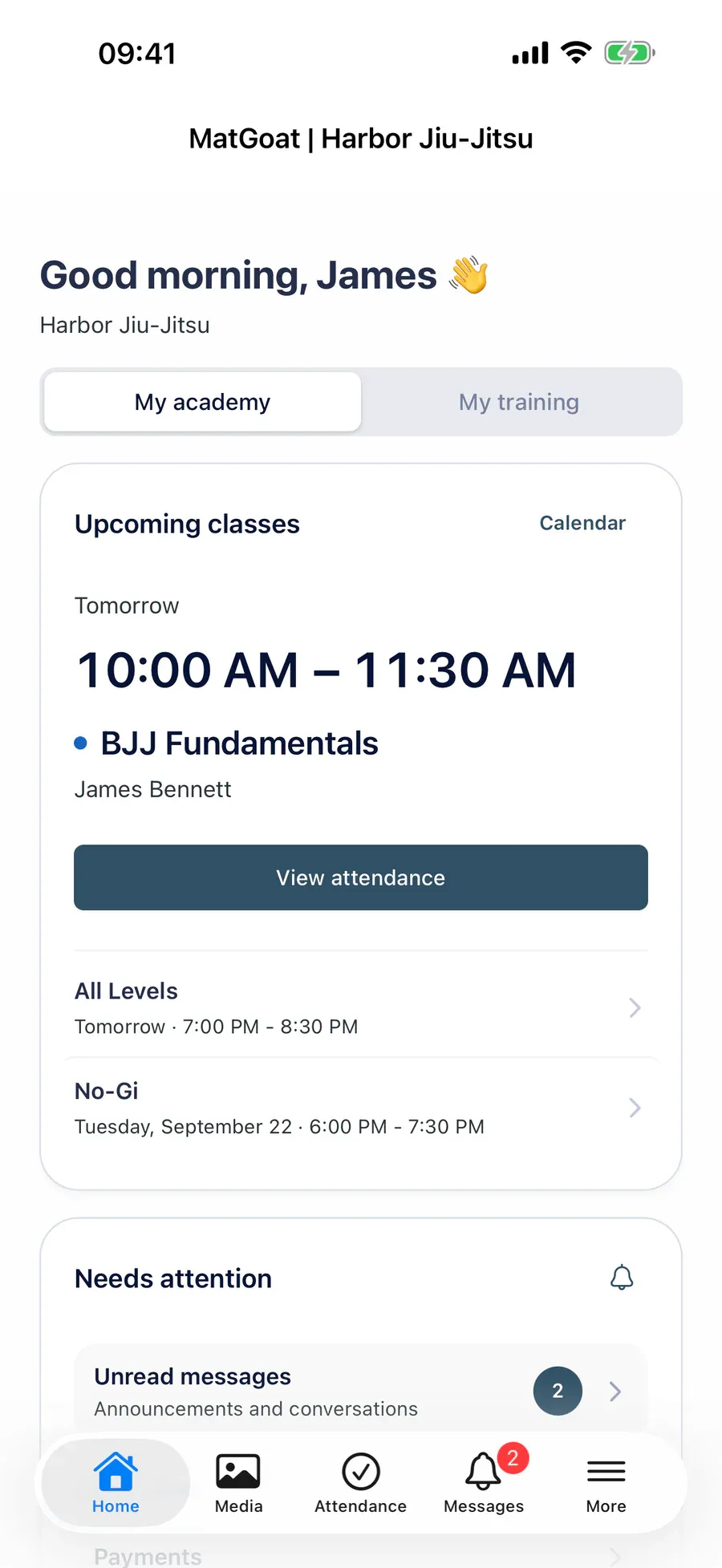
On iPhone, the main tabs are Home, Content, Attendance, Messages and More. Home shows your activity and upcoming classes; Attendance provides your history and ranking. Available content depends on the access your academy has configured.
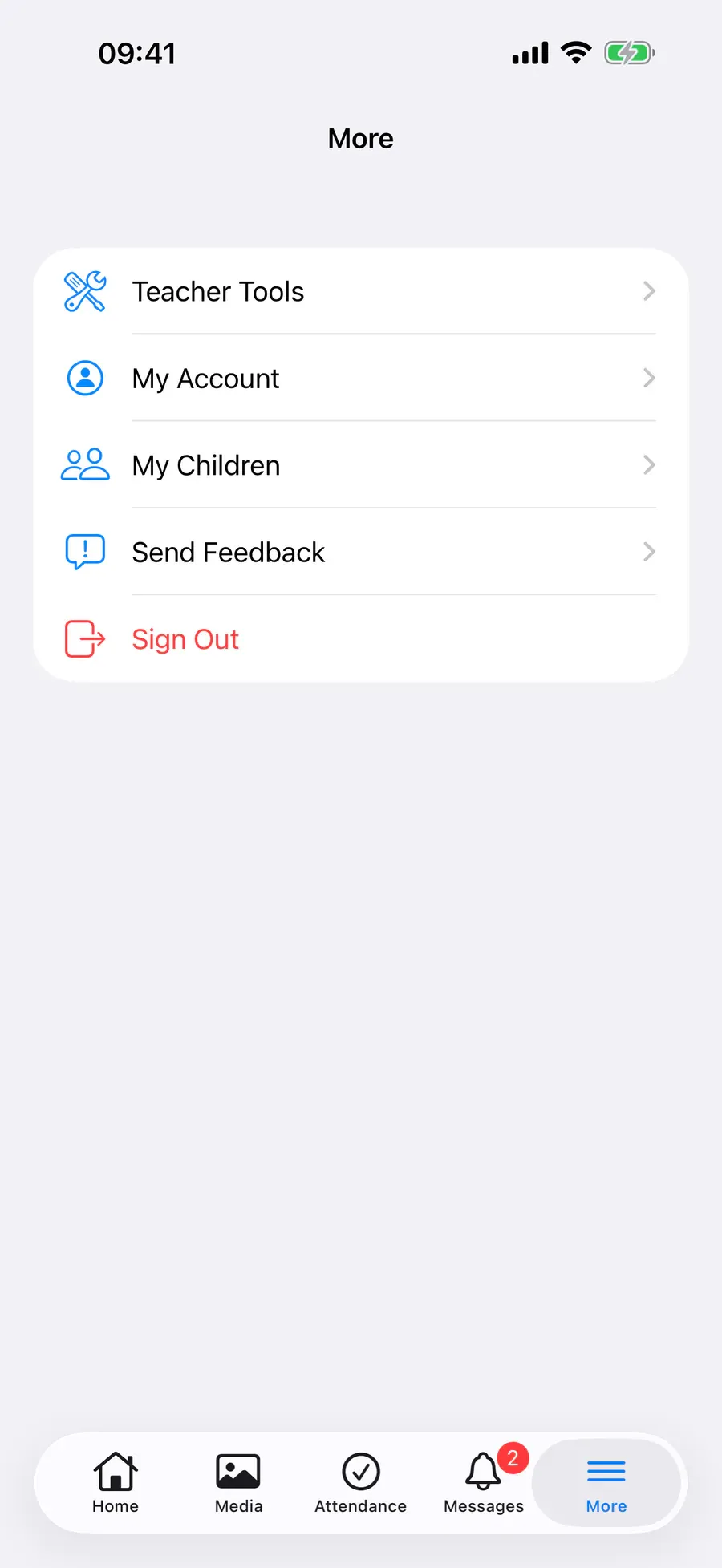
Under More, you will find account settings and the entries relevant to your profile. Teacher Tools brings together tools for authorized staff. Family members can manage linked children; being a family member does not grant academy administration permissions.
Use your phone and tablet
Enable notifications if you want academy notices to appear on your device. System permission and account preferences are managed separately.
Staff tablets can use Tablet Mode to keep student check-in open. Follow its guide to configure an exit PIN before leaving the device at reception.
Available plans and payment options depend on your academy. Always review the amount and the person the payment covers. Loading current information, booking and recording attendance require a connection.
Review your year and get help
Year in Review is seasonal: its entry appears when it is available. It does not need to be visible throughout the year.
To correct attendance, review a membership payment or change a booking, contact your academy first. For an app issue, tell MatGoat which device and screen you were using and what you were trying to do.
Open Home after signing in and check that it shows your academy and upcoming classes.
Related articles
Still have questions?
Write to us and a real person will answer, in your language.