
Tablet Mode on iPad and Android tablets
Prepare a tablet for student check-in, set its exit PIN, and understand the difference between the device lock and the teacher PIN.
Where: Tablet Mode
Updated on
Open in MatGoatTablet Mode keeps the check-in kiosk open on a staff iPad or Android tablet. Students can record their arrival without using the teacher’s private menus. Prepare the device with an authorized account and a stable connection.
Open Tablet Mode
In the tablet app, sign in with your teacher or administrator account and select the correct academy. On iPad, open More > Teacher Tools > Tablet Mode. Staff see this entry when the academy’s tablet configuration is available.
Check that the kiosk shows the academy name and expected classes before leaving it at reception. If you need a browser instead of the app, ask support for your academy’s kiosk link.
Set the exit PIN
The first time you start the mode, set a local six-digit PIN and complete the confirmation shown on the device. Store it where authorized staff can recover it, and do not share it with students.
There are three separate controls:
- The exit PIN protects the return from Tablet Mode to the staff account on that device
- The academy’s teacher PIN enables tools inside the kiosk, such as student details
- System locking, such as Guided Access on iPad, restricts switching to other apps
Follow the locking guidance displayed by the app. Setting a MatGoat PIN does not automatically enable every operating-system restriction.
Use the kiosk and exit the mode
The screen lets students search for their name and record attendance according to the academy’s registration mode. Teacher options inside the kiosk depend on the teacher PIN, rather than the device’s exit PIN.
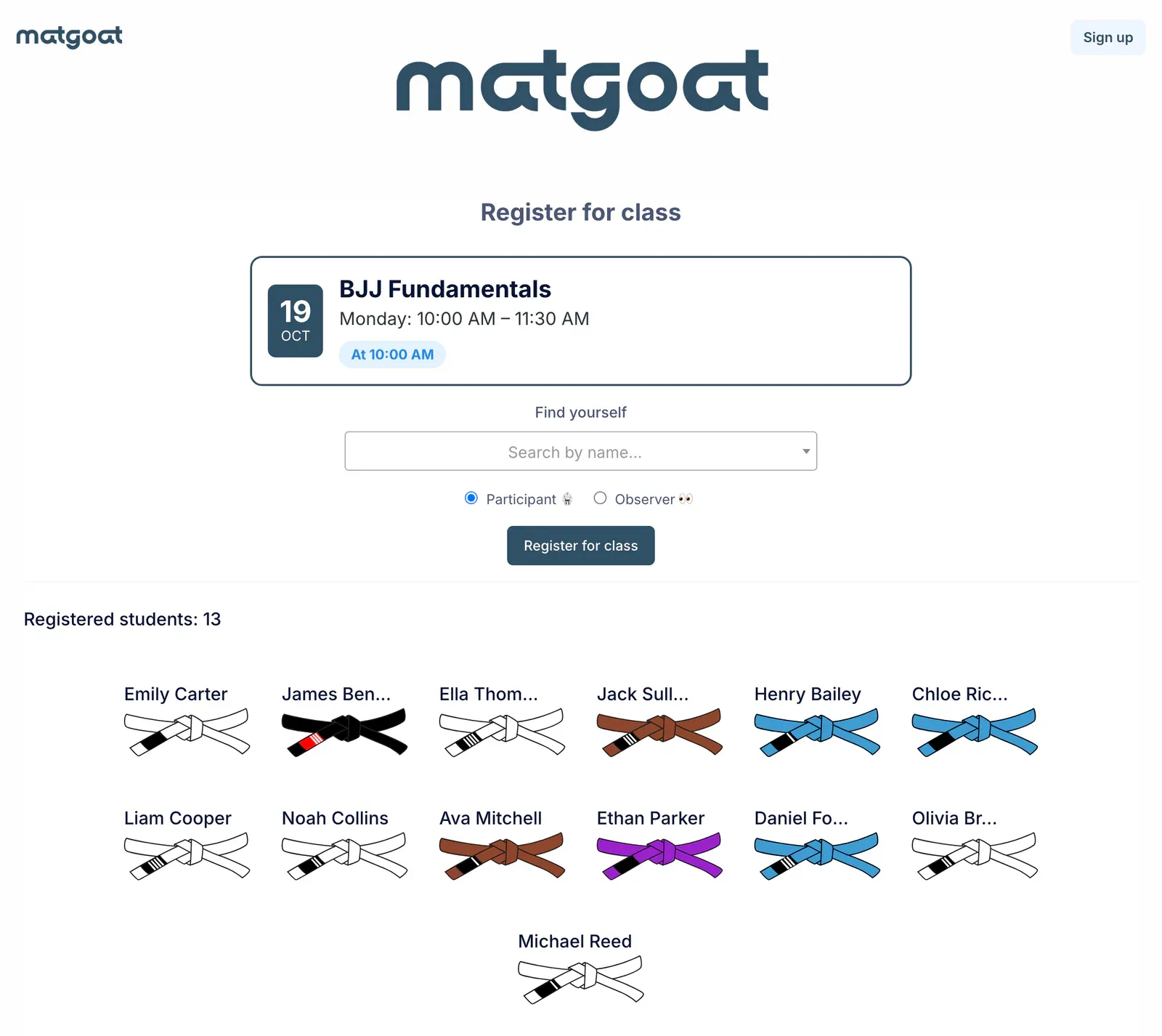
To return to private tools, tap Exit and enter the local PIN. If you also enabled system locking, close that using its own controls.
A connection loss may display a recovery screen. Check the network and use the retry option when it appears. Locked mode does not allow attendance to be recorded offline.
Recover access
On iPad, the dialog offers Forgot PIN? Sign in again. Follow that process to authenticate again. On Android, follow the sign-in instruction displayed on screen; incorrect attempts may introduce a wait or require a new sign-in.
Test entering and exiting the mode before making the tablet available to students.
Related articles
Still have questions?
Write to us and a real person will answer, in your language.