
Set up the front-desk tablet (kiosk mode) for check-in
Open the front-desk tablet on an iPad or Android tablet, learn which class it shows, how students check themselves in and which settings control it.
Where: Attendance & tablet
Updated on
Open in MatGoatThe entrance tablet lets students find their names and record attendance for the correct class. It needs an internet connection and an available session. Position it so students can check the class name before registering, particularly when different activities take place at similar times.
Open the academy kiosk
On a compatible tablet, a teacher or administrator can open Tablet Mode from the app’s teacher tools. To use the kiosk in a browser, ask MatGoat for your academy’s address. The teacher web panel does not include a direct link to that kiosk address.
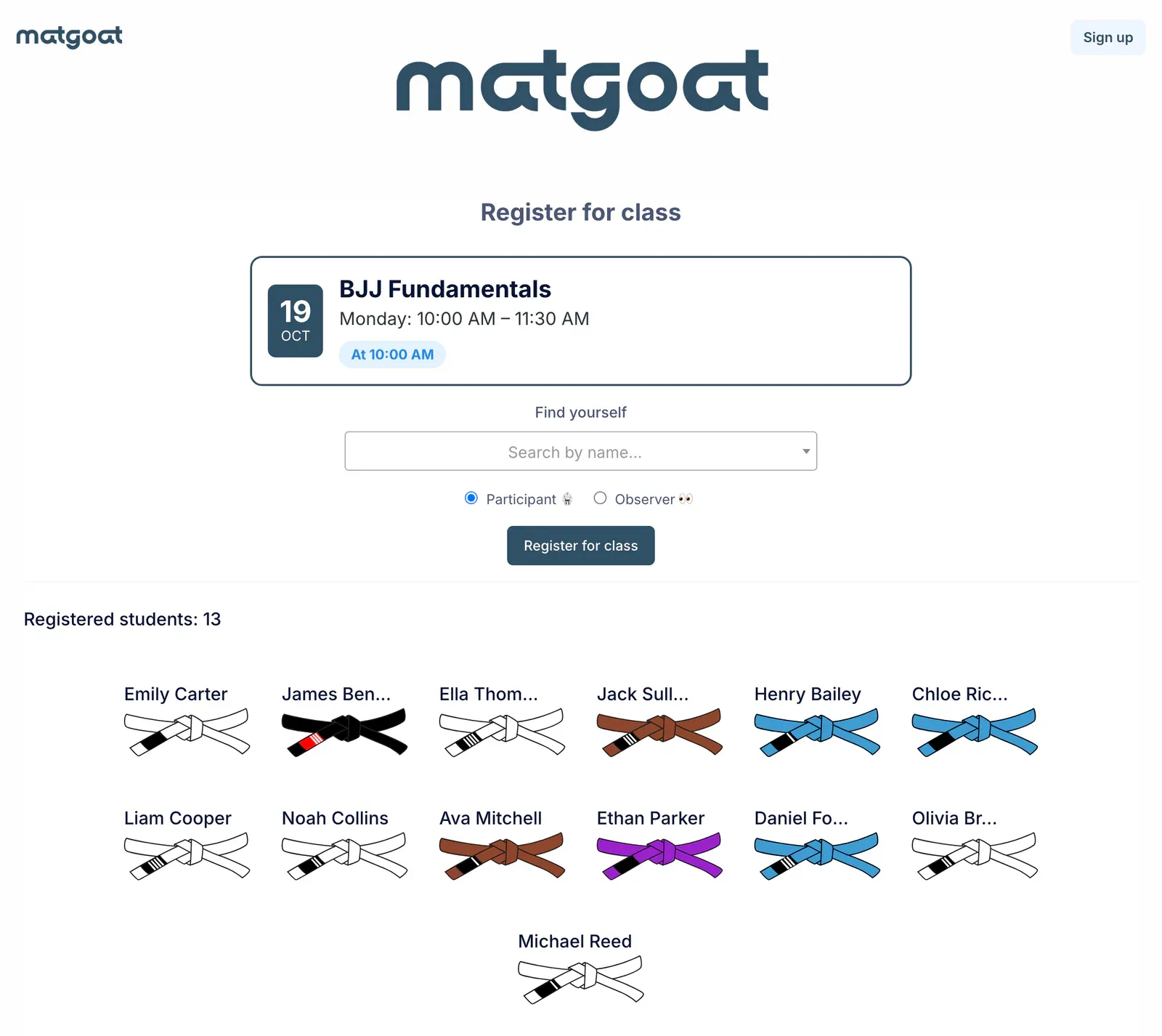
The app can protect exiting the kiosk with a device PIN. This is separate from the teacher PIN used to inspect student information inside the kiosk. Review Tablet Mode to configure the device before leaving it at reception for students to use.
Record attendance by name
- Check the selected class and choose another if needed
- Type at least two letters into the student search
- Select the correct person and review participant or observer
- Confirm registration and check that the person appears in the list
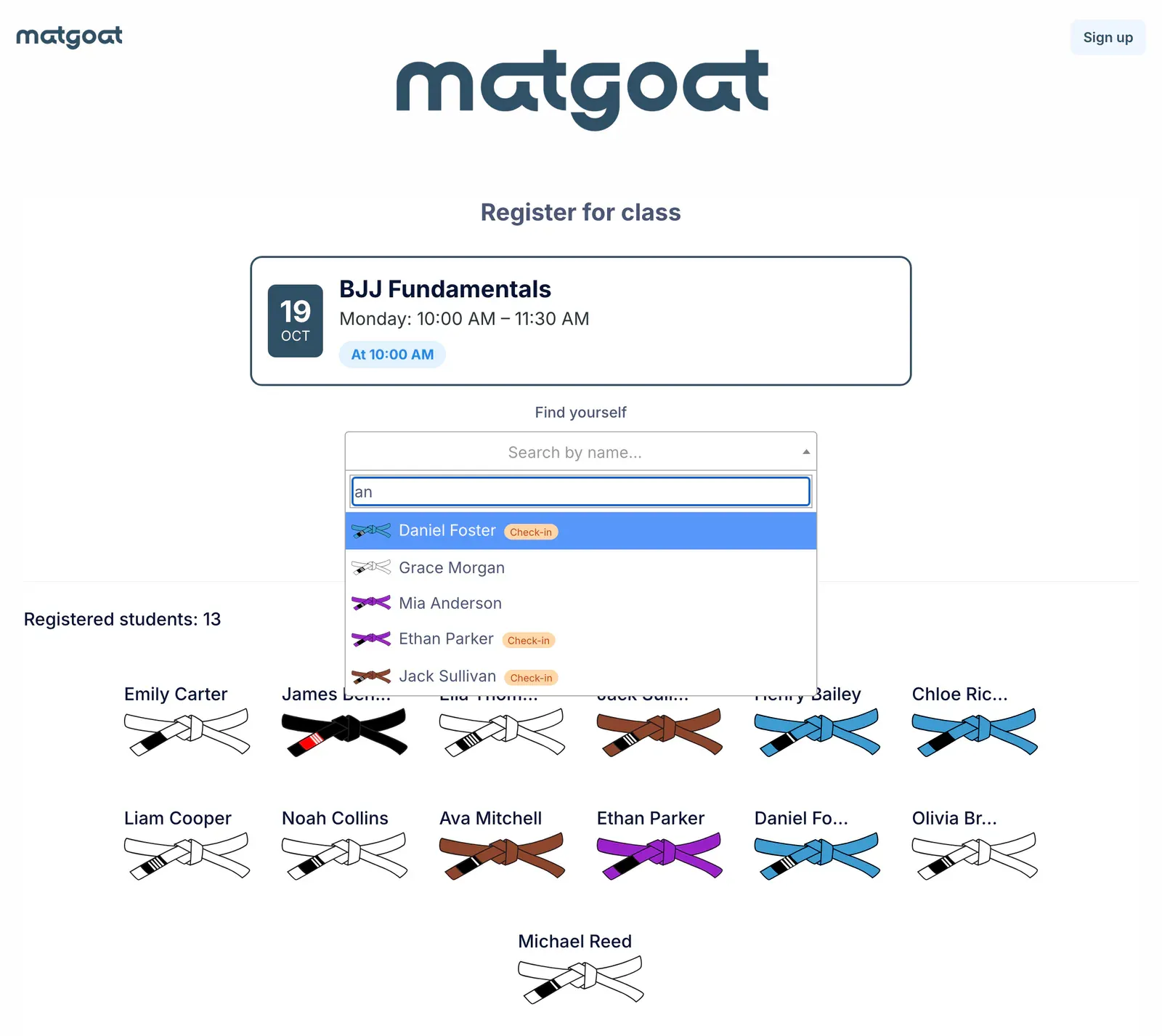
Search does not show representatives as training students. Someone can still appear on the kiosk even if they have chosen to hide from public attendee lists and rankings. This screen must still let reception register that person’s attendance.
A registration made here is confirmed immediately. In preregistration academies, online bookings wait for check-in and appear separately from people who have already arrived. Check for an existing pending booking before trying to register someone again.
Correct the session or attendance type
If someone registered by mistake, use the long-press removal control and read the confirmation. Staff can also correct the session through the attendance sheet. Switching between participant and observer changes that class registration, not the student’s overall category or belt ladder.
Observers have a different weight in weighted attendance statistics. Do not use observer status as a way to reserve without attending: in the two-step mode, bookings waiting for arrival already have their own pending state and should be handled through check-in.
Register newcomers and protect information
The kiosk’s signup option starts registration for a new person. When a QR code offers to continue on a phone, it transfers that signup journey to the phone. It is not a class self-check-in QR code.
Review Settings > Attendance & tablet and keep the device visible to staff. Some kiosk labels currently appear in Spanish even when the academy uses another language. To inspect profiles or notes, use teacher mode with a PIN.
Frequently asked questions
What do I need to use the entrance tablet?
You need a compatible tablet, a connection and an available class. Open Tablet Mode in the app with a teacher or administrator account; to use the kiosk in a browser, ask MatGoat for your academy's address.
Related articles
Still have questions?
Write to us and a real person will answer, in your language.