
Choose the registration mode: direct or pre-registration with check-in
Decide whether a booking counts as attendance or students must check in, set the pre-registration cutoff and check people in from the sheet or the tablet.
Where: Student onboarding
Updated on
Open in MatGoatRegistration mode determines whether joining a class immediately confirms attendance or whether arrival must be recorded separately. The choice applies to the academy. Review how reception will work and explain the change to students before modifying a setting they already use for their bookings.
Choose one or two steps
Direct registration confirms the student when they register for the class. Pre-registration + Check-in allows online booking followed by confirmation on arrival, through the tablet or with a teacher’s help.
In the second mode, a pending booking must not be treated as an attended class. Student screens use booking and preregistered labels, while the teacher sheet talks about presence and the tablet uses check-in. These labels describe different stages of the same arrival process.
Set the mode and booking cutoff
- As an administrator, open Settings > Student onboarding
- Locate the class-registration section and choose the mode
- For the two-step mode, review the preregistration cutoff
- Save and inspect the result on an upcoming class
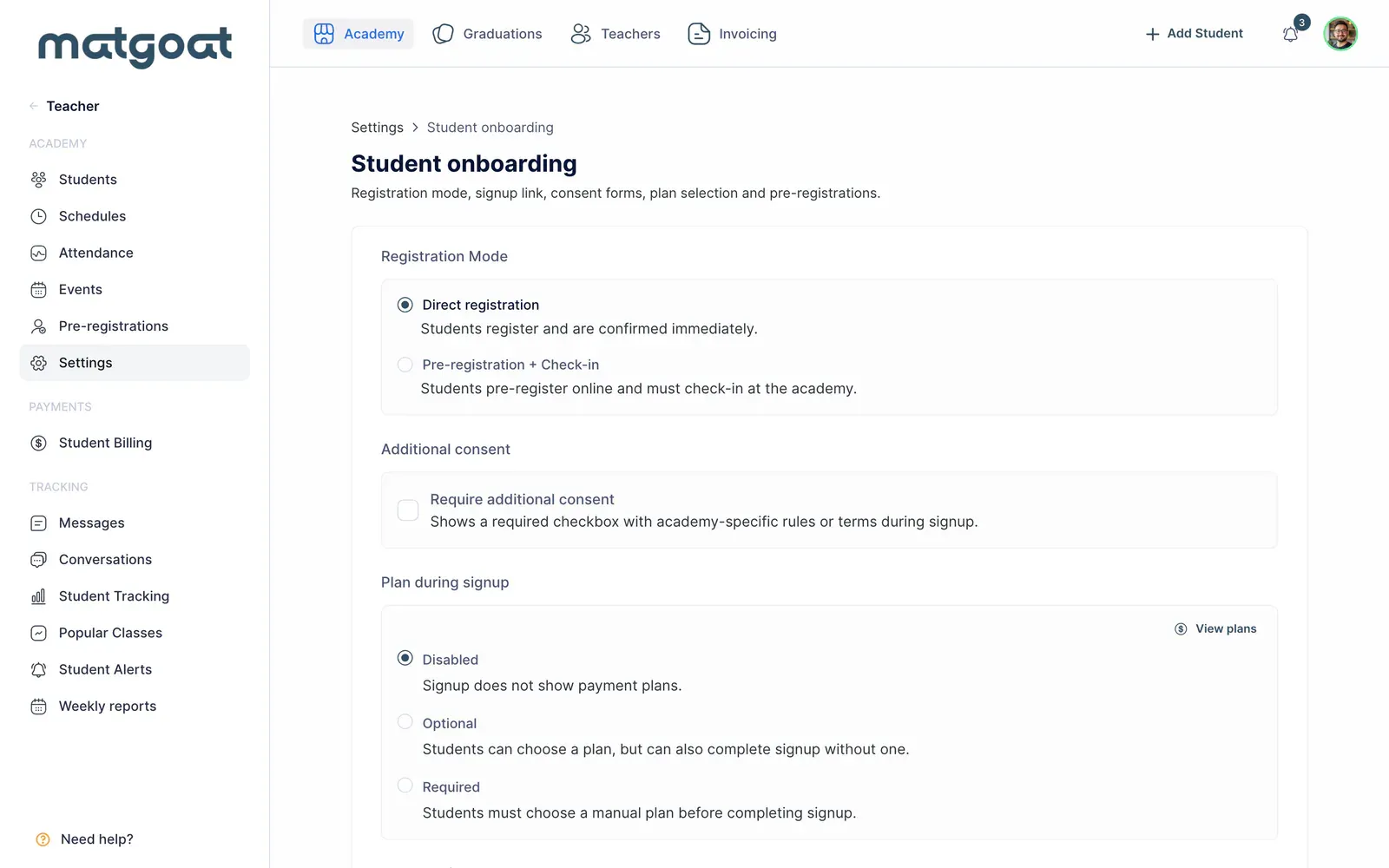
The cutoff offers four choices: until the class starts, one hour before, two hours before or 24 hours before. It limits advance online booking. It does not replace a plan’s attendance limits or configure the number of places available in the class.
Lead collection before opening appears on the same settings page but concerns people who have not yet joined the academy. Do not enable it as a way to require check-in for existing students. That separate feature is covered in the preregistration guide.
Confirm arrivals
On the attendance sheet, an unconfirmed booking offers an individual check-in action. When several remain, Check in all confirms the pending set, which is not necessarily the entire class list. Once every booking is confirmed, the sheet indicates that everyone is present.
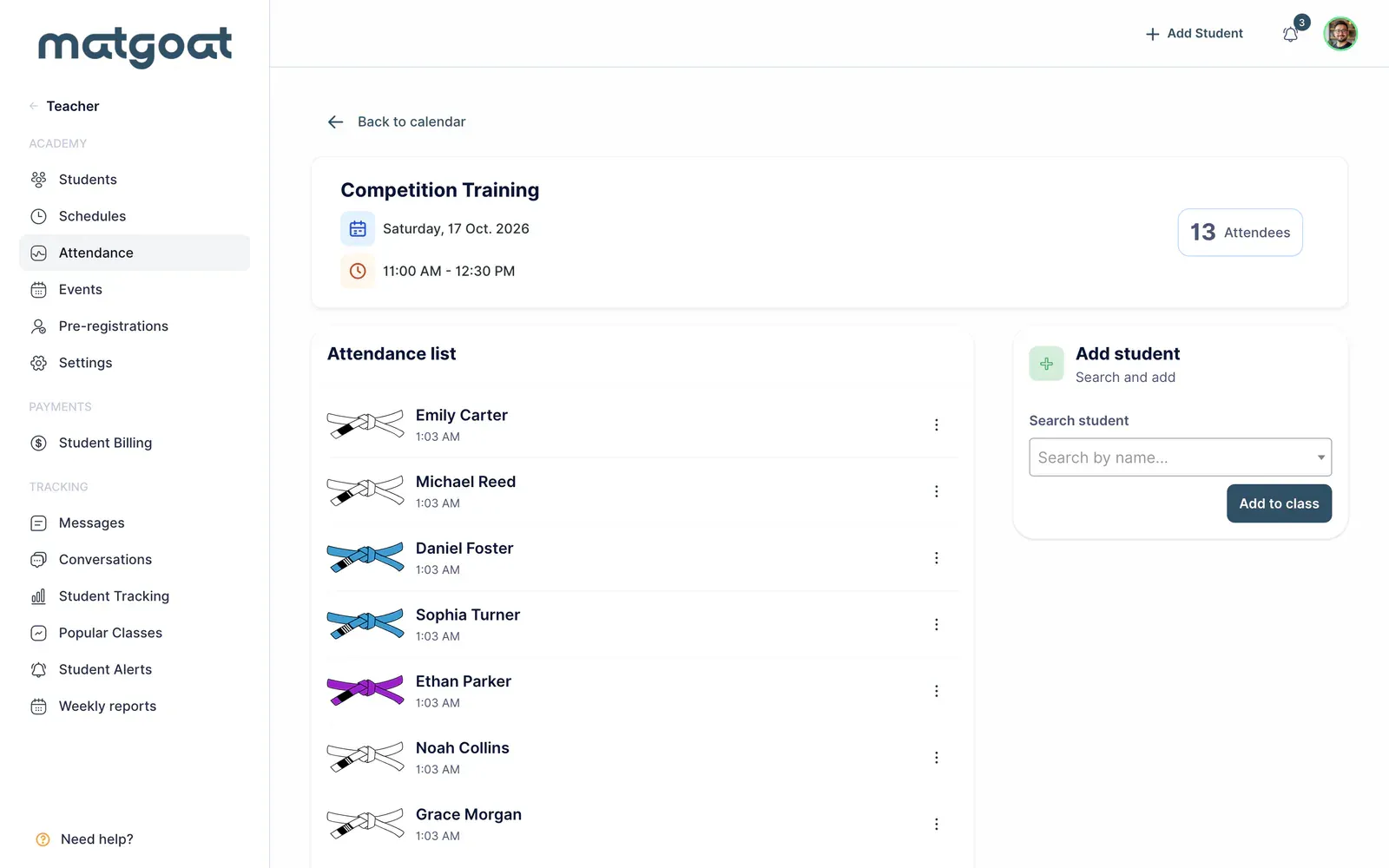
On the tablet, pending bookings appear in the waiting-for-check-in list. A registration made directly at the tablet is confirmed immediately. Adding a student from the teacher’s attendance sheet also records presence immediately, including when the academy uses two steps.
Review results after a change
To check who attended in a preregistration academy, review the confirmed attendance marks. Some statistics screens also include pending bookings. Bookings can outnumber attendees, so inspect that state before interpreting a decline in attendance or correcting someone’s history. A booked name alone does not establish that the person arrived.
After changing modes, review existing bookings and an actual session with your staff. Do not ask students to find a nonexistent “My classes > Check-in” button. Use the attendance sheet to verify and correct arrivals.
Frequently asked questions
Does a booking confirm that the student attended?
In direct registration, signing up confirms attendance. In preregistration, the booking remains pending until arrival is recorded on the tablet or the teacher's attendance sheet.
Related articles
Still have questions?
Write to us and a real person will answer, in your language.