
Book classes and check your attendance and ranking
Book from Home or My Calendar, understand when check-in is required, and review your attendance history and ranking.
Where: Welcome
Updated on
Open in MatGoatAvailable classes appear on Home and in My Calendar. Before booking, check the academy, date and student you are acting for, especially when you manage your children from your account.
Book a class
Open the class you want and review its time and activity. The button depends on the mode selected by the academy:
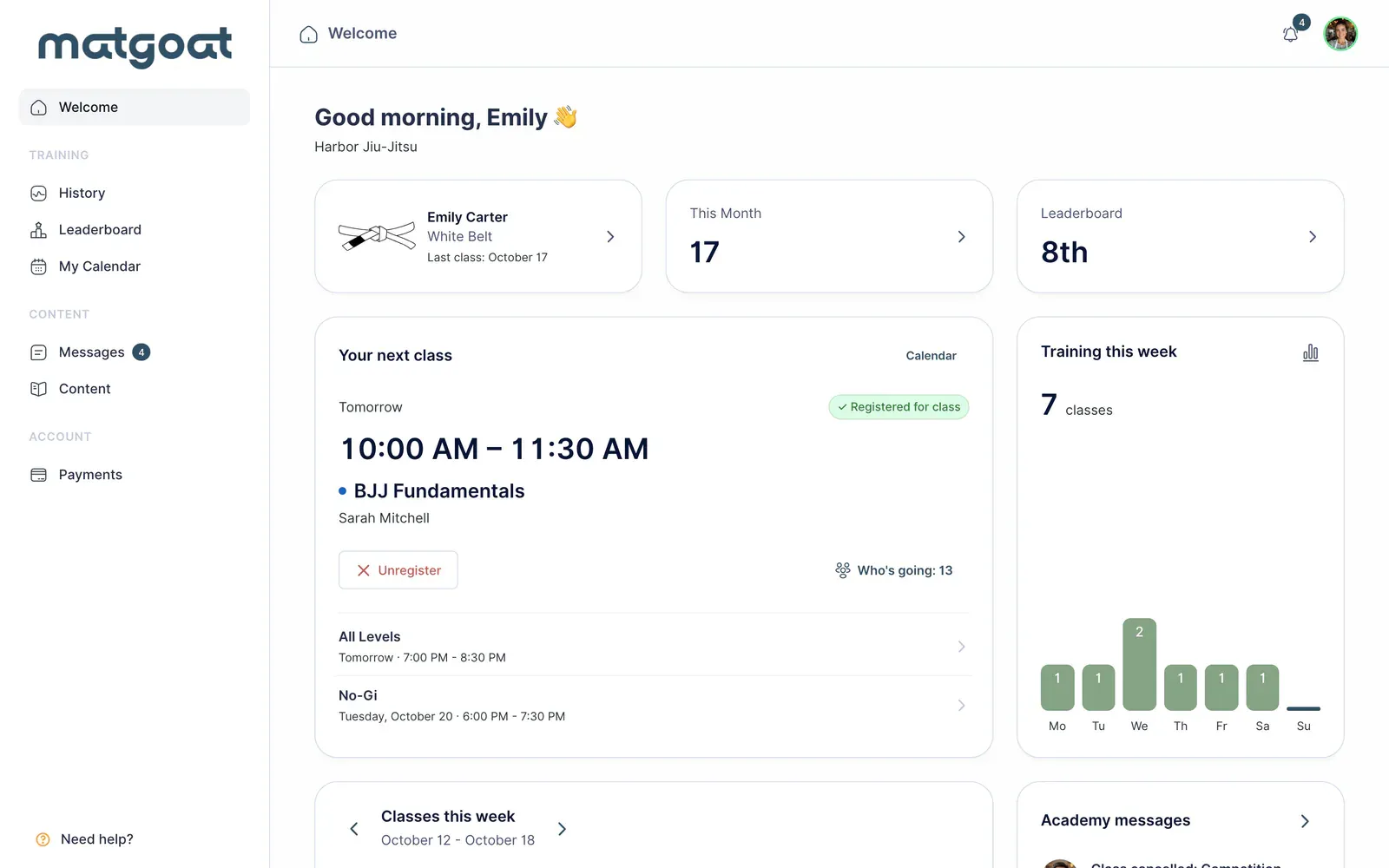
- Register in direct registration mode
- Pre-register when the academy uses preregistration with check-in
After selecting it, wait for the class status to change. A notice may explain that your plan does not include the activity, that you have reached a limit or that an access condition needs attention. Contact the academy if the message does not match your circumstances.
The academy can close preregistration before the class starts. When Pre-registration closed appears, follow the instruction to register at the academy. Creating another account will not resolve an unavailable button.
Distinguish booking from attendance
In preregistration mode, signing up saves a booking. On arrival, you need to complete check-in through the entrance tablet or staff. Until then, the booking does not equal confirmed attendance.
Direct registration does not have that second preregistration stage. Follow your academy’s procedure and request a correction if a class you did not attend is recorded.
Observer attendance carries a different weight: it counts as half an attendance in calculations using that score. The number of visits and a leaderboard score are not necessarily the same number.
Cancel or view attendees
If you cannot attend, use Cancel pre-registration or Unregister, according to the displayed state. The screen stops offering actions once the class has finished; contact a teacher to correct past attendance.
The attendee list shows people who are visible according to their privacy preferences. A missing name does not prove that person will not train.
Review your history and ranking
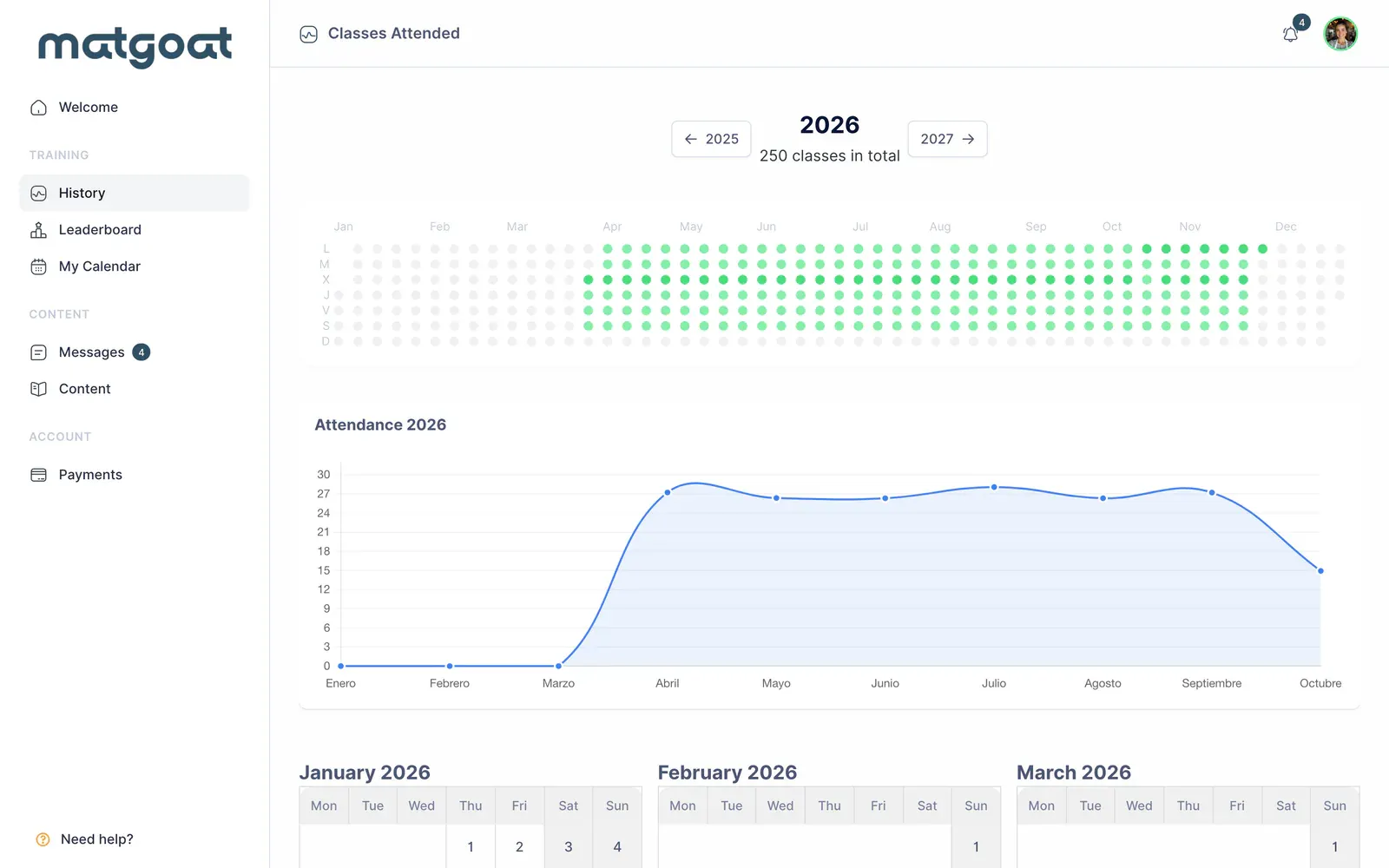
History lets you review a year and the distribution of your attendance. Rankings use the academy’s configured periods and criteria, such as the month or a graduation period.
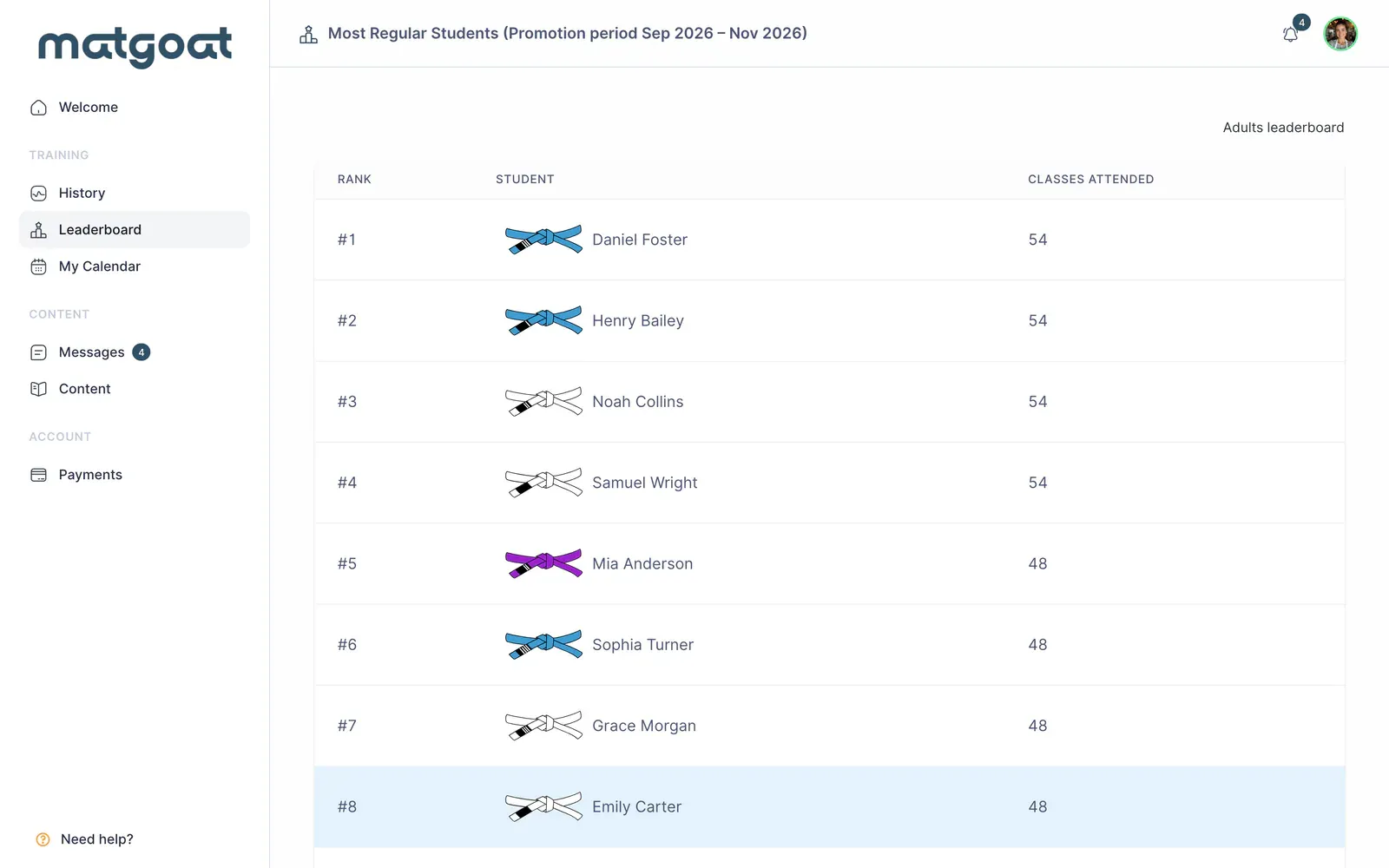
A ranking provides information about recorded activity; it does not award a belt by itself. If you notice a discrepancy, give staff the date and class so they can review the attendance sheet.
Before leaving for the academy, confirm your booking is still visible and check for any change or cancellation notice.
Related articles
Still have questions?
Write to us and a real person will answer, in your language.