
Create your student account and sign in
Use your academy link or an invitation to create a student account, confirm your access and sign in on the web or in the app.
Where: MatGoat - Sign In
Updated on
Open in MatGoatYour academy provides your access to MatGoat. To create a student account, use its registration link or the invitation you received. Registration for opening a new academy is intended for academy owners.
Open your academy’s link
Ask staff for the link and check the academy name before entering your details. If it has not opened yet and displays a preregistration form, you are leaving contact information: that form does not create a complete student account.
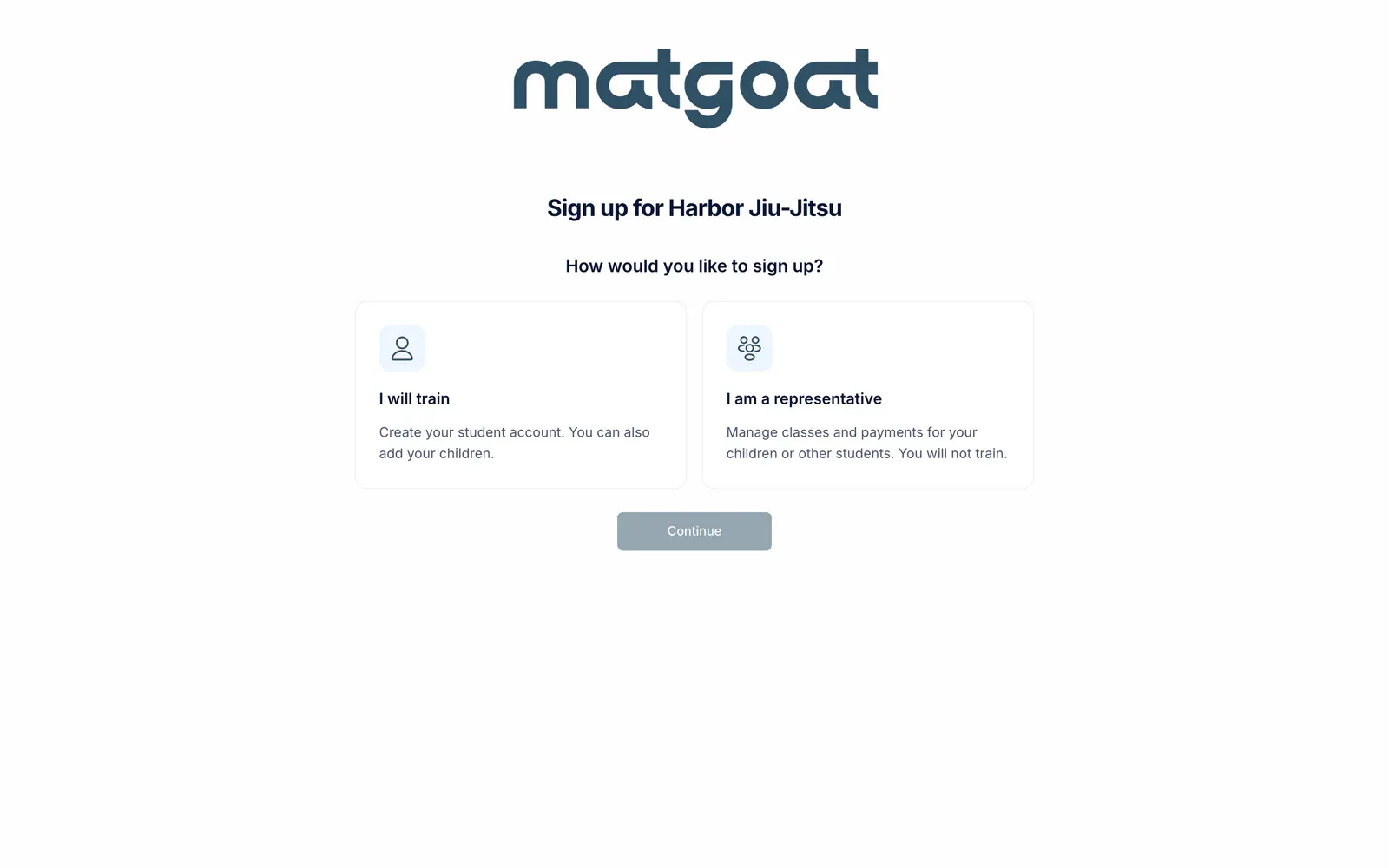
An academy may restrict registration to invitations. If the link does not let you continue, ask staff to review your access. You do not need to create another academy to resolve this.
Choose how you will participate
The form distinguishes between someone who trains and someone who manages a child:
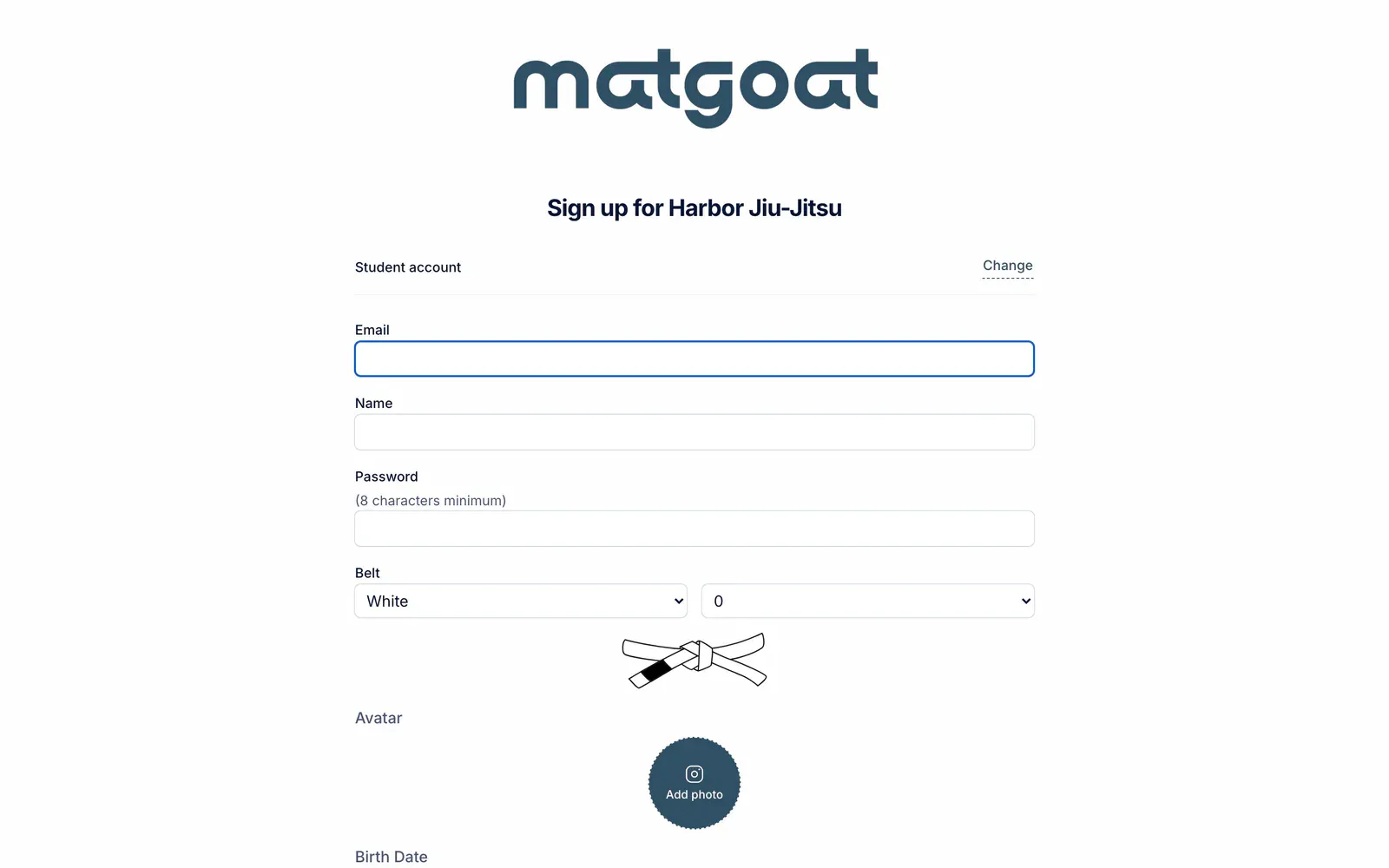
- Select I will train if you will train
- Select I am a representative if you will only represent your children
- Select Continue and complete the details shown
Use an email you can access and review required fields, your password and the consent text. The requested information can vary with the academy’s settings. After creating your representative account, you can manage children in their dedicated area.
If the form says your email already exists, use that account and follow the access option provided. Avoid creating a second profile for the same person.
Accept an invitation
If you receive an email invitation, open its link and complete the acceptance screen. It may ask you to set a password or confirm details. Use the email address that received the invitation.
When MatGoat requests email confirmation, open the confirmation message and follow its link. Check your spam folder too. If the link has expired or belongs to someone else, ask your academy for help before registering again.
A profile created by staff does not necessarily have password access or an invitation already sent.
Sign in again
Use your email and password on the website or MatGoat app sign-in screen. If you cannot remember your password, open the recovery option and follow the message you receive.
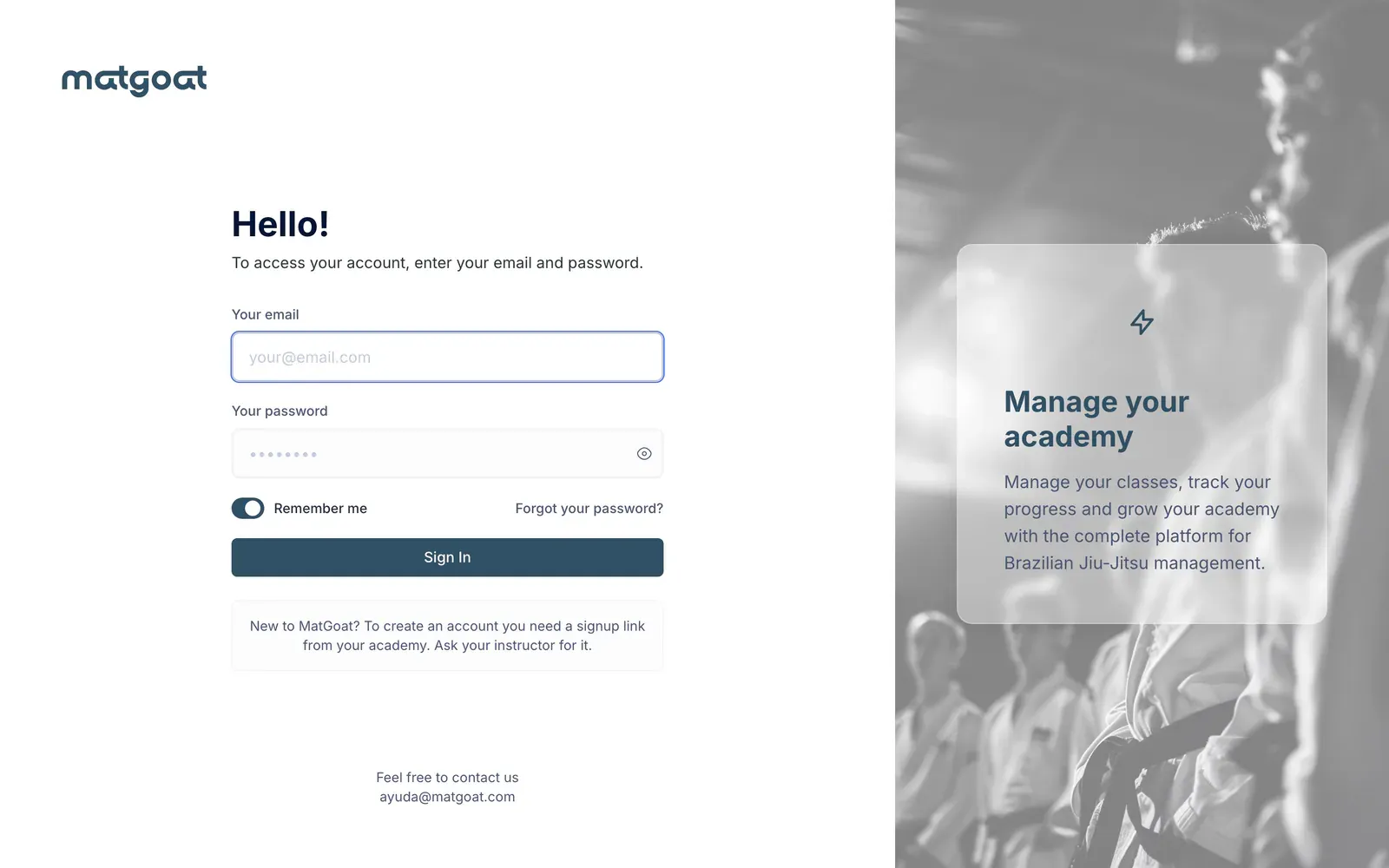
After signing in, check the selected academy. If your plan, children or attendance are missing, ask staff to review the connection to your profile.
Save your academy’s access link and keep using the same account so your activity stays together.
Related articles
Still have questions?
Write to us and a real person will answer, in your language.