
Manage your children: add them, authorize and book for them
Add your children, complete the authorizations your academy requests, and select each child when booking classes or managing payments.
Where: My Children
Updated on
Open in MatGoatYour family account lets you manage children linked to you at the academy. Each child keeps their own profile and attendance; you do not need to sign in with different account details each time.
Open your children’s area
Open My Children. If that entry is not visible yet, look for the option to add your first child on Home or in your account. Check the selected academy first.
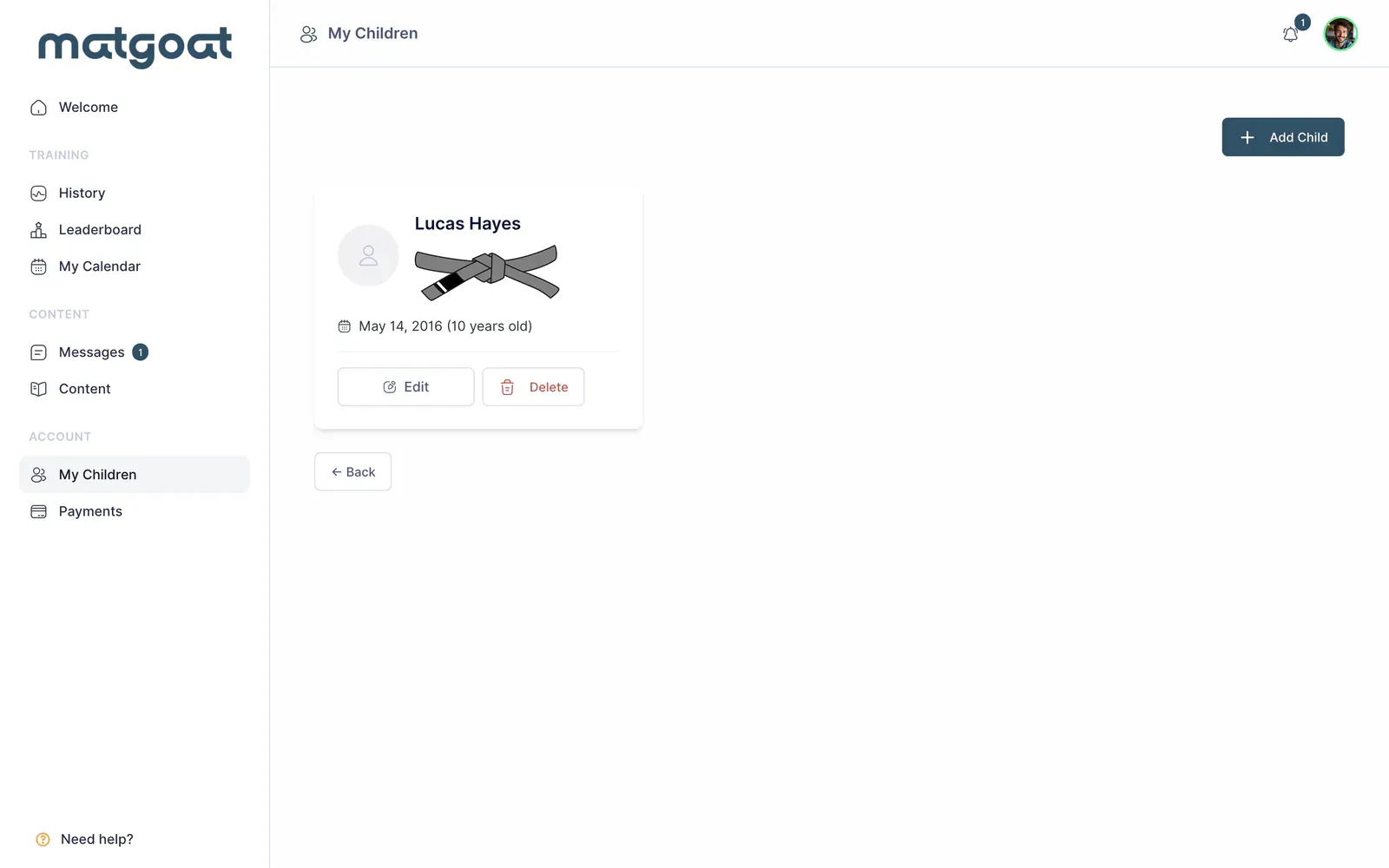
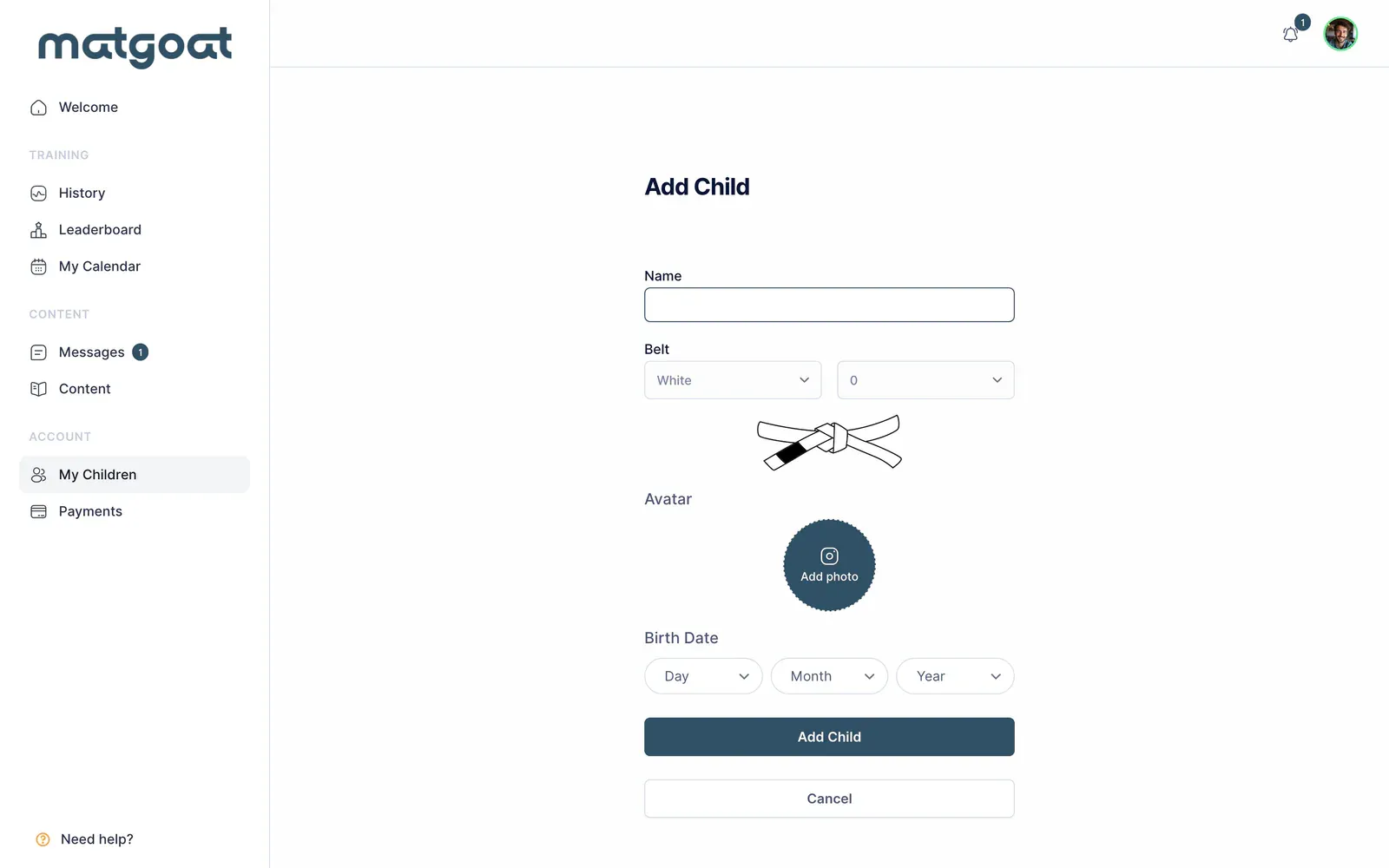
Select Add Child, complete the child’s details and review required fields. If the academy offers plan selection during this step, check which child it covers before continuing.
If your child already exists at the academy but is missing here, ask staff to link their profile to you. Creating another profile can separate their history and payments. The family relationship can let you manage the child without making you the owner of all their information or every associated subscription.
Complete authorization
When the academy uses consent forms for children, the profile indicates whether authorization is pending. Open Complete authorization and review the academy’s published text.
- Complete the requested details of the responsible adult
- Read each section and record your decision
- Accept required sections to complete the form
- Type your name as the signature, matching the responsible adult’s name
- Save and check the authorization status
Sections depend on the academy. If you do not understand a condition or need it changed, speak to staff before accepting. You can return to the review authorization option to check the available status.
Book for the correct child
On Home, use the student selector when displayed or the booking button bearing your child’s name. Check the name before booking and confirm the class status afterwards.
At academies using preregistration, a child’s booking also needs check-in on arrival. Booking from a parent’s account does not automatically confirm attendance.
Review plans and profile changes
In Payments, use Plans and payments for to select the child when displayed. The person training and the payer can be different; some controls are only available to the authorized payer.
To update details, open Edit on the profile. If the child needs an independent account, contact the academy about converting the profile. Deleting a profile is not a way to cancel a payment correctly.
Before booking or paying, confirm the name of the child the action will apply to.
Frequently asked questions
What if my child is already in the academy but missing from my account?
Ask staff to link the existing profile to you. Creating another profile can split attendance and payments. Before booking or paying, check the selected child's name.
Related articles
Still have questions?
Write to us and a real person will answer, in your language.