
Read announcements, message teachers and adjust notifications
Read academy announcements, confirm those requiring acceptance, message your teachers and adjust notification preferences.
Where: Message Inbox
Updated on
Open in MatGoatThe Messages inbox brings together communications from your academy. Announcements publish information for their recipients; conversations let you write to staff. Check the selected academy before searching for a message.
Read announcements
Open the inbox and select an announcement to read it in full, including its images or links. Opening it records that it has been read. An email or push notice may take you to the content inside MatGoat.
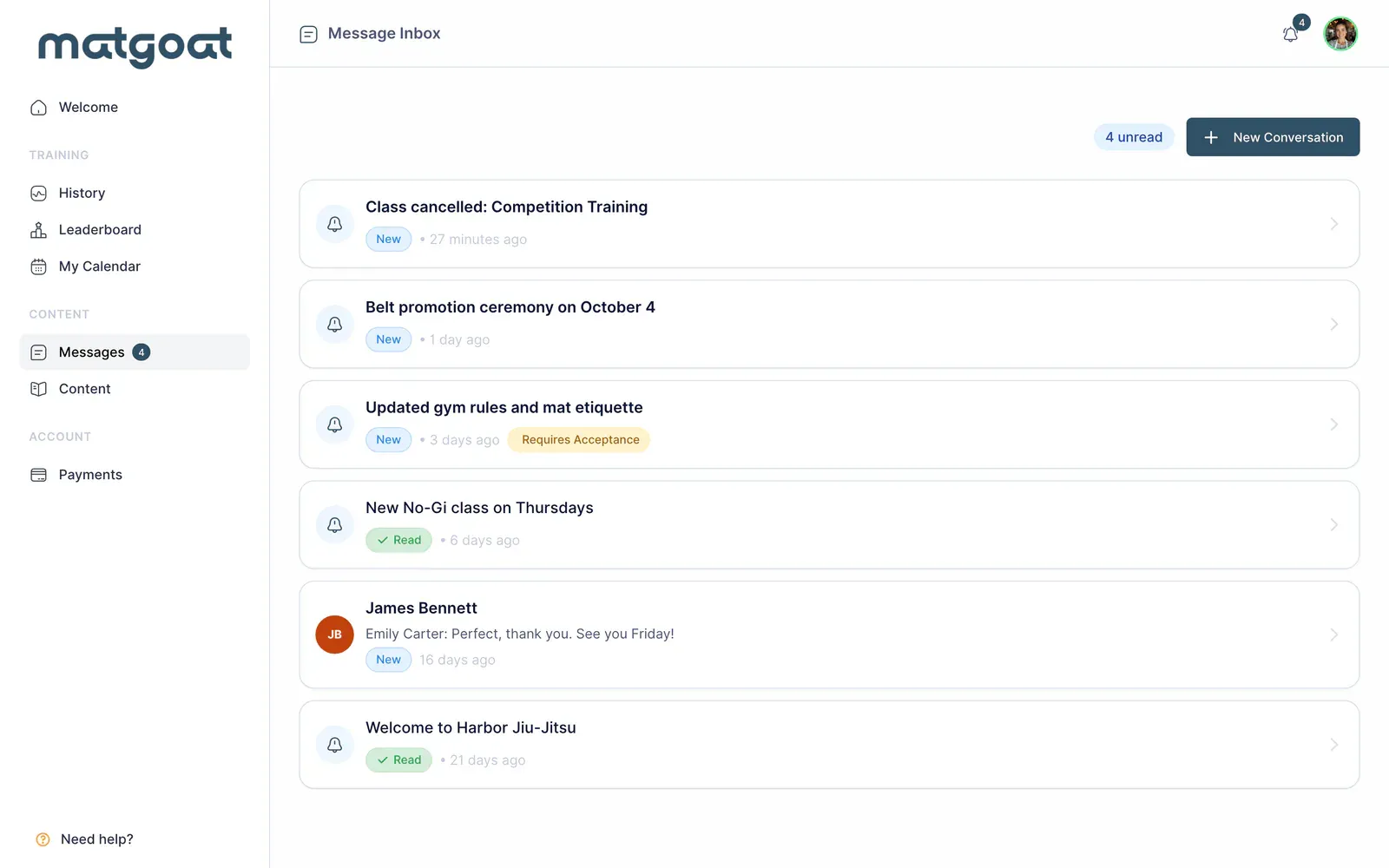
If a message describes a schedule change or cancellation, also review the class or event concerned. Information in an older message may have changed since publication.
Confirm when requested
Some announcements require an explicit response. In that case, Accept and Confirm appears. Read the content before selecting it: opening an announcement does not equal accepting it.
Acceptance is linked to you as a recipient of that announcement. It does not by itself replace other authorization forms the academy has configured for a child. If you are unsure what is requested, write to staff before confirming.
Write to your teachers
Use the option to start a conversation and select the recipient:
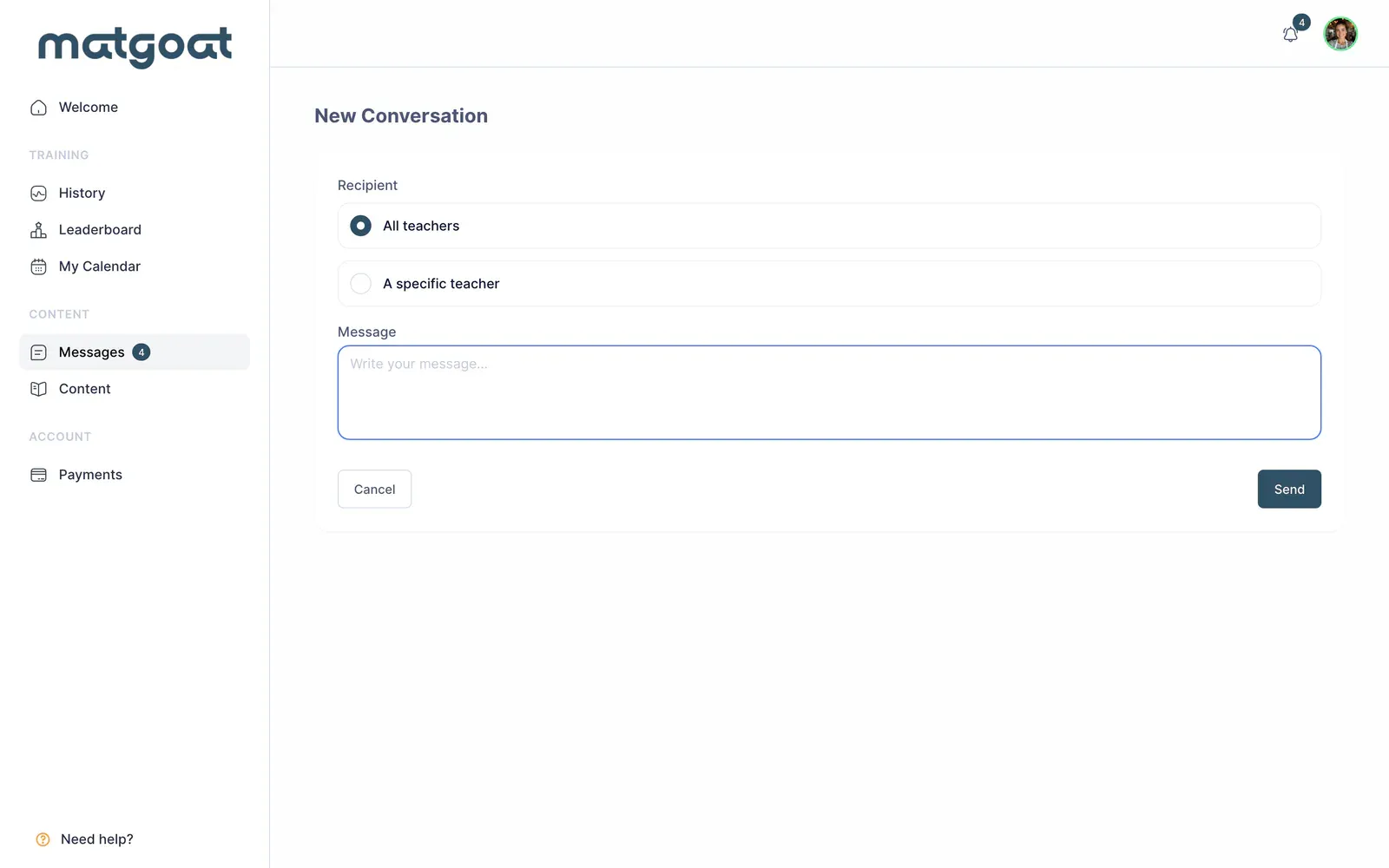
- Choose All teachers to address the teaching staff together
- Choose A specific teacher and select a name to address one person
- Write your message and review the recipients before sending
A conversation addressed to all teachers is not exclusive to your usual instructor. For an individual query, check that you have selected the right person.
Replies stay in the thread. If asking about a child, include their name and the relevant class or payment so the academy can identify the case. Avoid sending passwords or complete card details.
Adjust notices
Open Edit account and find Notification preferences. You can adjust announcement emails and app push notifications, then save with Update account.
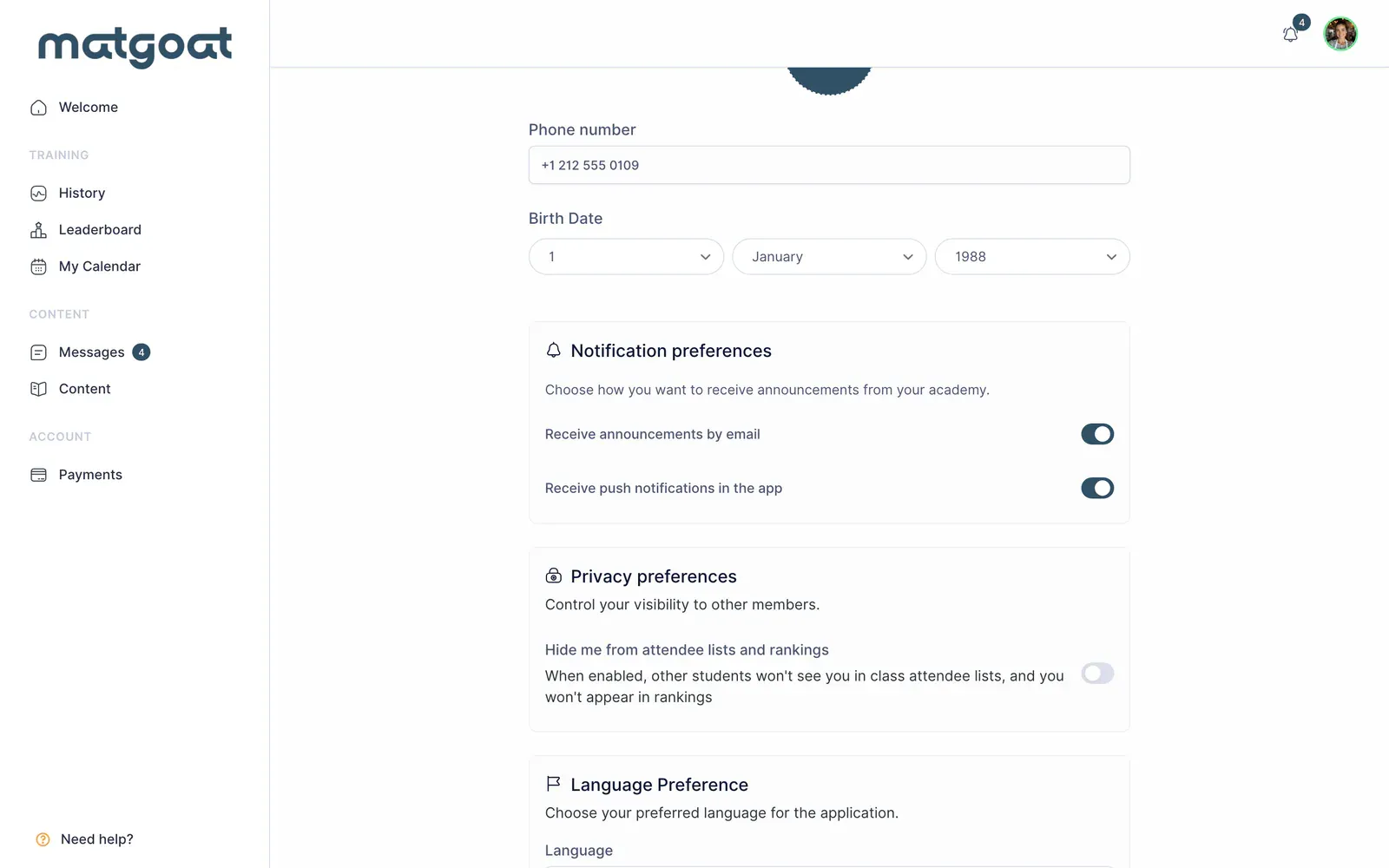
To receive push notices, your phone’s system must also allow MatGoat notifications. Turning off notices does not delete inbox messages. Sign-in messages and other necessary emails are not all controlled by the announcement preference.
For schedules, payments or authorizations, write to your academy first. The MatGoat help link provides product support and does not replace the people responsible for your academy.
Before sending a query, check the recipient and include the specific detail they need to help you.
Related articles
Still have questions?
Write to us and a real person will answer, in your language.