
Enable push notifications on your phone
Enable device notification permission and your MatGoat preference, and check where to look when a notification does not arrive.
Where: Edit account
Updated on
Open in MatGoatPush notifications display MatGoat notices on your phone without checking every screen. To receive them, you need the app installed, a signed-in account and the relevant permissions on your device and in MatGoat.
Allow notifications on your device
Open the app and allow notifications when the system asks. If you previously declined, open your phone’s settings, find MatGoat and review its notification permissions.
Presentation depends on iOS or Android and your settings: the lock screen, sounds, banners and focus modes can change when you see a notice. Granting permission does not guarantee a sound or banner at every moment.
Review your account preference
Open your account and select Edit account. Under Notification preferences, you will find two controls:
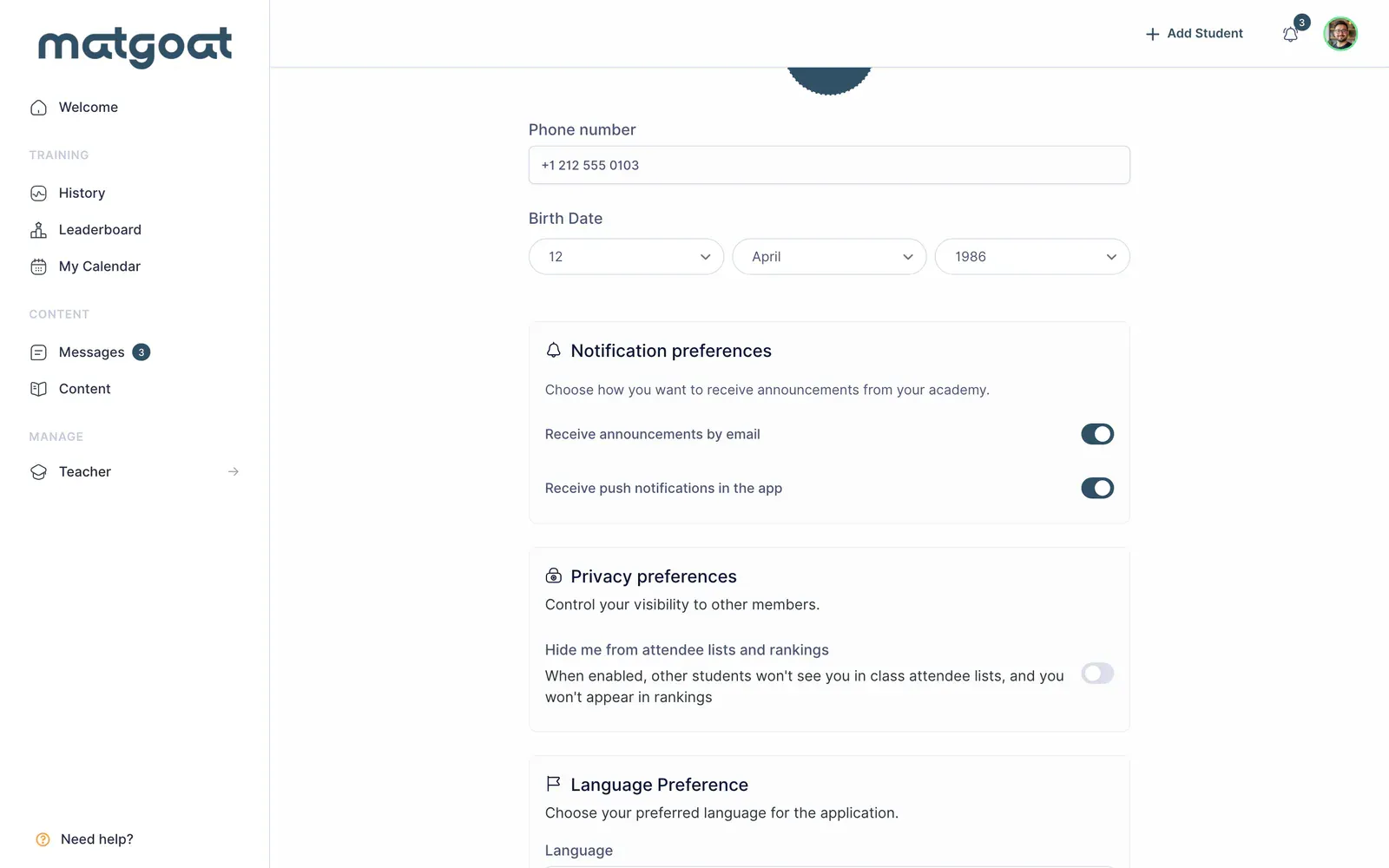
- Receive push notifications in the app, for app push notices
- Receive announcements by email, for announcements sent by email
Enable the push preference and save with Update account. Your phone still needs permission even when this option is enabled. Turning off announcement emails does not remove messages already published in your inbox or replace the push control.
Open the notice and check its context
Tapping a notification prompts the app to open the relevant content, such as an announcement or conversation. Check the academy if you belong to more than one, and look in your message inbox to find the content.
A notice may refer to content that is no longer available or that your account cannot access. In that case, check with the academy before assuming you have lost access to the whole app.
If notifications do not arrive
- Check that you are signed in with the correct account
- Review MatGoat’s permission in your device settings
- Review your account’s push preference and save any changes
- Check silent or focus modes and your connection
- Open Messages to check whether the notice exists inside the app
Different kinds of notice have different delivery conditions. Receiving an email does not prove that a push notification should also exist.
If the problem continues, tell support your phone model, the approximate time and the notice you expected to receive.
Related articles
Still have questions?
Write to us and a real person will answer, in your language.