
Turn on teacher mode with a PIN on the tablet
Set a teacher PIN, turn on teacher mode on the check-in tablet, open a student's details, add private notes and mark a whole group present in seconds.
Where: Attendance & tablet
Updated on
Open in MatGoatTeacher mode provides student details and attendance tools on the entrance tablet. It uses an academy PIN and does not require a teacher’s personal session inside the kiosk. Anyone who knows that code can open the tools, so keep access limited to the staff who need them.
Configure the academy PIN
An administrator opens Settings > Attendance & tablet and finds the teacher-mode section. When no PIN exists, the setup action appears; when one already exists, it can be changed. The previous code is not displayed, so staff cannot retrieve it by opening the settings page.
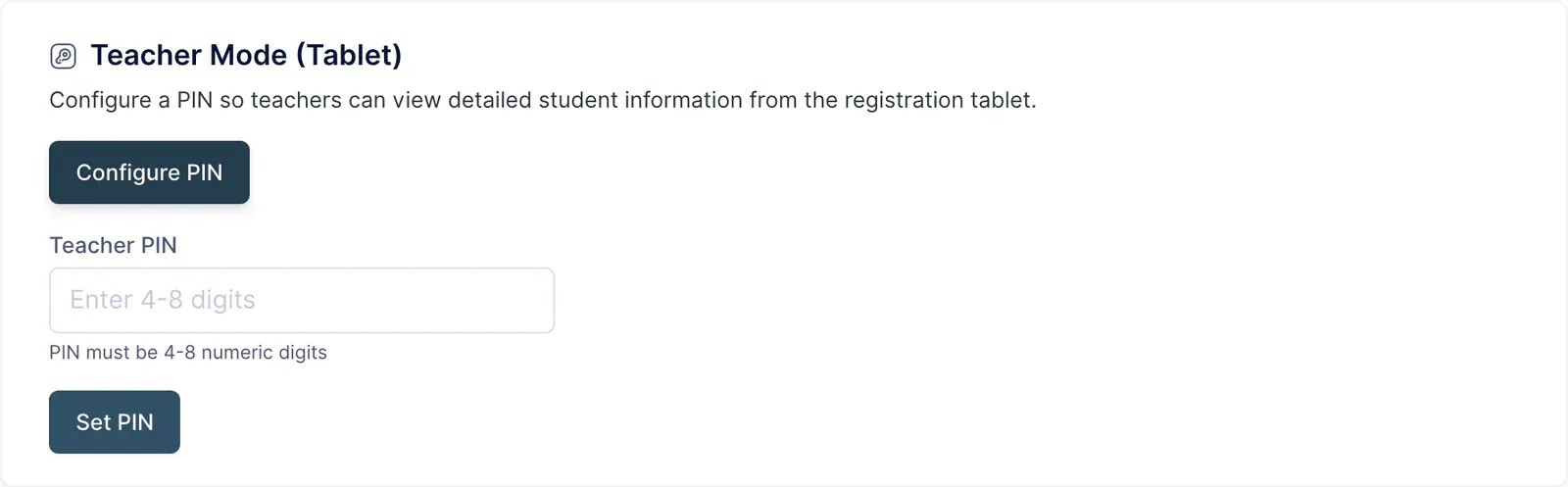
- Open the teacher-PIN settings
- Enter a code containing four to eight digits
- Save and check that teacher mode is enabled
- Share the code only with people who need these tools
Changing or removing the PIN invalidates access on tablets using the earlier code. An already open screen may update its state when it makes the next request. Check the kiosk after a change, especially if reception uses more than one device.
Enter and leave teacher mode
On the kiosk, select the P button and enter the PIN. This entry point is absent until a PIN has been configured. Once active, the control changes to the exit action and student cards can open their details.
The session locks after ten minutes without interaction and also has a maximum lifetime of one hour. Do not rely on automatic locking when leaving the tablet unattended: use the exit control and check that the ordinary student view has returned.
This code is separate from the app’s Tablet Mode exit PIN. One protects tools inside the kiosk; the other prevents leaving the kiosk to access the rest of the device.
Inspect information and add notes
Open a person’s card and check their name before reviewing details. Teacher mode can expose information that should not remain visible at reception. Some labels in these tools currently appear in Spanish even when an academy is configured in another language.
When adding a note, record concrete information useful to staff. The kiosk does not identify the writer through an individual teacher login, so do not assume its displayed author is necessarily the person who entered the shared PIN.
Mark attendance for a group
When a schedule has associated groups, teacher mode offers member selection for group attendance. Review who is actually present before confirming, then inspect the result on the class list.
Set up student groups first and use the kiosk guide to correct registrations. When finished, leave teacher mode before returning the tablet to students.
Related articles
Still have questions?
Write to us and a real person will answer, in your language.