
Create student groups and use suggested groups
Create student groups by level, age or goal, review the groups MatGoat suggests from class attendance, and filter students and payments by group.
Where: Student groups
Updated on
Open in MatGoatGroups bring together students you want to view or mark present as a set: a competition team, children’s group or people who regularly attend an activity. A student can belong to several groups. Groups organize your work, but they do not grant class access or change payment plans and limits.
Create a group and select members
From Students, open the student-groups tab. Teachers and administrators can create and edit groups without a separate group-management permission. Representatives cannot be members of a student group, although training teachers and administrators can appear in its member selector.
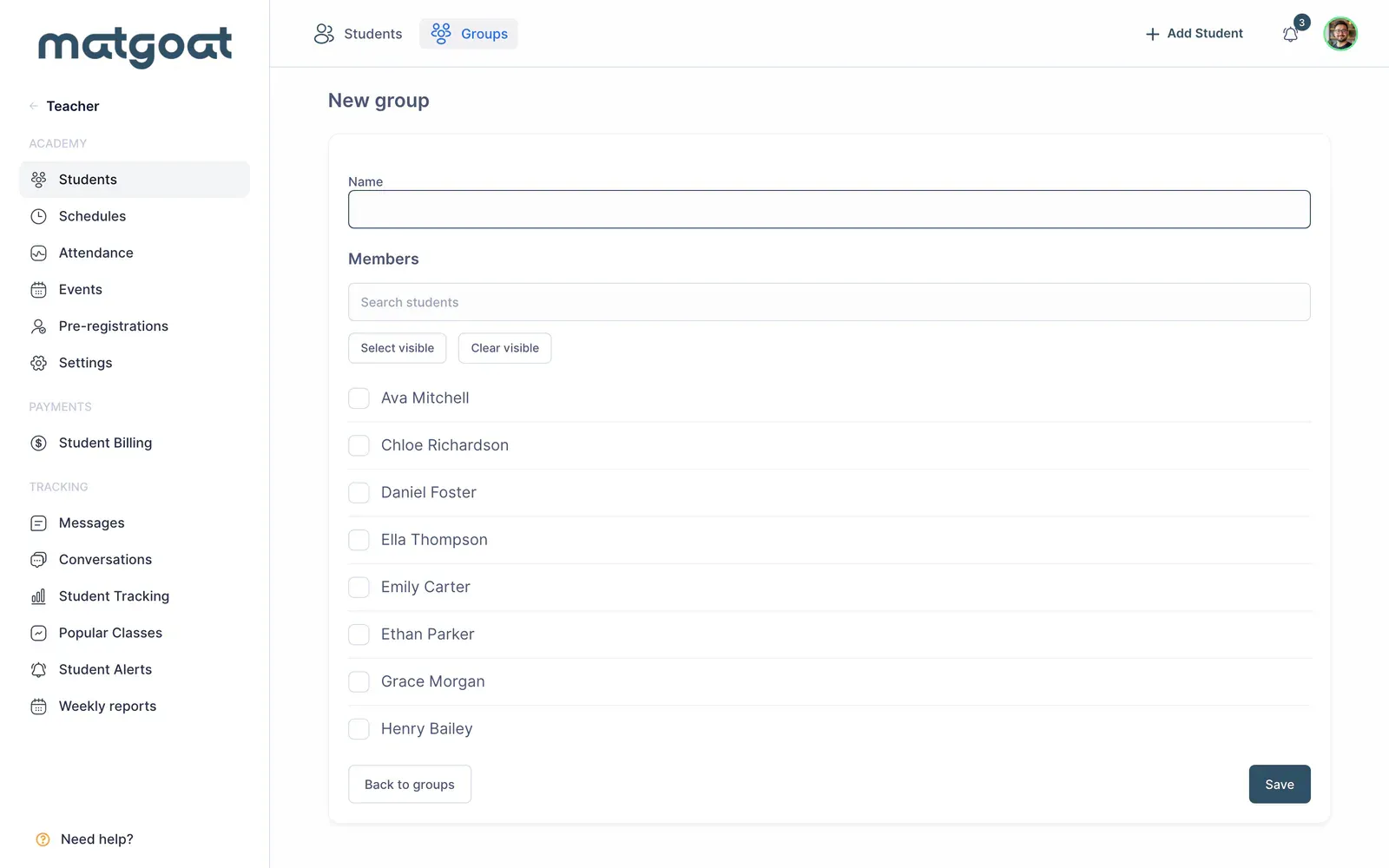
- Open the new-group form
- Enter a recognizable name different from existing groups
- Select the people who should belong to it
- Save and review the resulting membership list
Names must be unique within the academy, ignoring letter case, and can contain up to 80 characters. Saving the edit form replaces membership with the checked rows. If you uncheck someone and save, you remove them from the group, not from the academy or their existing payment plan.
Review suggested groups
Suggestions use recorded attendance at class types. Adjust the day window and minimum class count, then update suggestions to recalculate. Review the proposed students before saving a group named after an activity; its name alone does not prove that every intended student is included.
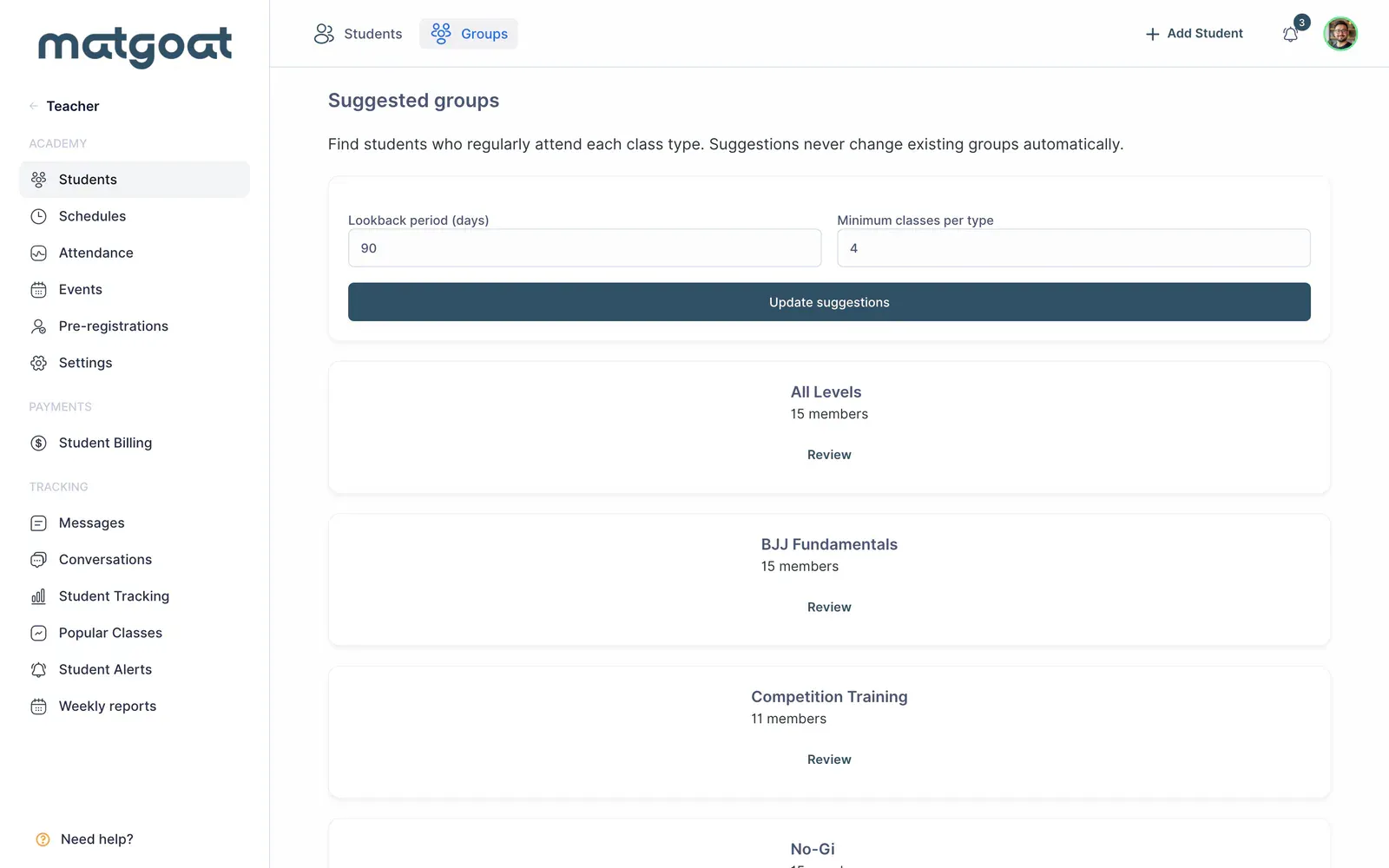
The calculation uses participants, excluding observers, archived students and future classes. In preregistration academies, only checked-in bookings count. Correcting attendance can change a suggestion, so review the underlying selection before using it for communication.
Saving proposed members into an existing group adds them while retaining its current members. This differs from editing the group’s full form, where the checked boxes define its entire membership.
Use groups in filters and schedules
Use the group filter on the roster and payment grid to focus on that population. Filtering changes the view; it does not change amounts or automatically assign plans to the selected students.
You can associate a group with a schedule to make group attendance available on the class sheet or tablet. That association does not create bookings automatically and does not prevent other students from registering for the class.
Keep membership current
Archiving a student retains their group membership; deleting them from the academy removes it. Deleting a group removes its membership and schedule links while preserving attendance history.
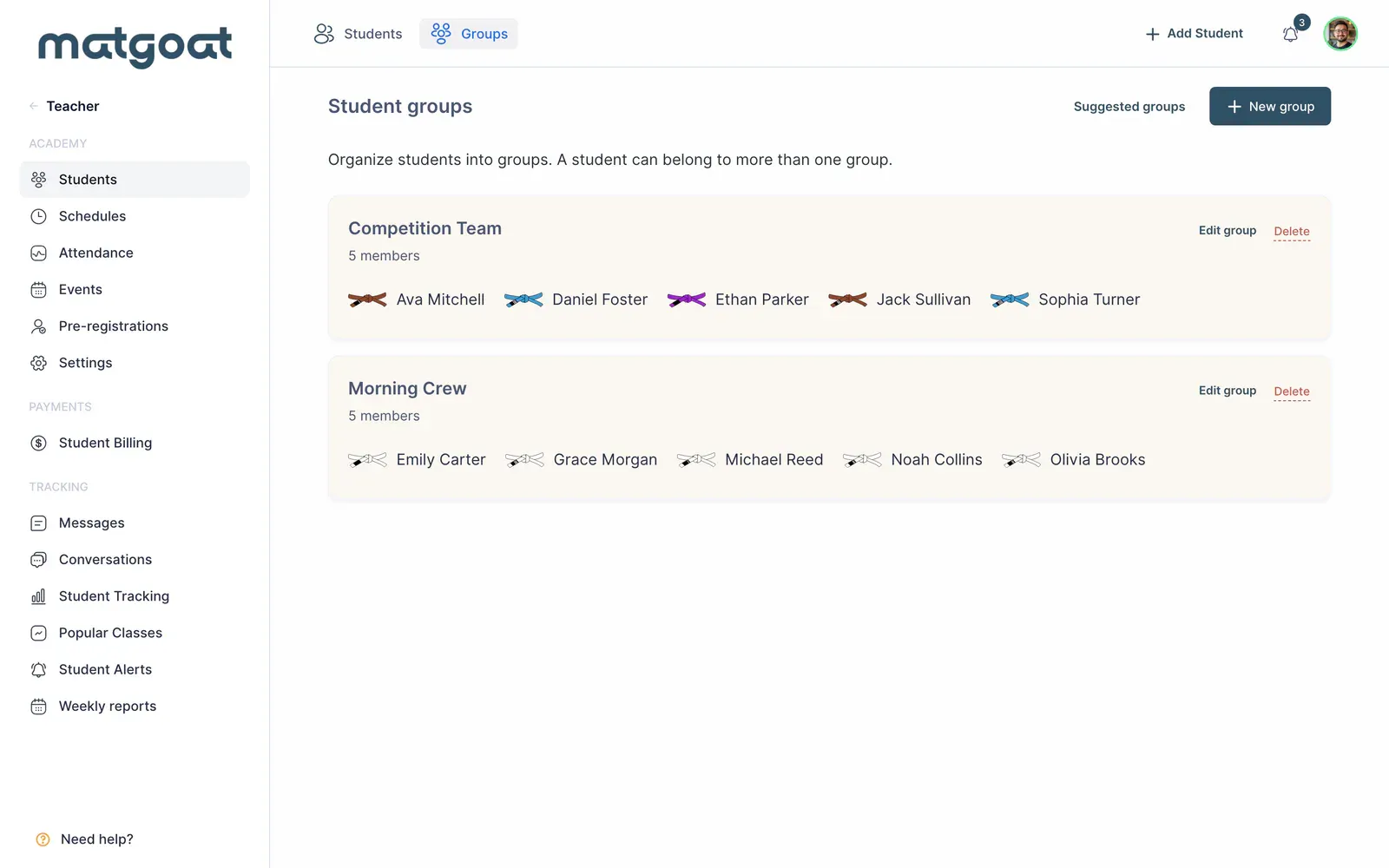
To use the group during class, follow the attendance-sheet guide. To check which population you are viewing or exporting, review the student filters.
Related articles
Still have questions?
Write to us and a real person will answer, in your language.