
Student list: filters, exports and bulk actions
Search and filter the student list by activity, age, status and group, export the roster to Excel or CSV, and apply actions to several students at once.
Where: Students
Updated on
Open in MatGoatThe Students list helps you find members, review activity and work with a specific set of profiles. Its filters have their own definitions. Before comparing its “active” count with a payment screen, check which activity rule each page applies; the same label does not guarantee the same population.
Search and understand the filters
Open Teacher > Students and use the search field. Available filters cover activity, student type, membership status and group, depending on academy configuration and data. Child-category filtering appears when the academy supports children’s belt categories; a group filter requires existing student groups.
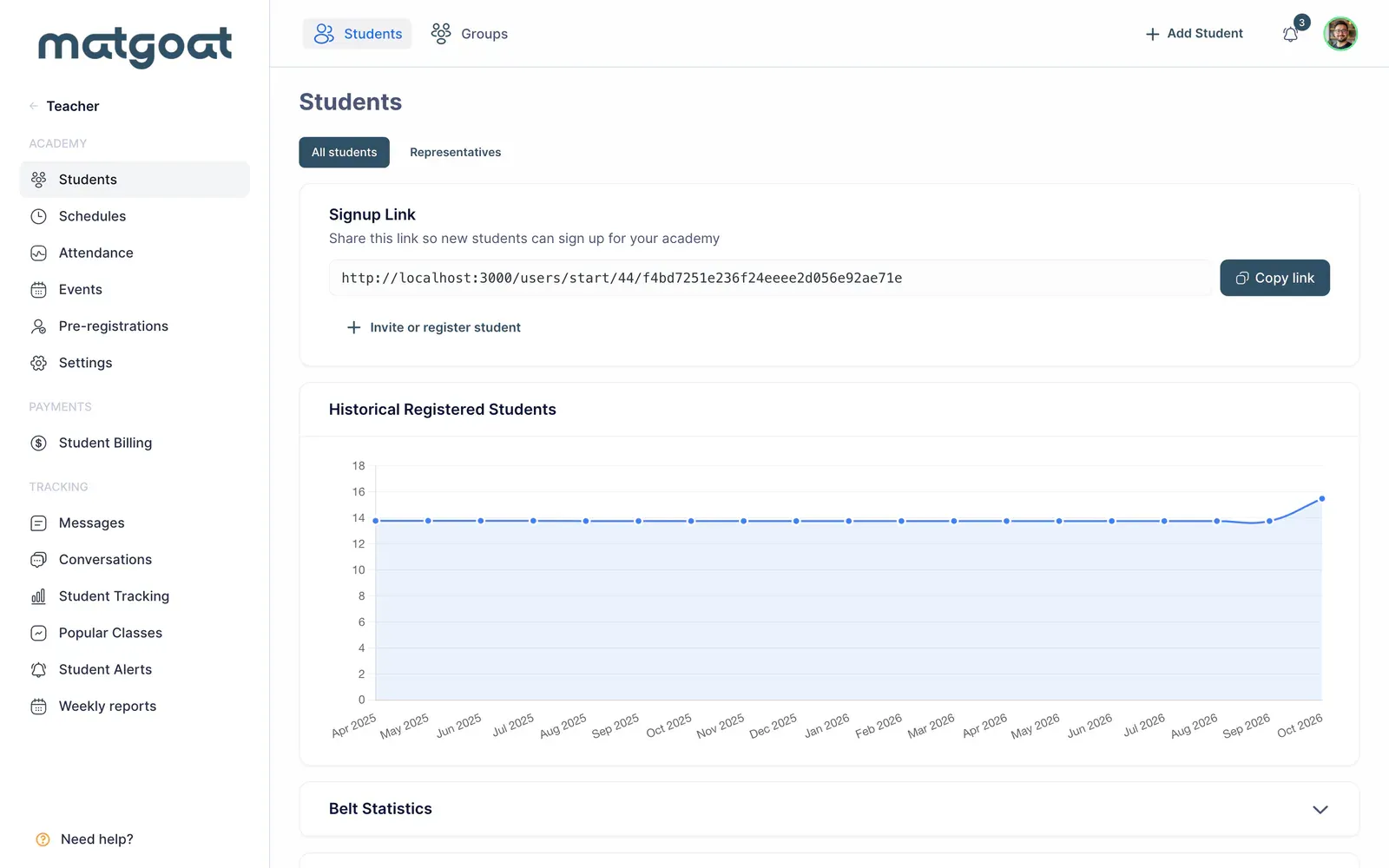
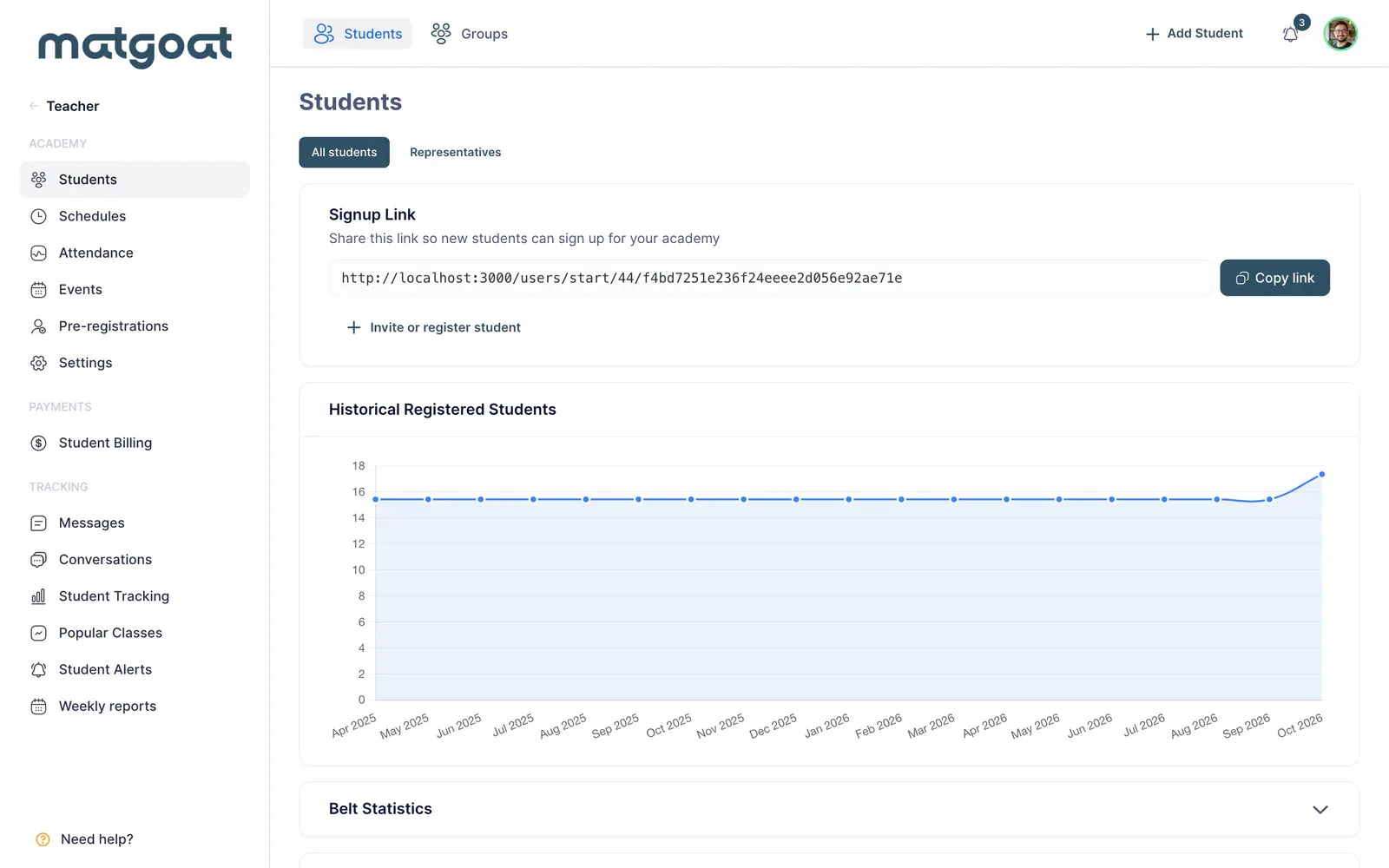
The active filter uses attendance during the last 60 days. Someone with a current plan can fall outside it if they have not attended. Activity and student-type filters update the list, while membership and group choices can reload the page. The address preserves the selection and search text.
Review charts, statuses and representatives
The registered-student chart shows cumulative membership growth, not the number training now. It uses joining dates and is hidden when a group filter is applied. The table and chart use related titles, so identify which block you mean when discussing figures with another teacher.
Representatives have their own tab on this page. They are not training students and should not be placed in an attendance group simply to manage family payments. Archived members also have a separate view; exporting from that view retains its scope rather than adding active members back in.
Export the intended population
- Apply the search and filters you need
- Check several rows to confirm the result is appropriate
- Use the Excel export action for the filtered population
- Review the file and its scope before sharing it
The Excel file follows current filters and search text. Its personal-data columns depend on what the academy collects and the exporting user’s permissions. Private notes and sensitive information require permission to view and edit student personal information.
CSV export from the bulk toolbar is different: it contains only selected rows and uses English column headings. Selecting a few checkboxes is not the same operation as exporting every row matching a filter.
Use bulk actions with context
Selecting rows reveals the available action toolbar. Check the selected names before creating a group, preparing communication or assigning a plan. Each operation keeps its own permissions and conditions; selecting students does not grant unrestricted authority to change their records.
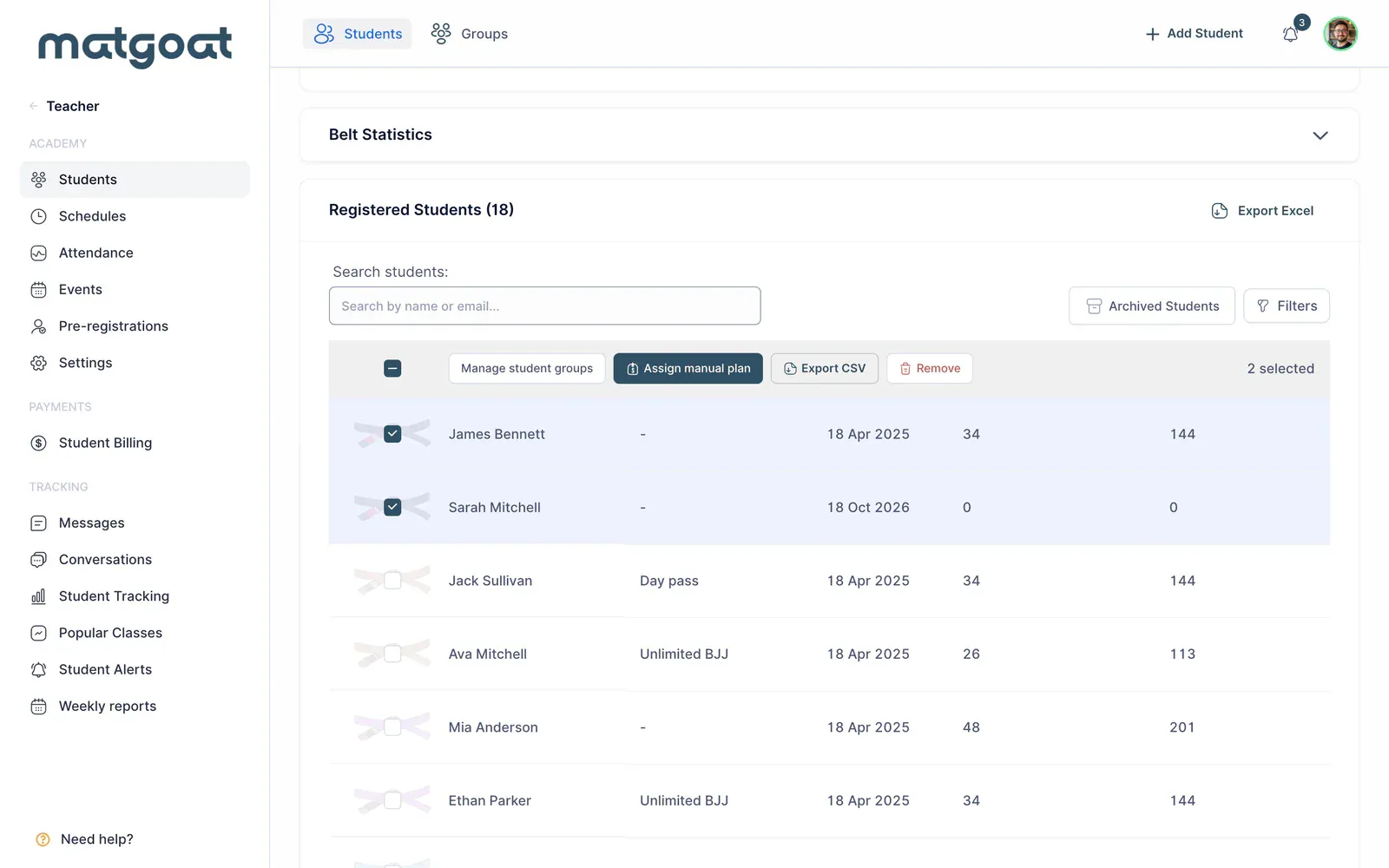
Use student groups to organize recurring sets of members. Before exporting or acting on an individual discrepancy, open the student’s profile and inspect the source information.
Related articles
Still have questions?
Write to us and a real person will answer, in your language.