
Configure each teacher's permissions
Adjust each teacher’s permissions and accessible schedules, taking account of automatic saving when a switch or assignment changes.
Where: Teacher Permissions
Updated on
Open in MatGoatPermissions adjust what a teacher can do within an academy. They apply to that academy membership, not automatically to every academy associated with the account. An administrator must make the changes; these switches do not turn an administrator into a restricted teacher.
Open the teacher’s permissions
In Teachers, open the person’s permissions action and check their name on Teacher Permissions. First identify the tasks they need: consulting personal information, preparing classes, inviting students and recording payments require different capabilities rather than one universal staff-access switch.
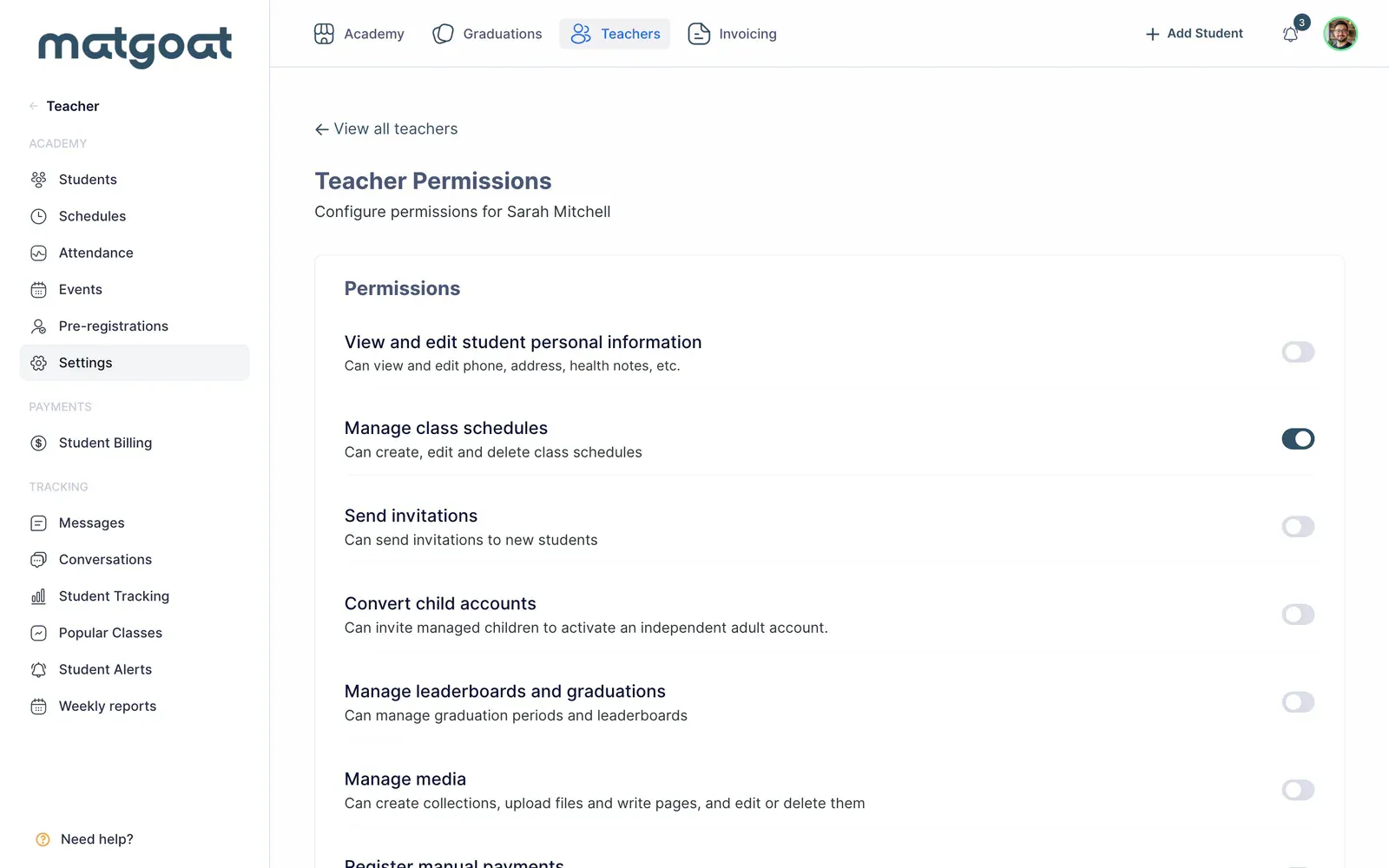
Changes save automatically when you move a switch or change a schedule checkbox. There is no final Save step that lets you experiment without applying the change. Wait for Permissions saved and review any error before leaving the page.
Choose the permitted actions
- Check the selected teacher and academy
- Enable or disable one capability according to their work
- Wait for automatic-save confirmation
- Verify the result before changing another capability
The page controls student personal information, schedule management, invitations, managed-account conversion, rankings and graduations, content management and payment recording. Invoicing appears only when that feature is enabled for the academy. Granting its permission does not activate a feature that is otherwise unavailable.
Access to personal details does not let staff replace a member’s login email through their profile. Permission to record payments also does not make a teacher an administrator or grant every Stripe operation and plan-configuration action.
Assign specific schedules
The all-schedules setting determines whether a teacher has broad access or works with selected schedules. Turning it off reveals the day-based selection when schedules exist. Select only the appropriate entries; every checkbox change saves automatically, including when several are changed in succession.
Permission to manage class schedules controls creation, editing and deletion. It is different from opening the schedule list and from the assignments that determine accessible attendance sessions. Naming someone as the teacher of a class does not replace these assignments.
If sessions are missing, review both general access and individual checkboxes. An empty attendance calendar can mean that no schedules are assigned, rather than that the academy has no classes or needs to recreate them.
Verify everyday work
After adjusting access, ask the teacher to review the required screens using their own account. Check a profile, a schedule and the relevant action. Your administrator account is not evidence that their restricted access works.
To add another person, consult teachers and administrators. To check class access, use the attendance sheet and correct schedule assignments before unnecessarily widening other permissions.
Frequently asked questions
Do I need to save permission changes?
Each switch and schedule checkbox saves automatically. Wait for Permissions saved before leaving; there is no final button that applies all changes together.
Related articles
Still have questions?
Write to us and a real person will answer, in your language.