
How to create a subscription plan
Create online or cash plans from Payments > Plans: price with VAT, billing frequency, enrollment fee, trial days, family pricing and class limits.
Where: Subscription Plans
Updated on
Open in MatGoatOpen the plan list
As an administrator, open Student Billing > Plans and select New Plan. If you have not created plans yet, the page offers manual payments or automatic Stripe payments as starting points. This choice belongs to each plan; both methods can coexist in the same academy.
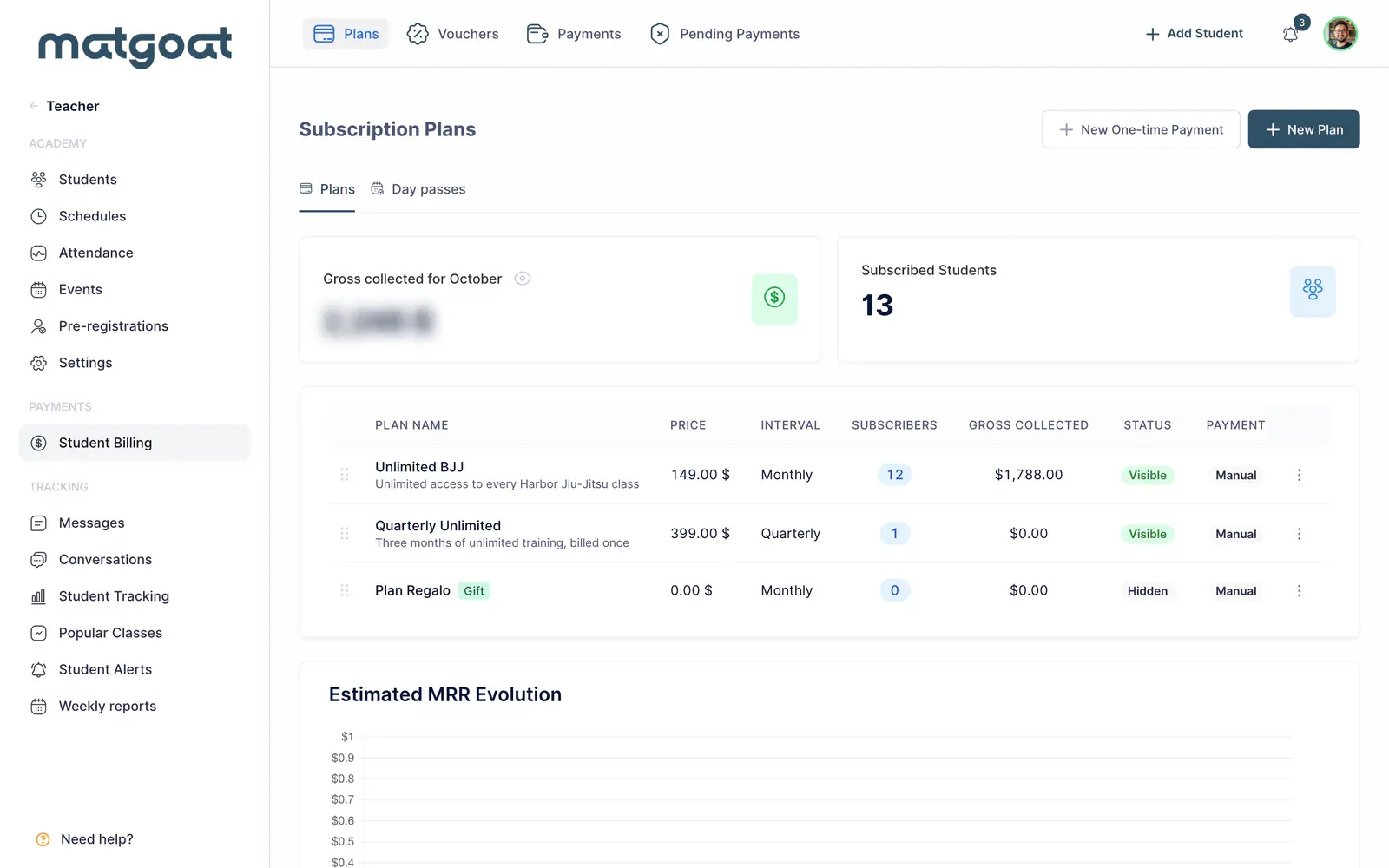
Before completing the form, decide what access you are offering, how much it costs and how you will collect payment. A specific name, such as “Two days per week”, helps students and staff recognise the plan in lists, payment records and profiles.
Set the price and frequency
- Enter a name and description explaining who the plan is for
- Select Cash payment or Online payment (Stripe)
- Enter the price and currency, checking the final tax-inclusive amount shown by the form
- Choose the billing frequency and complete only the additional options you need
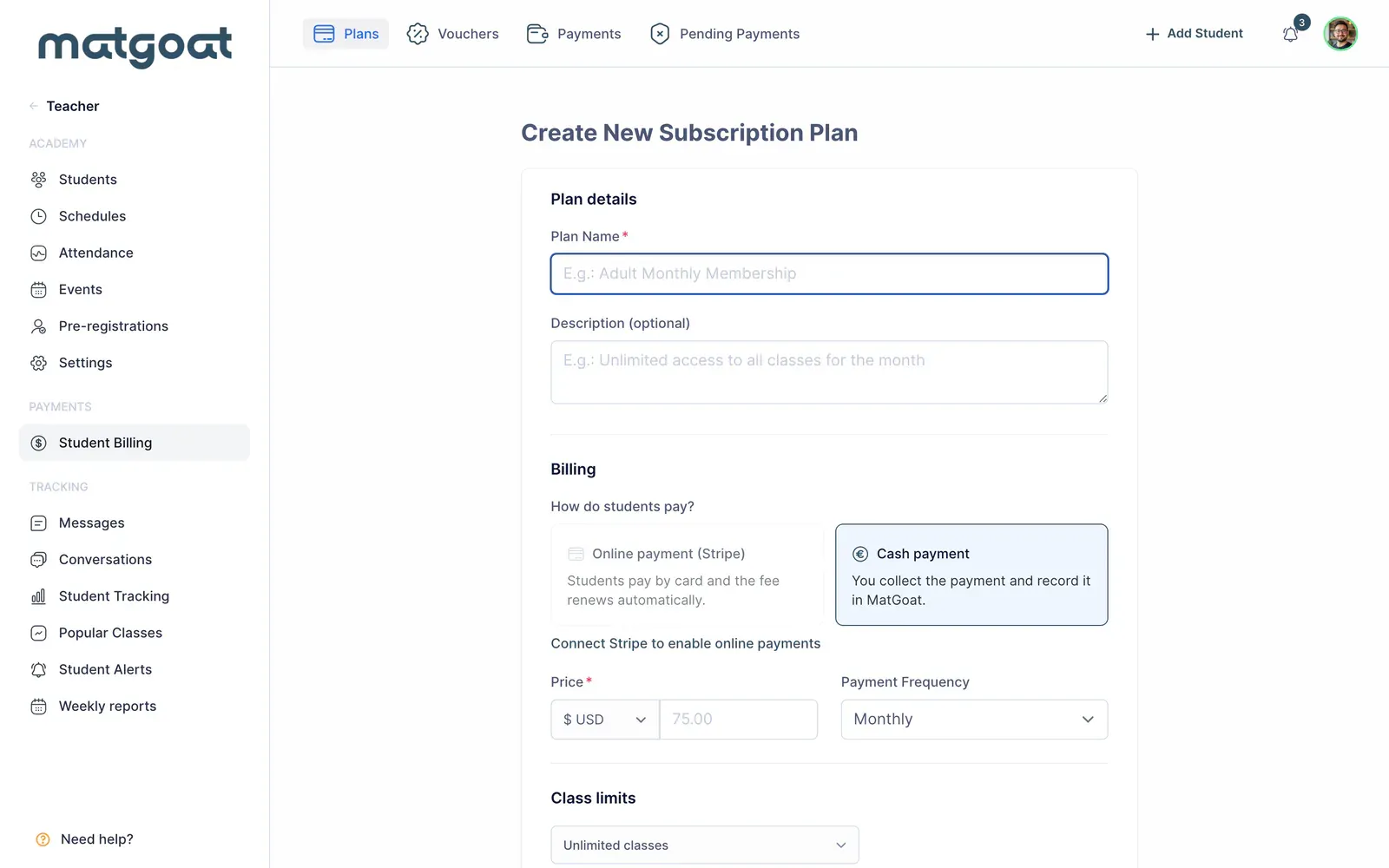
Online plans require an active Stripe account. A manual plan organises access and staff-recorded payments; assigning it does not prove that money was collected. For a course or period without renewal, use New One-time Payment and read Sell day passes and one-time courses.
Enrollment fees, trials and family prices
You can enable an enrollment fee and a trial period. When subscribing to a plan with an enrollment fee, a student may be asked whether they have trained at the academy for more than a month. Review that flow before offering the plan to existing members.
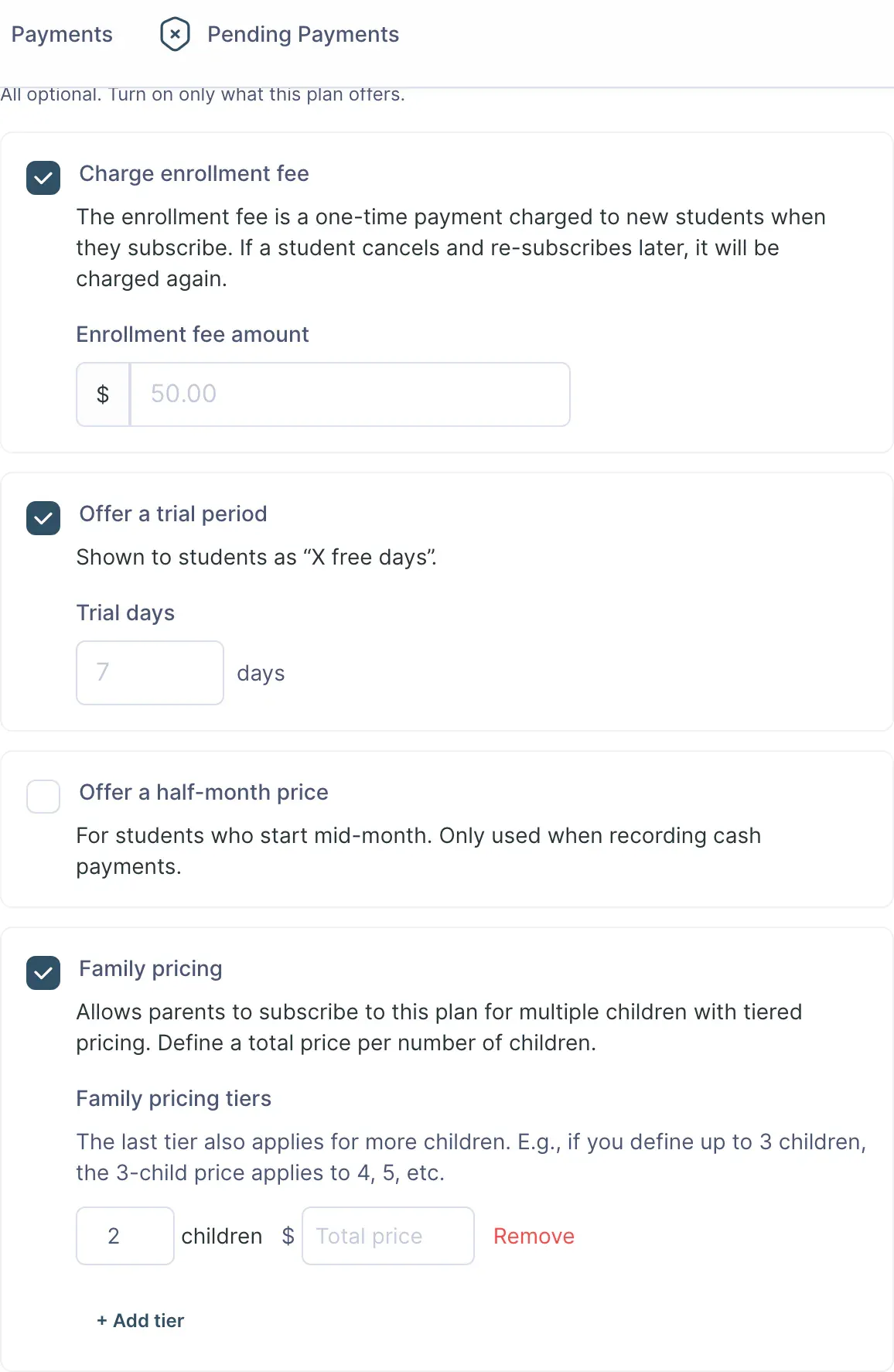
Half-month pricing belongs to manual plans and is used when recording the relevant payment. It does not turn a Stripe plan into a fortnightly subscription. Family pricing lets you define tiers based on the number of children; check each tier’s amount before saving.
These options cover different situations. Review the plan price, trial period and first-charge rules together so the amount you explain to a student matches the amount they will see when selecting the plan.
Limit classes and content
The form supports unlimited access, a maximum number of training days per week or month, or activity limits. In activity mode, you can group class types that share an allowance. Counting days and counting classes produce different results when someone trains twice on the same day.
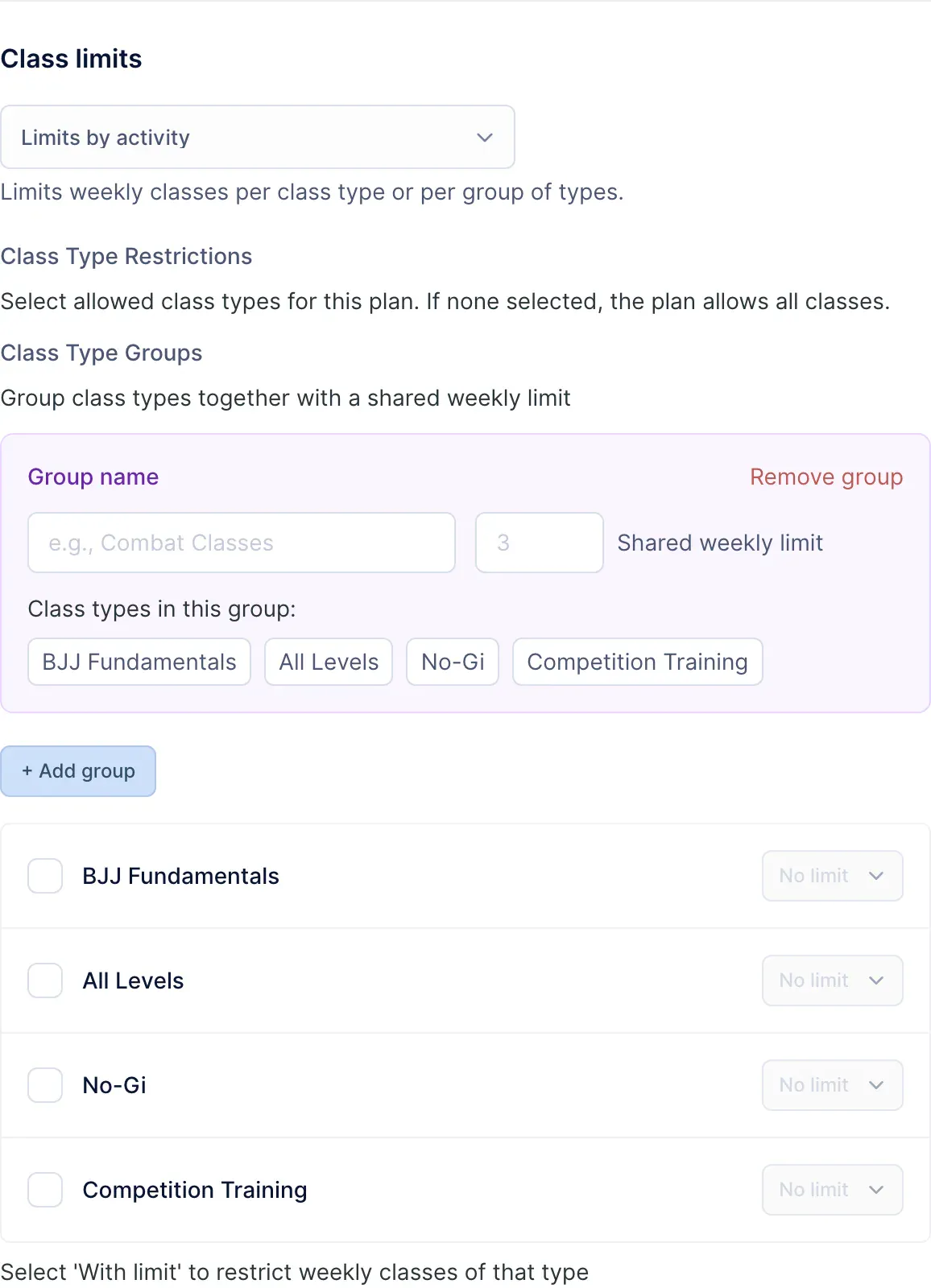
Also review content access and the permitted folders. After saving, check the plan in the list. Available actions let you reorder, feature, hide or duplicate it. Hiding a plan prevents new selections; it does not cancel subscriptions already using that plan.
The free plan and first assignment
The academy includes a free plan that staff can assign to instructors, scholarship students or other exempt members. Students cannot choose it themselves, and it cannot be deleted like an ordinary plan. Its class limits can still restrict access.
Finish by assigning the plan to an appropriate student or reviewing the student selection flow. Follow Assign, change or remove a student’s plan to choose the correct assignment without confusing access granted with payment received.
Frequently asked questions
Can manual and online plans coexist?
Yes. The payment method is chosen for each plan, so you can offer both in the same academy. Online plans need active Stripe; assigning a manual plan does not record a payment.
Related articles
Still have questions?
Write to us and a real person will answer, in your language.