
Assign, change or remove a student's plan
Open the student's profile and select the payments tab. Review the current plan, payment method and any pending change before choosing another option. Assigning access, recording a payment
Where: Students
Updated on
Open in MatGoatReview the student’s situation
Open the student’s profile and select the payments tab. Review the current plan, payment method and any pending change before choosing another option. Assigning access, recording a payment and modifying a subscription are separate operations, even when their controls appear close together in the profile.
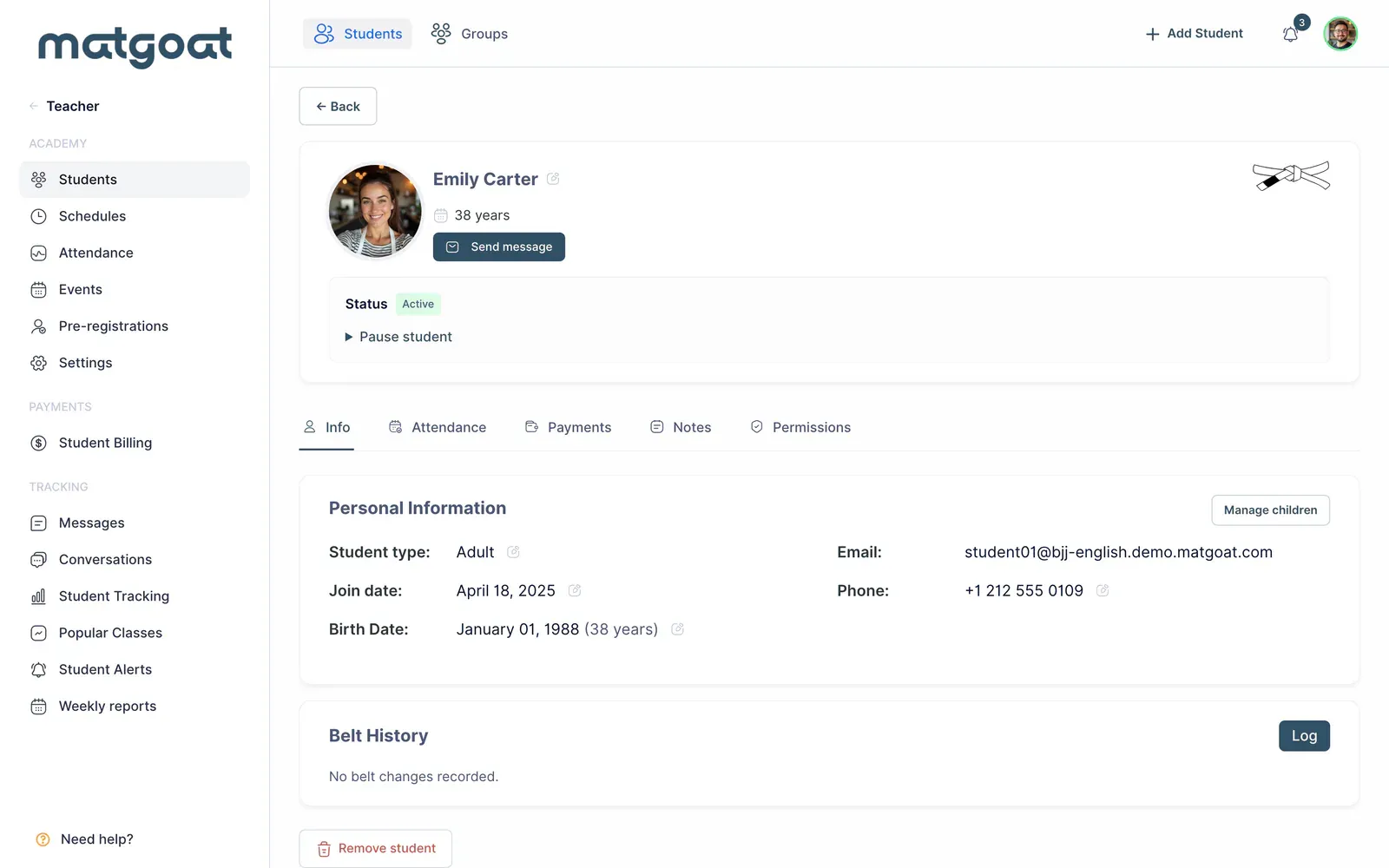
For families, check who pays and who receives access. If someone else manages a child’s subscription, the change controls may be on the account holder’s profile. Do not change another member’s plan to resolve a problem without first checking that relationship.
Assign a manual plan
- Find the plan selector on the payments tab
- Choose an active manual plan, including the free plan when appropriate
- Review the selected student and plan
- Confirm and check the current-plan card
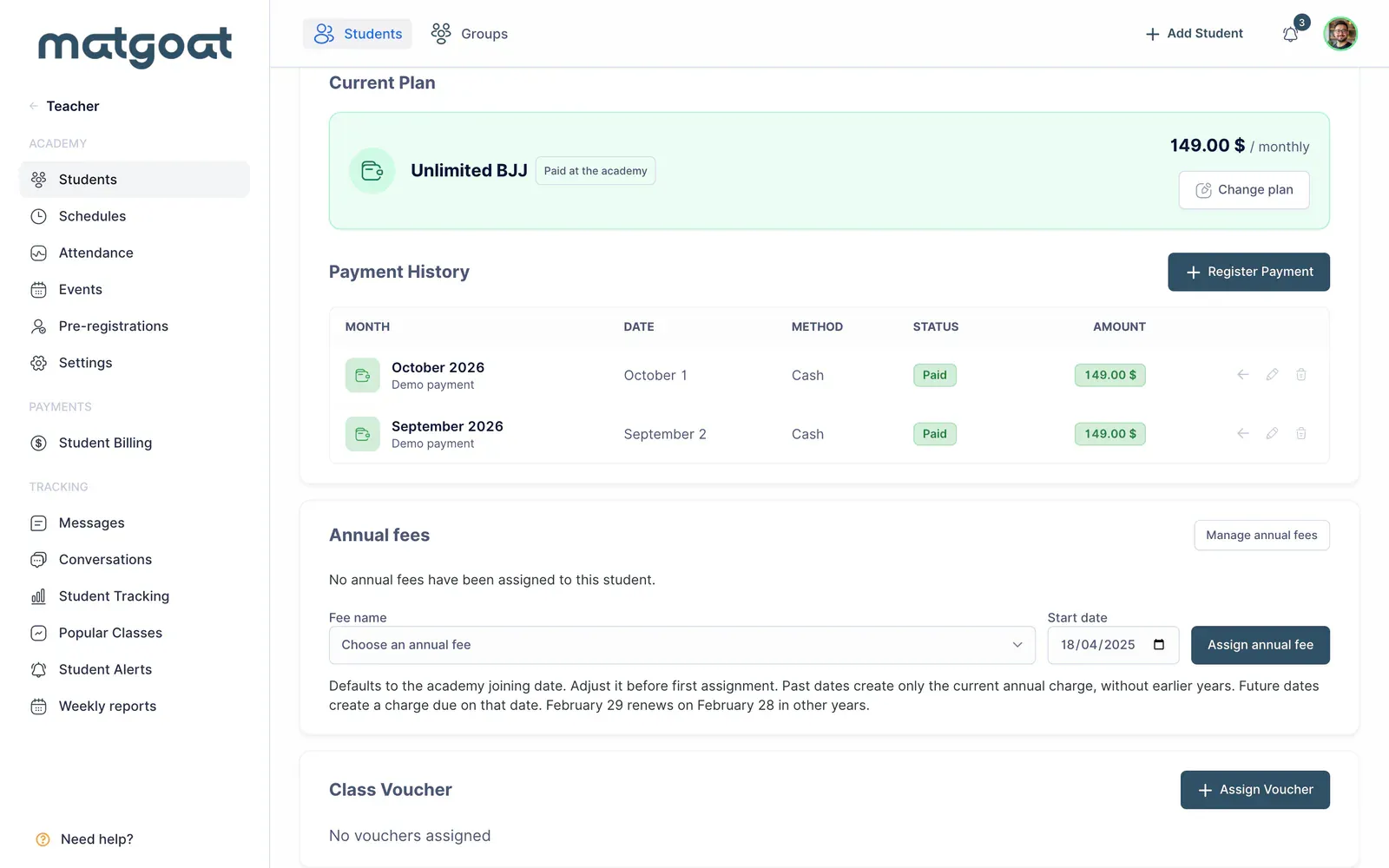
Assignment manages the student’s access. It does not itself record that you received the fee. If payment has already been collected, record it through the appropriate payment flow as well. If it has not, preserve that distinction when reviewing outstanding payments.
Stripe plans cannot be assigned as though they were manual plans. To begin online collection, use the subscription flow or payment link so the payer can complete the transaction and authorise their payment method.
Change or remove a manual plan
Use the available actions on the current-plan card. Afterwards, review the new assignment and its class limits. Existing payment records do not mean that the new plan provides the same access conditions as the previous one.
Removing an assignment does not delete the student or erase their payment history. If your intention is to stop their participation in the academy, review pause or archive options separately. Before removing access, check for family coverage, vouchers or other valid products.
Change an online subscription
A change between Stripe plans uses the existing subscription. Review the financial-adjustment options shown on screen: changing access now and calculating a price adjustment are related but distinct decisions.
Moving from a Stripe plan to a manual plan can be scheduled for the end of the current period. Check the displayed date and retain the current plan until the change completes. If the student decides to continue, the action to keep the current plan cancels that scheduled change.
Assign plans to several students
In the roster, select the necessary rows and open manual plan assignment. Review the names and plan before confirming: the action affects the selected group and does not create Stripe subscriptions.
Afterwards, check a profile from the group and record only amounts actually collected. Follow Record a cash, bank transfer or Bizum payment to complete that part of the process.
Related articles
Still have questions?
Write to us and a real person will answer, in your language.