
Record a cash, bank transfer or Bizum payment
Open Student Billing and select Register Payment. Teachers need permission to register payments. The complete form lets you explain what was collected and which period or item it covers,
Where: Register Payment
Updated on
Open in MatGoatRecord money received
Open Student Billing and select Register Payment. Teachers need permission to register payments. The complete form lets you explain what was collected and which period or item it covers, rather than relying only on a cell in the grid.
Before starting, identify the student receiving the service and the person making the payment. In families these can be different people. Also check whether Stripe or another staff member has already recorded the transaction, to avoid counting it twice.
Complete the form
- Select the student and appropriate category
- Choose the plan when the form offers that option
- Enter the month, year and covered months required for the transaction
- Review the amount, payment date and method used
- Check enrollment-fee or half-month options when displayed
- Save and verify the entry in the student’s history
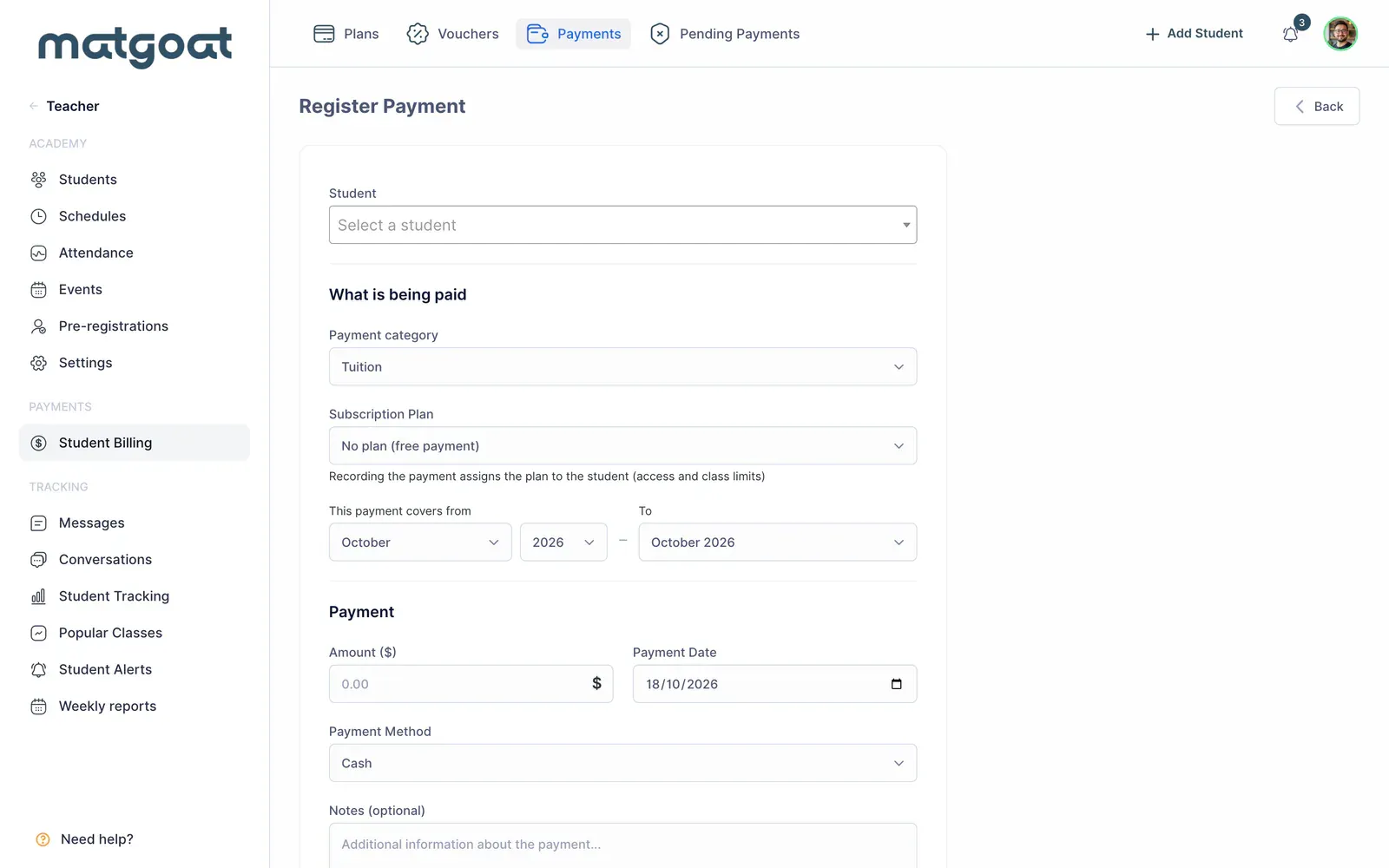
Cash, bank transfer and other available methods describe how you received the money. Selecting a method does not initiate a bank transfer or charge a card. Use the amount actually received and keep any notes needed to understand a later correction.
Plan options can change both the total and coverage. If the student paid several months, check the resulting periods after saving. For a Stripe plan paid at reception, use the specific flow described in Set the first charge: full month, proration or payment at reception.
Use quick registration
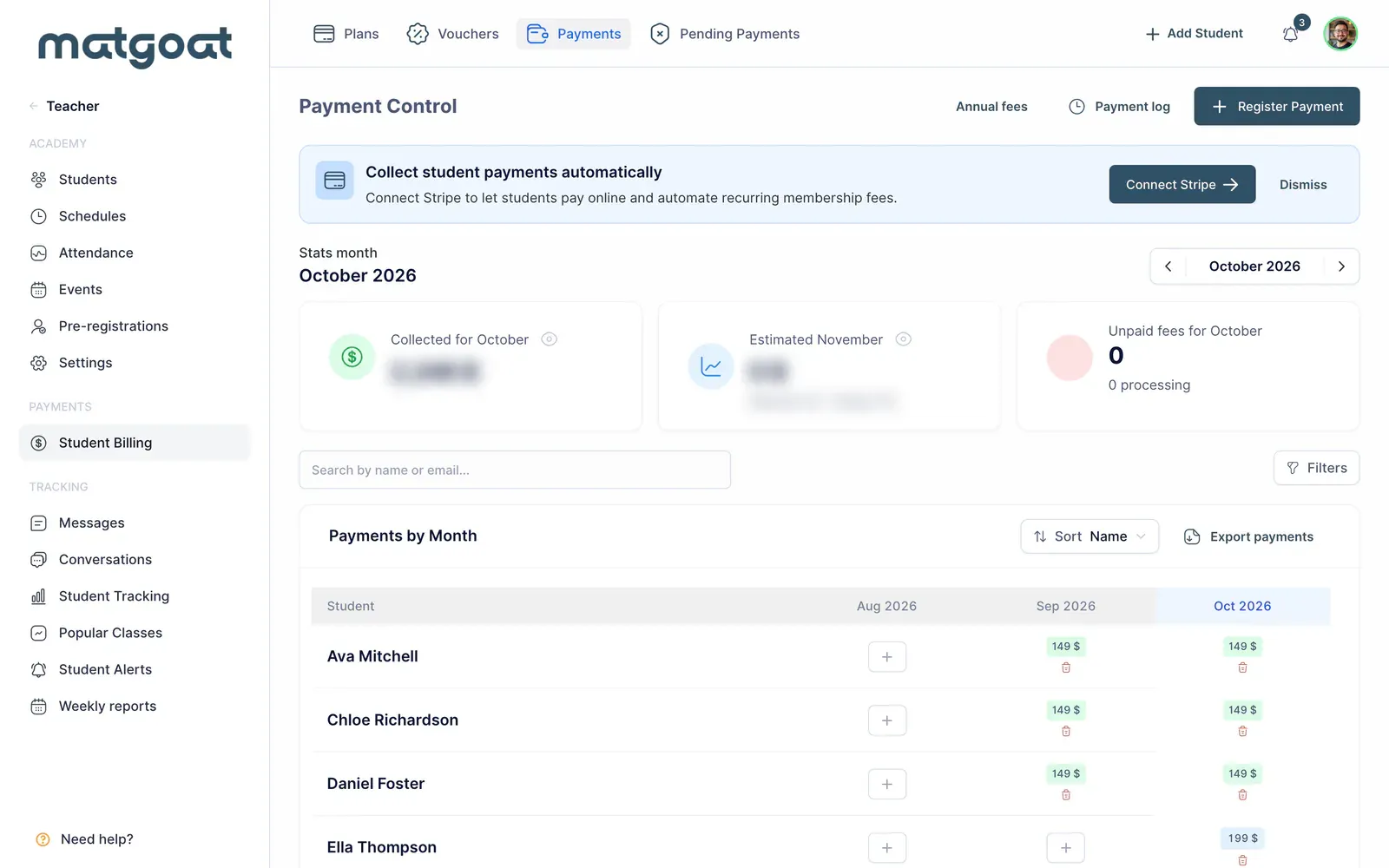
The grid’s add symbol records a simple fee for one student and month. It is useful when you do not need enrollment fees, half-month pricing or plan-related coverage. Open the complete form whenever those options are required.
Email confirmation and PDF receipts depend on academy settings. Recording a payment does not guarantee that a document was sent: check the configuration and whether there is a recipient with valid contact details.
Leave a product unpaid and settle it
In the product category, pending status creates a debt awaiting collection. Describe the product and amount; do not count it as money received. The student’s payment profile lets you return to that debt later.
When the money arrives, use the settlement action and record the actual date and method. This connects the receipt to the debt. Do not also create a separate payment for the same product. Outstanding debts offer edit and delete actions according to your permissions.
Correct or refund a payment
The person who created the record and administrators have the permitted modification actions. Review the edit form and confirmation before changing amounts or deleting entries.
A manual refund records money you returned outside Stripe; it does not automatically send money to the student’s bank. If you marked it by mistake, use undo refund where available. Online charges and passes have their own management flows.
After any correction, return to the history and check the amount, status and coverage.
Frequently asked questions
Does recording a transfer move money from the student's bank?
No. The form records money you have already received through the selected method. A manual refund does not send money automatically either: it records a refund made outside Stripe.
Related articles
Still have questions?
Write to us and a real person will answer, in your language.