
Create class types with colors and per-plan limits
Create your academy's class types, pick the color students see on the calendar, and add each type to plans with activity limits as you create it.
Where: Class Types
Updated on
Open in MatGoatA class type identifies an activity, such as Fundamentals, No-Gi or Kids. Its name and colour make it recognisable in the calendar. You then assign that type to one or more weekly schedules or to a one-off class.
Open class types
Go to Teacher > Schedules and select Manage Class Types. Teachers and administrators can open and manage these types.
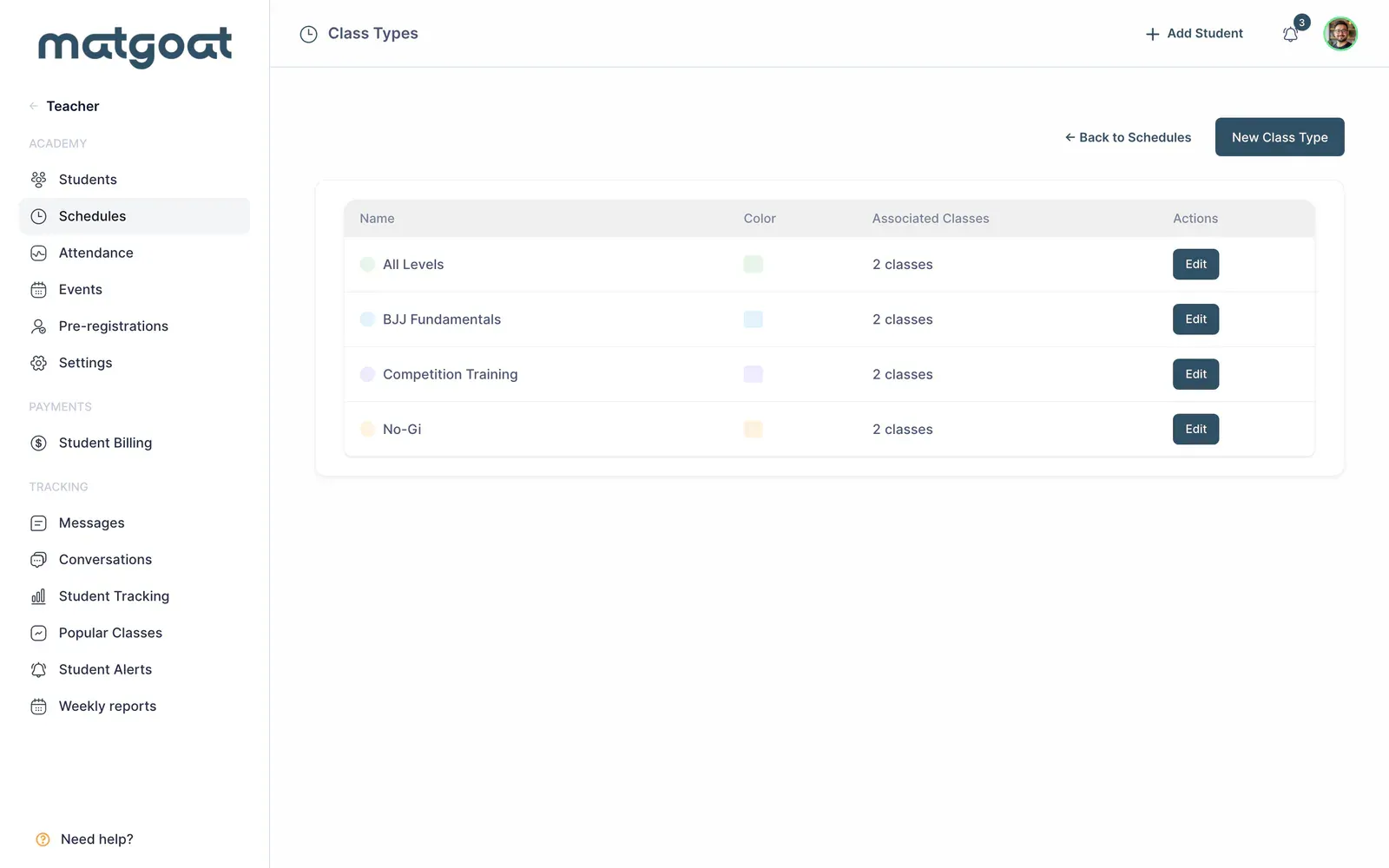
The list displays the name, colour, discipline where applicable, and associated classes. If you have just created the academy, the first setup-checklist step also leads here.
Create an activity
- Select New Class Type
- Enter a name your students can distinguish from the other activities
- Choose a colour from the palette
- If you teach several disciplines, select the one associated with this activity
- Save the class type
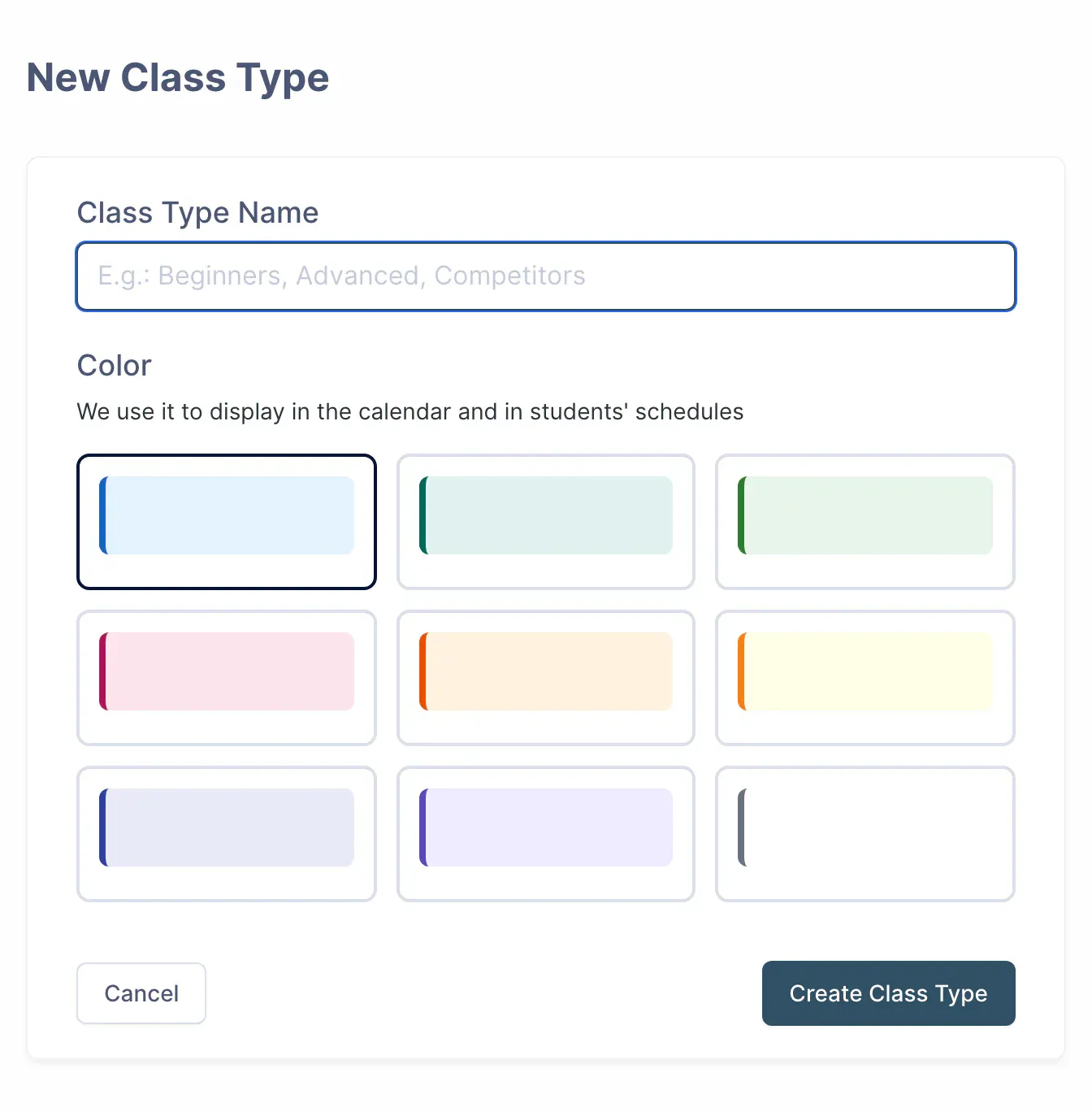
The name must be unique within the academy. The type’s discipline determines which belt is used in contexts associated with that activity; if you do not choose another, the academy’s main discipline applies.
Use names that describe the class and leave days and times to the schedule. You can then use the same type on Monday and Wednesday without creating duplicate activities.
Review plans with limits
When creating the type, you may see Plans with class limits. This section lists plans that already restrict activities, so you can include the new type in the appropriate ones.
Select each plan that should include it and enter its weekly limit where applicable. Afterwards, check the plan itself if you need to change an activity group or review all its conditions.
Creating a class type does not assign plans to students. It also does not create calendar dates: create a schedule using the saved type to do that.
Edit or retire a type
Use Edit to correct its name or colour. The change affects how that activity is identified on the screens where it is used.
The application prevents deletion of types with active weekly schedules, future classes or other sessions using them as a type override. Review the dependencies before confirming any deletion.
With the type saved, return to schedules and create the first class with its actual day and time.
Related articles
Still have questions?
Write to us and a real person will answer, in your language.