
Finding your way around MatGoat: menu, teacher panel and help
Learn the sidebar, the Teacher panel, the Messages bell and your avatar menu, and find out how to reach MatGoat support from inside the app.
Where: Welcome
Updated on
Open in MatGoatMatGoat’s menu combines your personal training activity with the academy’s management tools. What you can open depends on your role in the selected academy and your account permissions.
Your personal menu
The academy logo and Welcome lead to the home page. The training section contains your History, Leaderboard and My Calendar.
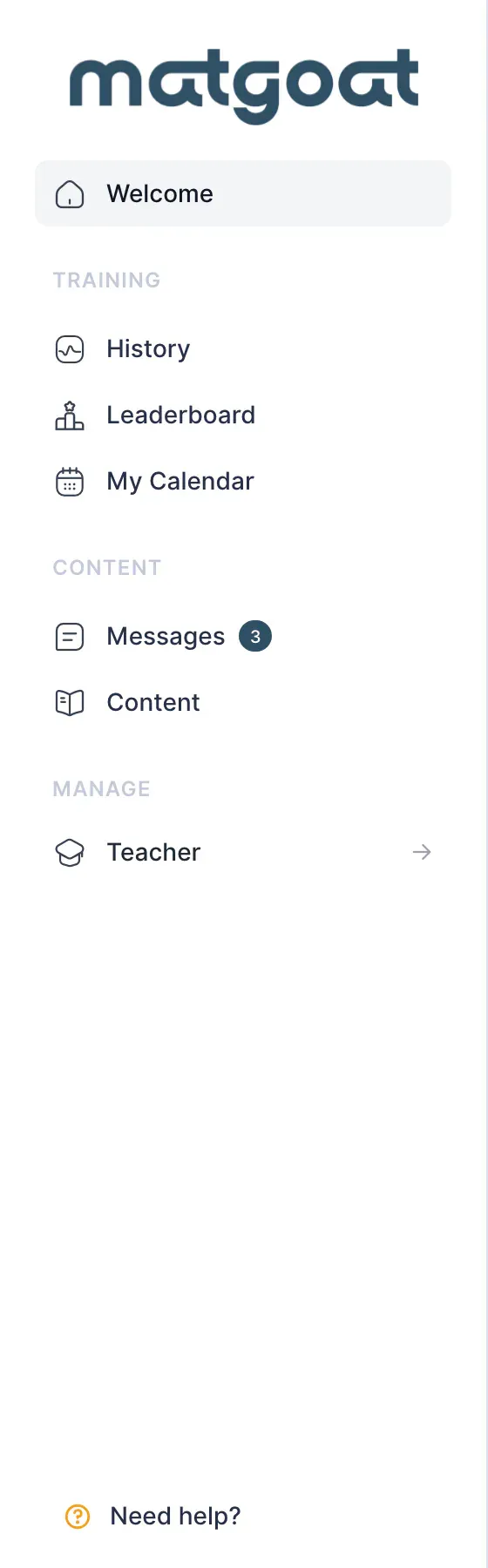
Messages opens your inbox. Content contains the videos, files and pages your academy shares with you. Guardians with linked children also see My Children.
The personal payments option depends on your account role and the academy’s plans or vouchers. Student billing is managed from the teacher panel, rather than through your personal subscription.
Open the teacher panel
Teachers and administrators see Teacher in the sidebar. Opening it reveals another panel with the working tools:
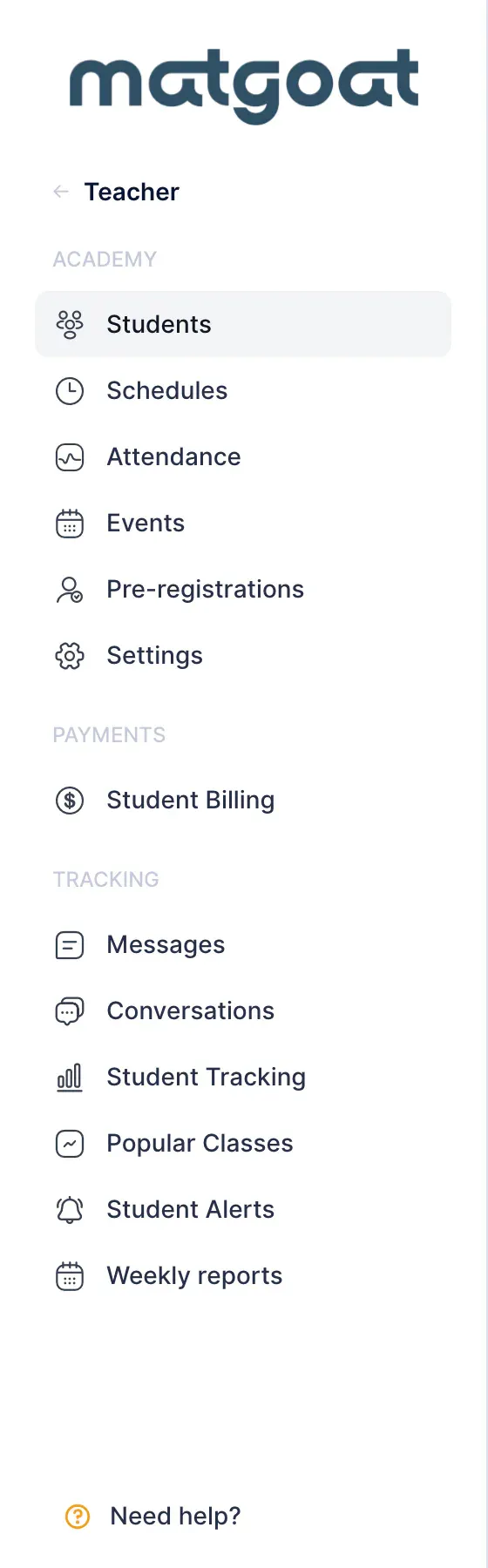
- Students for student profiles, registration and groups
- Schedules for class types and schedules
- Attendance for opening classes and taking attendance
- Events for the event calendar
- Student Billing for plans and payment control, depending on permissions
The tracking section contains announcements, conversations, Student Tracking, Popular Classes and Student Alerts. Weekly reports and academy settings are reserved for administrators.
Use the panel’s back arrow to return to the personal menu. On smaller screens, first open the menu from the header.
Use the header and tabs
The header displays the section title and, where applicable, its tabs. For example, settings provides access to the teacher or graduation options available for your academy.
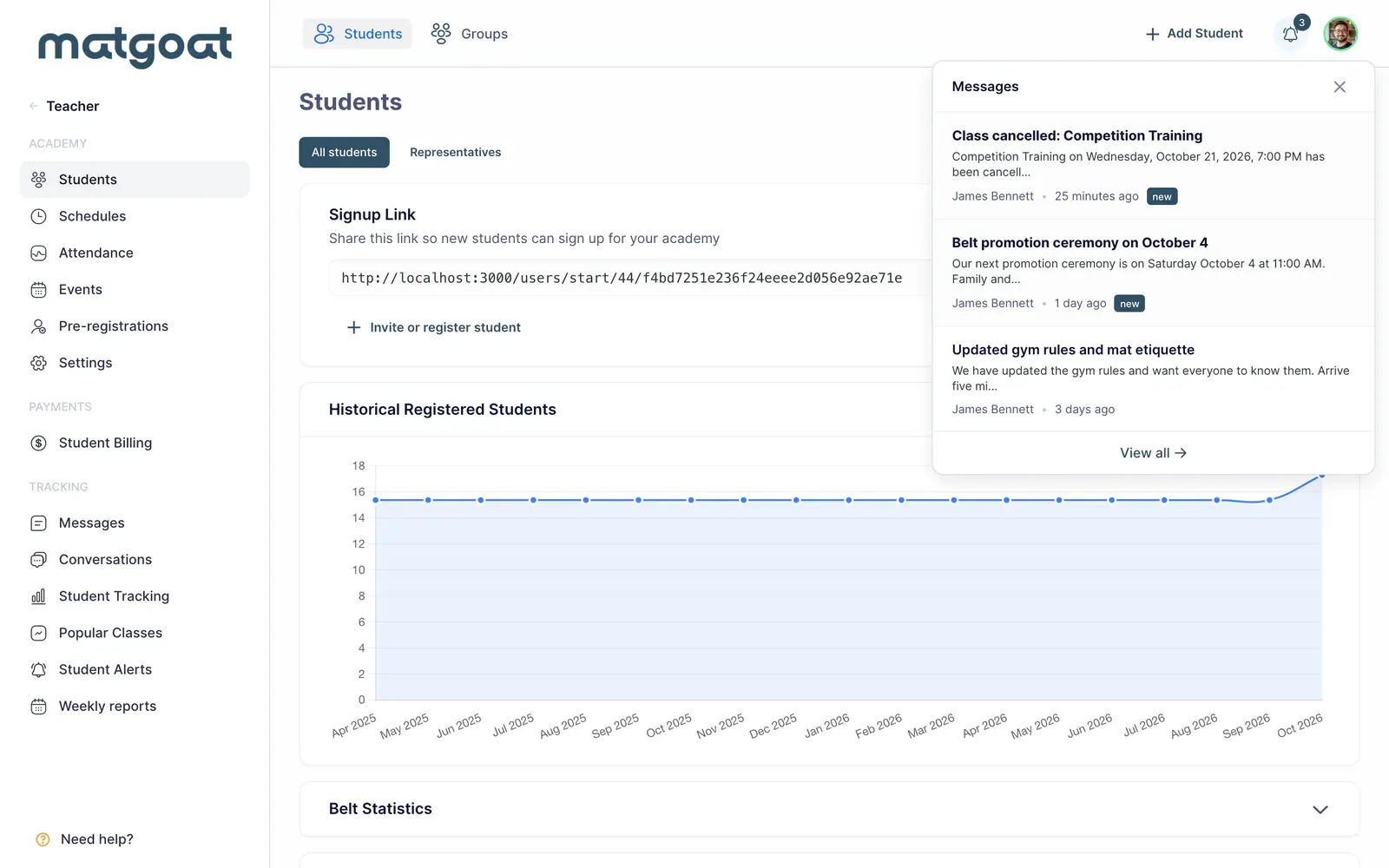
The bell opens recent messages. Your avatar menu lets you open your account, change appearance and language options, and sign out. If you belong to several academies, check which one is selected before editing records or recording a payment.
Find help within the application
The Need help? link in the menu contacts MatGoat through WhatsApp. You can also use the email and form at the end of this guide. Students with questions about prices, bookings or fees should contact their own academy first.
Open the teacher panel now and locate students, schedules and attendance: these are the three entries you will use to organise a class.
Related articles
Still have questions?
Write to us and a real person will answer, in your language.