
First steps: schedule, students and plan in 30 minutes
Work through the Get started with your academy card in MatGoat: create the first schedule, share the signup link and publish your first plan.
Where: Welcome
Updated on
Open in MatGoatWhen you sign in as the administrator of a new academy, the Get started with your academy card appears. It organises setup into three steps: create a schedule, bring in students and prepare a plan. Allow around thirty minutes for an initial setup; the time depends on the information you have ready.
Create your first schedule
Select Create schedule. The button opens class types: first create an activity, such as BJJ Fundamentals, then create a schedule for it.
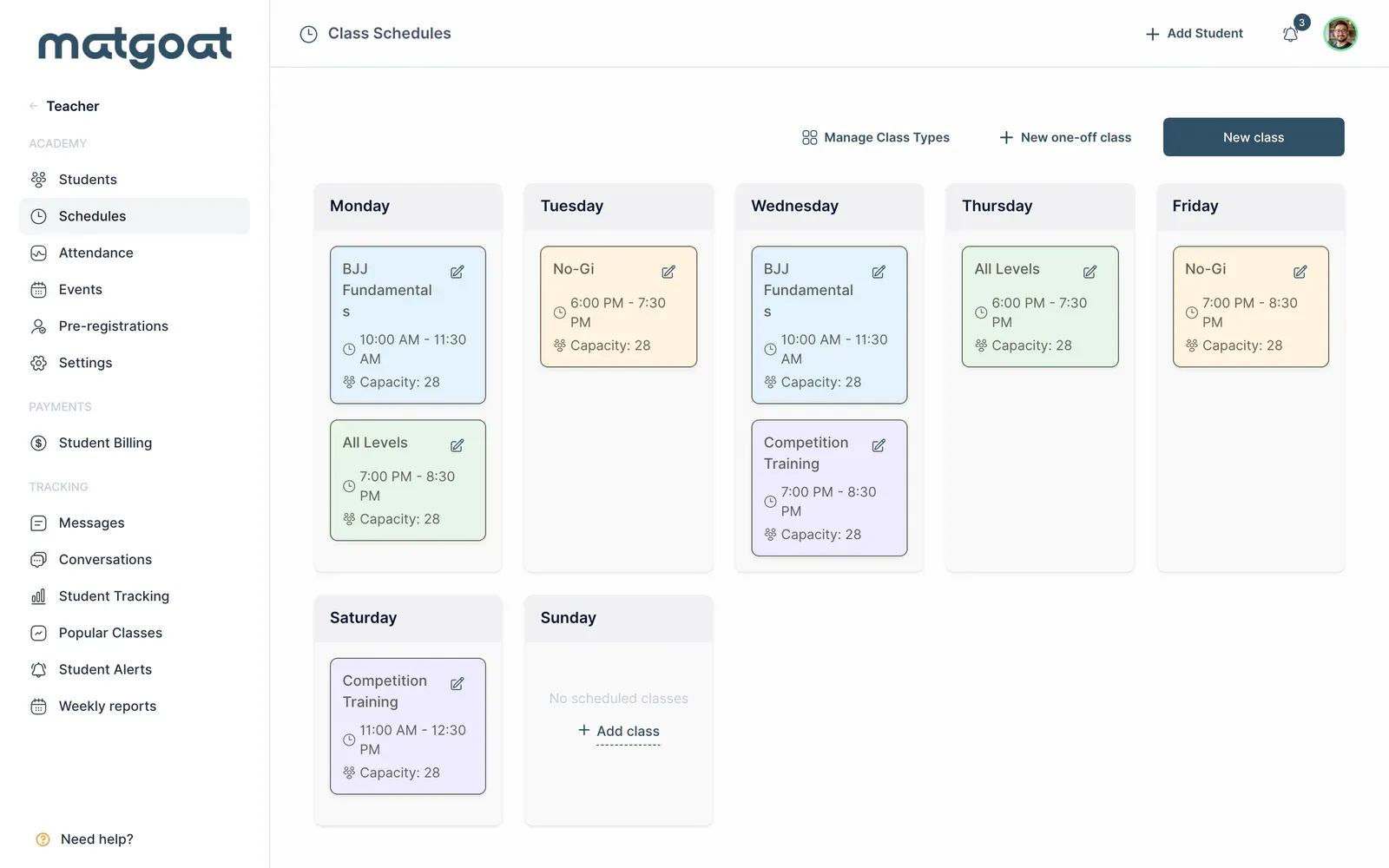
- Set the class type’s name and colour
- Open the weekly schedule form
- Choose the type, weekdays, start time and end time
- Save the schedule and check upcoming classes in the calendar
The checklist completes this step once a schedule exists. Creating only a class type does not complete it. MatGoat generates future classes within a rolling thirty-day window, which extends automatically; you do not need to create each date manually.
Bring in your students
The second step displays your academy’s registration link. Select Copy and share it through the channel you already use with students. Each person completes their own registration.
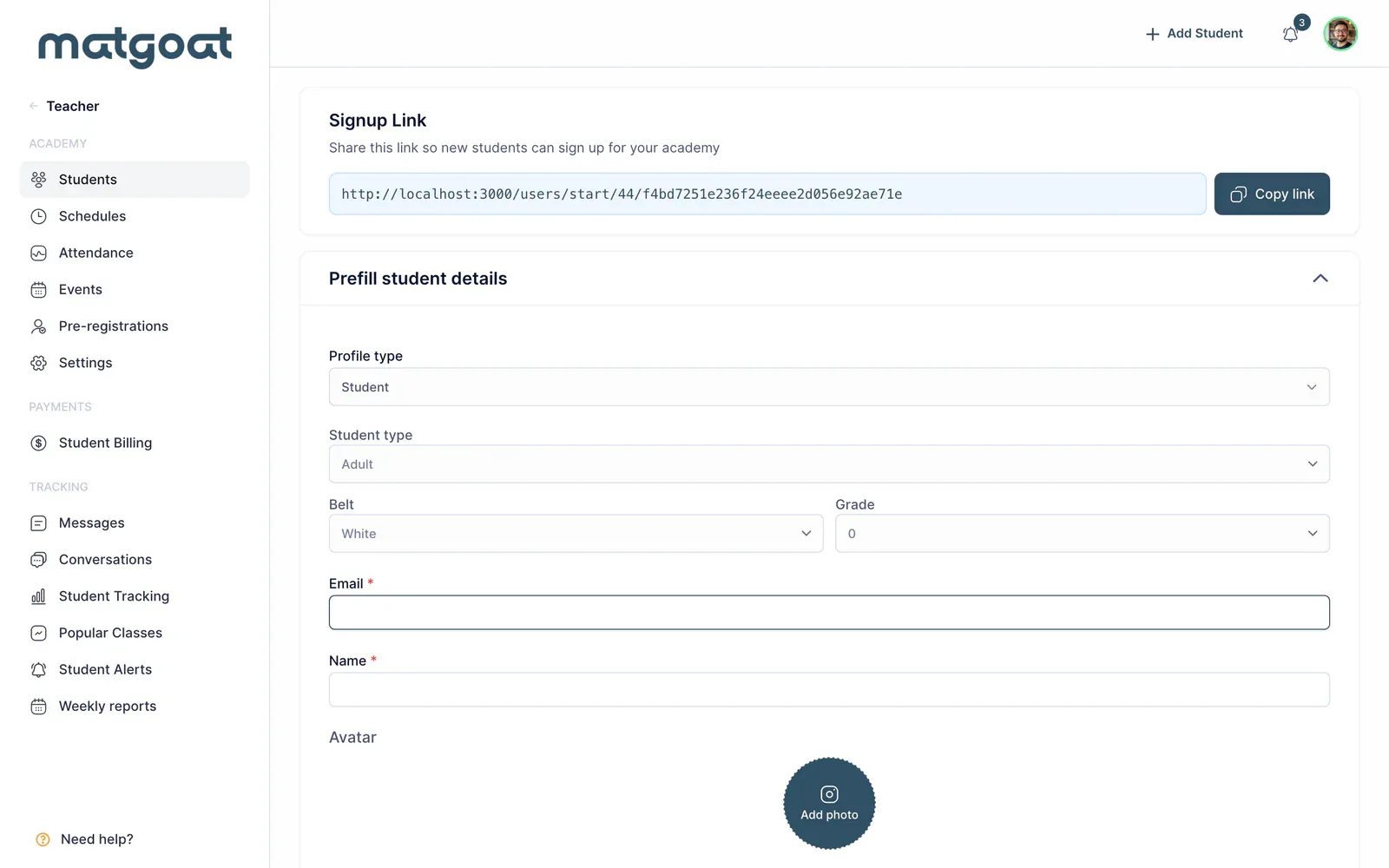
You can also add someone through Teacher > Students. The step completes when the first student joins, whether they use the link or you register them from the staff panel.
Prepare your first plan
Select Create plan. A manual plan lets you record payments received in cash, by bank transfer or through Bizum. To collect payments online, you first need to connect Stripe and create the corresponding plan.
Define the fee and access conditions before assigning it to students. The free gift plan does not complete this step: an ordinary plan must exist. If you will configure payments later, use Skip.
Only the plan step can be skipped. The card disappears when all three steps are complete or when you close it with the X; there is no button to restore it afterwards.
Review the academy dashboard
Once a schedule exists, the staff home page offers My academy and the training view. The academy view brings together upcoming classes, shortcuts to students and payments, and Needs attention for outstanding items.
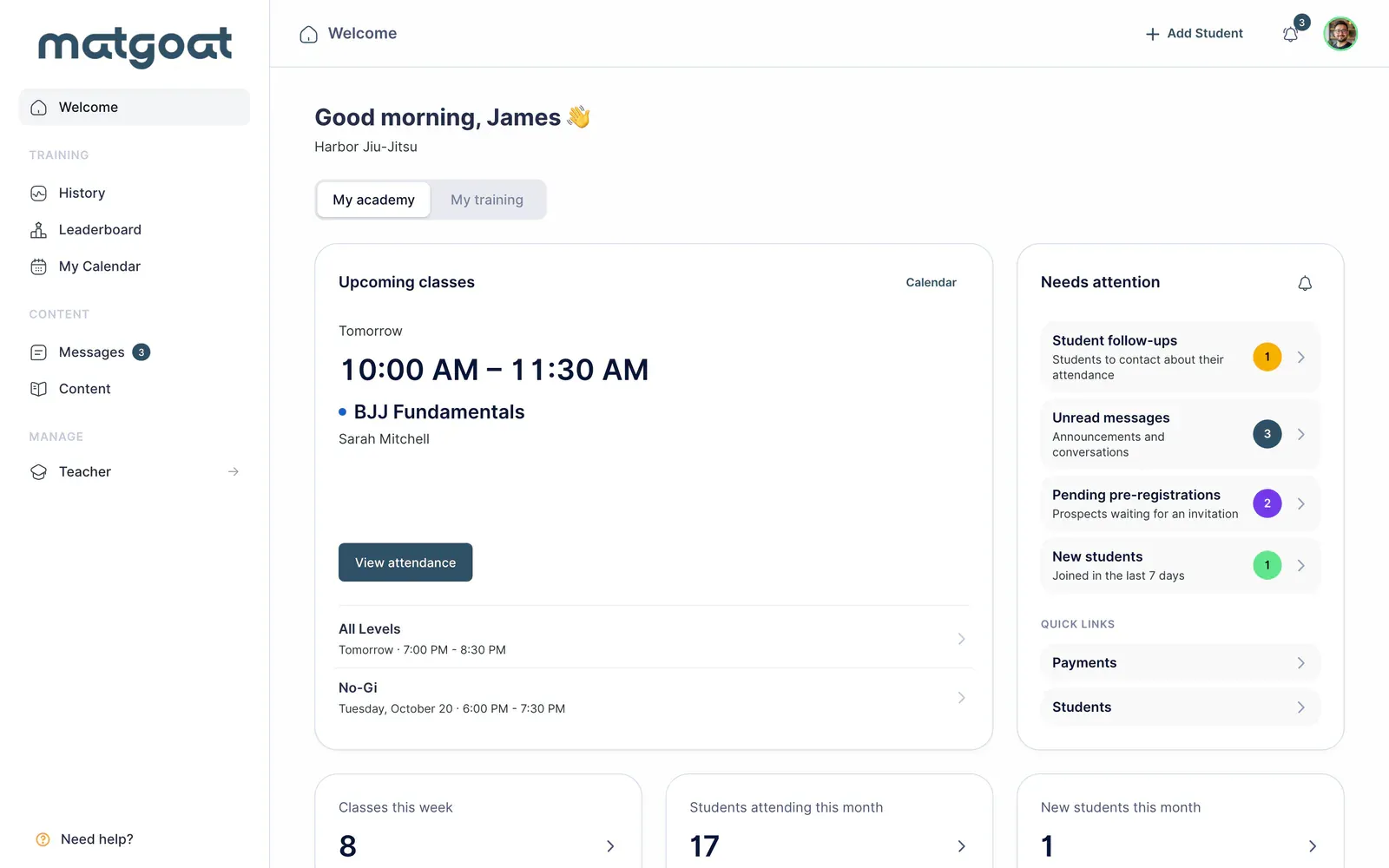
Before inviting the whole group, check the time zone in settings and open a class as a teacher. This helps you catch an incorrect schedule before you start recording attendance.
Related articles
Still have questions?
Write to us and a real person will answer, in your language.