
Identify students at risk of dropping out with Student Tracking
Review dropout risk, filter pending or contacted students and prepare personal follow-up using their recorded activity.
Where: Student Tracking
Updated on
Open in MatGoatStudent Tracking helps prioritize students who may need a conversation about their activity. It combines recent records, time since the last class and plan status to present a risk level. It cannot independently know whether someone is injured, on holiday or considering leaving the academy, so interpret every result with context.
Read the indicators in context
Open Student Tracking in the teacher panel. Review the latest activity record, recent classes and displayed plan. The calculation uses information available in MatGoat; an incorrectly recorded class or pending plan assignment can affect how the situation appears.
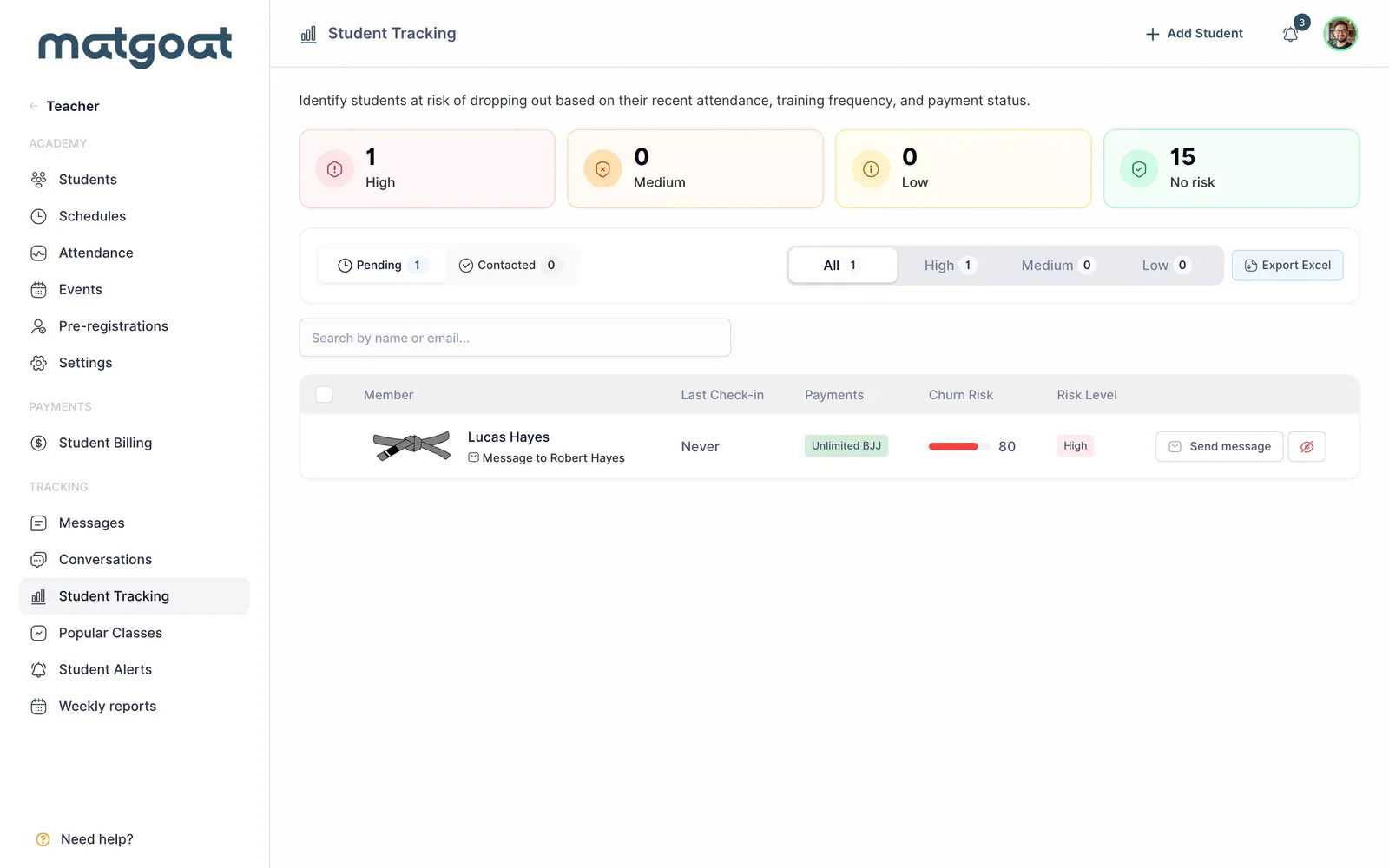
Archived students and members with a pause currently in progress are not treated as active students for this follow-up. The list prioritizes actionable risk levels and should not be used as a complete census of everyone belonging to the academy.
Filter what needs attention
- Check that the correct academy is selected
- Use search or the risk-level filter
- Choose pending or contacted students
- Open a student’s profile before preparing contact
The view distinguishes people with a recent recorded contact from those still pending. Counters help organize work, but sending a message does not prove that the student read it, replied or decided to return. Review the conversation before assuming that a contacted case is resolved.
If someone appears incorrectly classified, inspect their profile and source activity first. Do not alter attendance to lower a score or assign an artificial plan merely to remove a person from the list.
Prepare a personal conversation
Tracking can open a conversation with suggested wording. Check the recipient: for managed profiles, the message may go to a representative or parent. Adapt the text to what you know rather than presenting a risk score as a diagnosis about the person.
Selecting several rows can prepare contact with that population, but review the recipients before sending. Opening the form or choosing suggested text is not equivalent to sending a message or completing the follow-up.
Use Conversations to continue the exchange and retain context. When you know a temporary reason for absence, record an appropriate note rather than repeating the same message without reviewing earlier replies.
Ignore cases and export
Ignoring a case removes it from your follow-up view. It is a user-specific decision: it does not delete the student, cancel a plan or correct attendance data. Use it when you have enough context to decide that further contact is unnecessary.
Excel export follows search, risk and contact filters. Review the selected population before sharing the file. For other issues, including blocked attempts or promotions, use Student Alerts and address the specific underlying cause.
Related articles
Still have questions?
Write to us and a real person will answer, in your language.