
Share the signup link and set up the registration form
Where to copy your academy's signup link, how to share it, and which Student onboarding settings change what students see when they register.
Where: Student onboarding
Updated on
Open in MatGoatThe signup link lets someone register with your academy from a phone or computer. Share the link MatGoat provides, rather than an academy-owner registration page or another academy’s address. Review the form students will see before distributing it to a group or publishing it on your website.
Find and share the link
In Students, locate the signup-link card and use its copy action. The link also appears on the add-student page and, for administrators, under Settings > Student onboarding. The settings card is hidden in the demo environment and when the academy accepts invitations only.

The link identifies your academy and remains stable. You do not need a separate link for every student. Someone who already has a MatGoat account should use their existing identity during registration, avoiding duplicate records when changing devices or joining another academy.
Review the form before sharing
- Copy the link from your academy’s signup card
- Open it in a window where you are signed out
- Check the academy name, requested fields and available plan choices
- Share it once the registration journey matches what you intend to offer
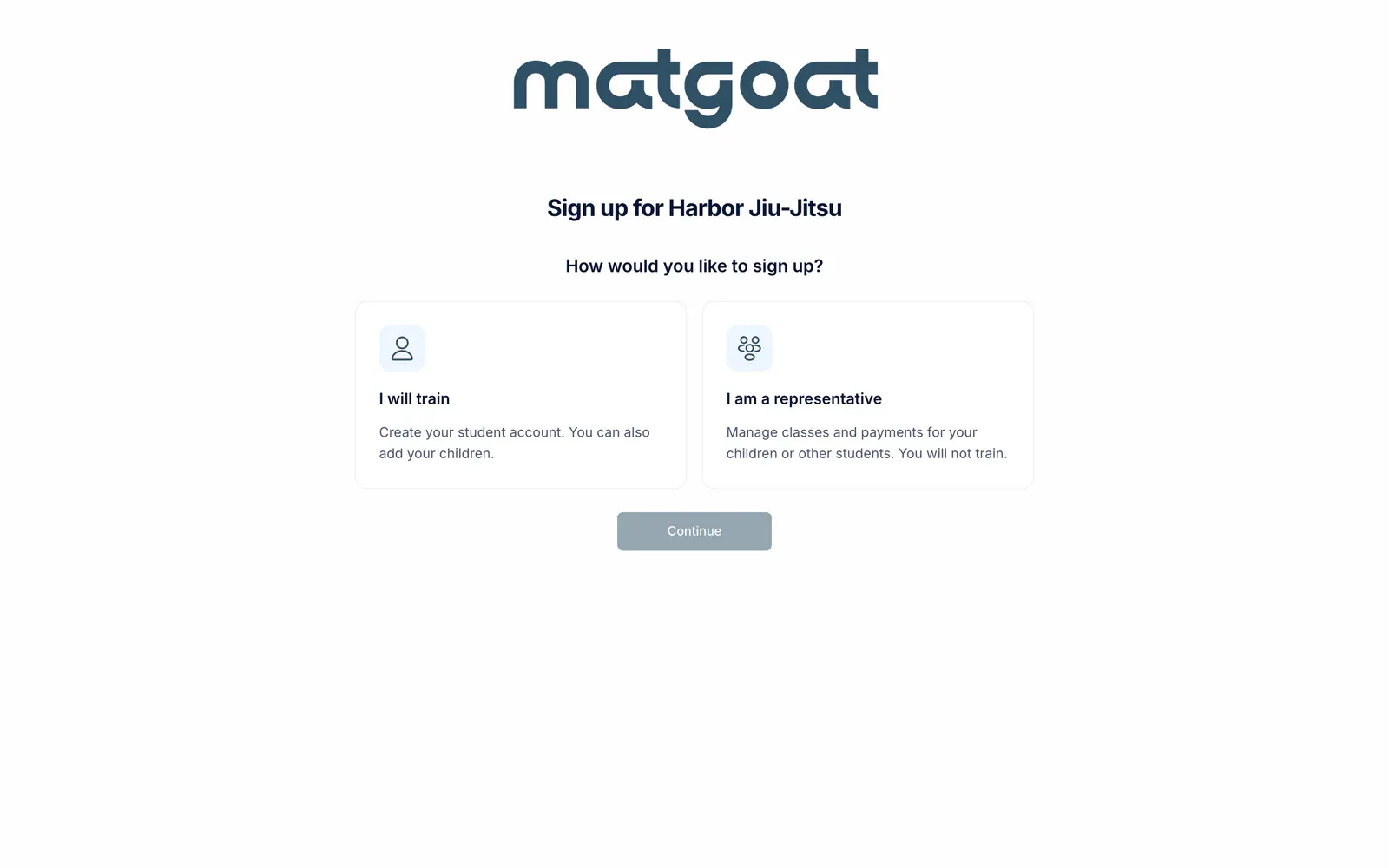
An academy collecting interest before opening may show a preregistration form through this same link. The card explains when that is happening. Read the preregistration guide before assuming the address is broken or belongs to the wrong screen.
The external signup-and-payment link is a separate journey. It appears only when enabled and its online-payment requirements are met. To collect payment from an existing student, use that student’s payment link rather than asking them to register again.
Configure plans and additional acceptance
An administrator can review signup options under Settings > Student onboarding. When plan selection is enabled, the form offers the plans allowed by the academy’s configuration. Registration does not always mean an immediate charge: that depends on the plan and payment journey selected.
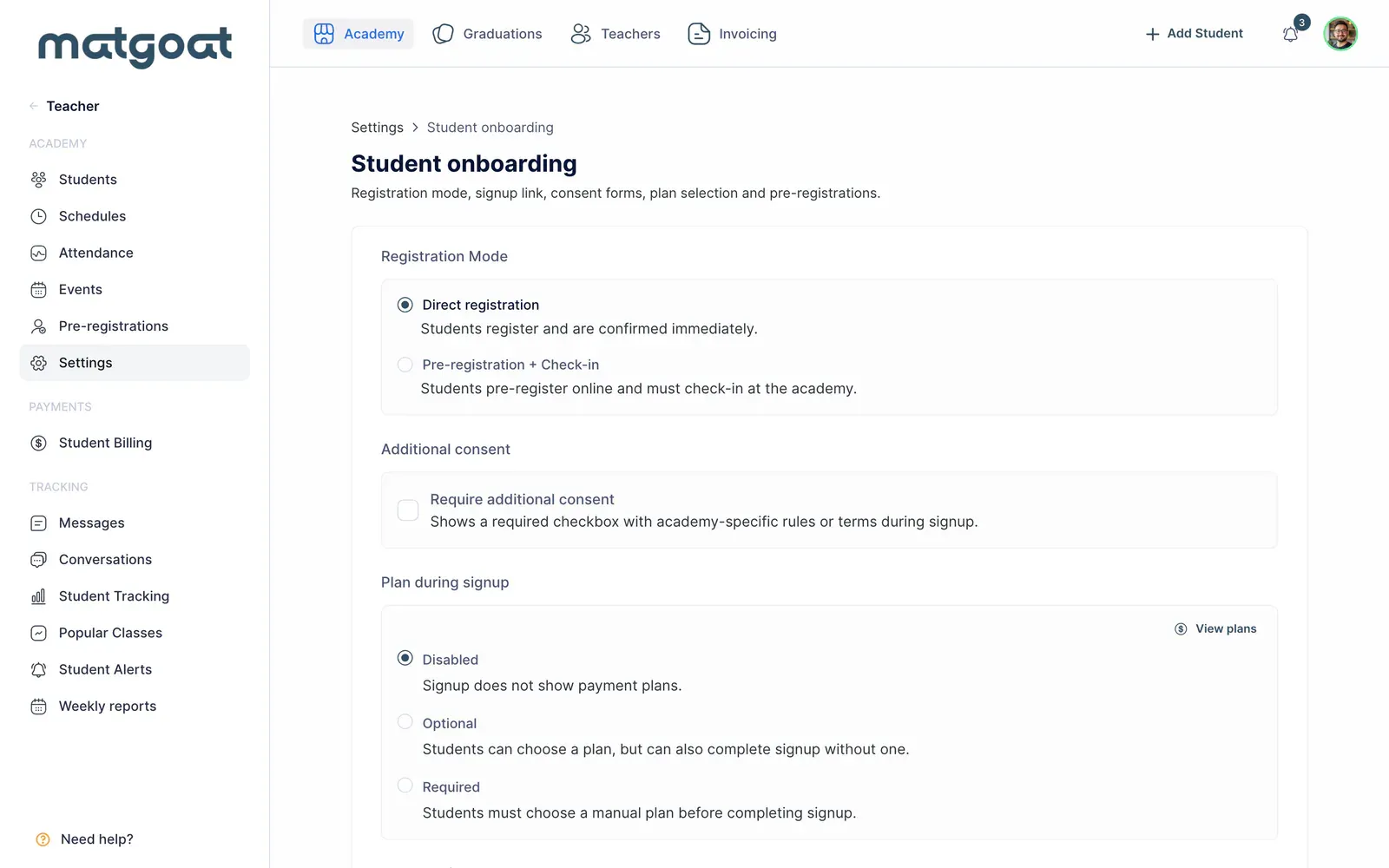
To request acceptance of your own rules, enable the additional-acceptance option and prepare its sections. Check their wording and presentation through the public link. A represented child’s authorization follows its own consent journey as well, so do not assume the adult registration form replaces it.
Requested personal fields depend on the academy’s configuration. If you need to change mandatory or visible information and there is no corresponding setting, ask support to make the adjustment.
Use an invitation when appropriate
Invitation-only academies do not expose the same public signup link. In that situation, send an invitation from the roster or add-student form using an account with the required permission.
You can also prefill a profile or create a child without email. Choose one registration journey per person and review their resulting profile, especially when they already belong to another academy.
Frequently asked questions
Does sharing the signup link automatically charge a student?
No. The link lets the person complete registration; any charge depends on the configured plan and payment flow. Review the public form before sharing it.
Related articles
Still have questions?
Write to us and a real person will answer, in your language.