
Create an event in your academy calendar
Create academy events with dates, a venue and optional notices, and understand when to use an event or a scheduled class.
Where: Calendar Events
Updated on
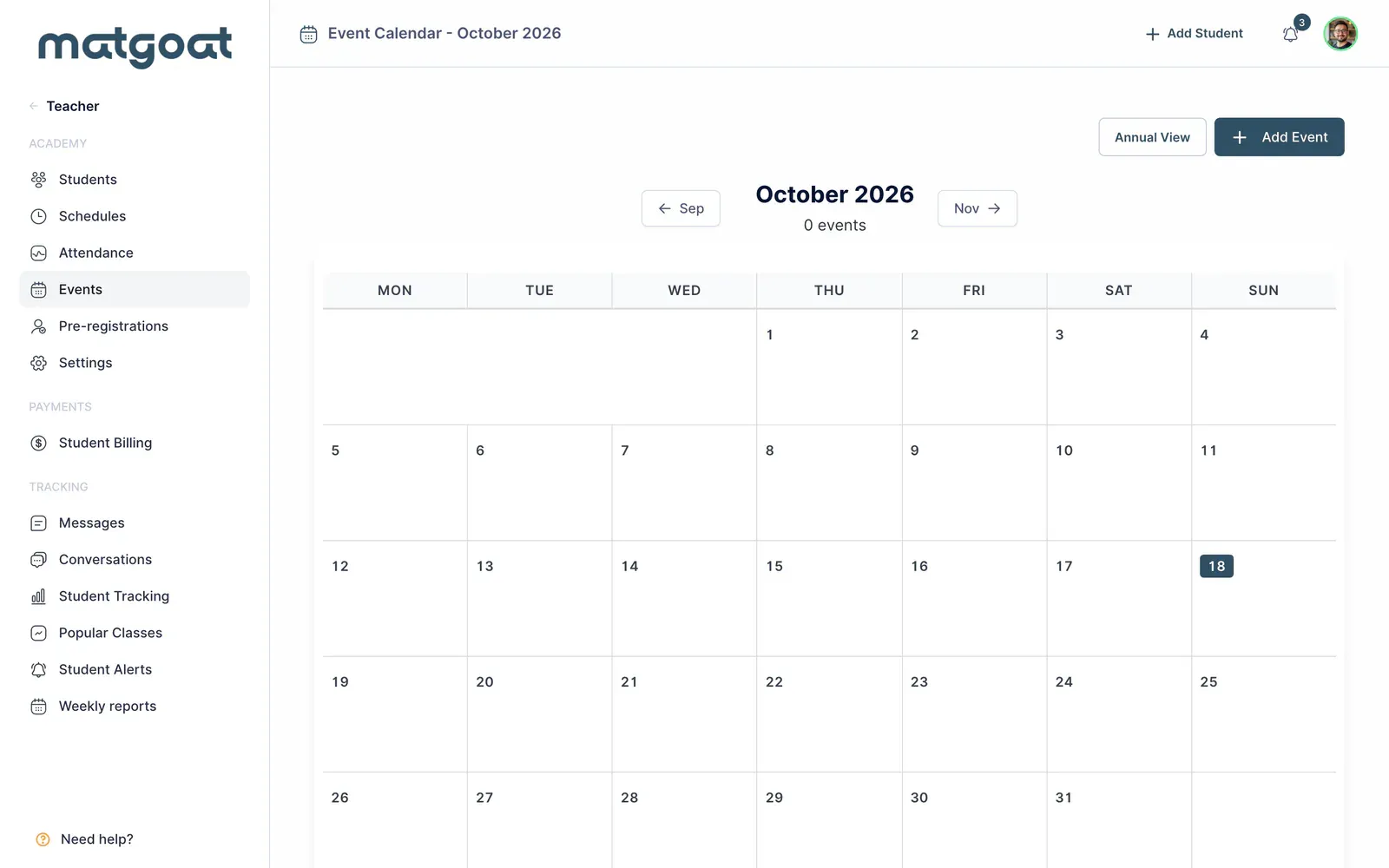
Open in MatGoatThe events calendar announces seminars, competitions and other academy dates. Teachers and administrators can manage it through Teacher > Events.
Decide whether you need an event or a class
An event has its own description, dates and registration options. Use it to present a special activity and, where appropriate, collect registrations or sell tickets.
If you simply want to add a training session tracked through the usual attendance sheet, create a one-off class in schedules. An event does not replace a class attendance record.
Complete the event form
Open the calendar and use its option to create an event. Review these fields before saving:
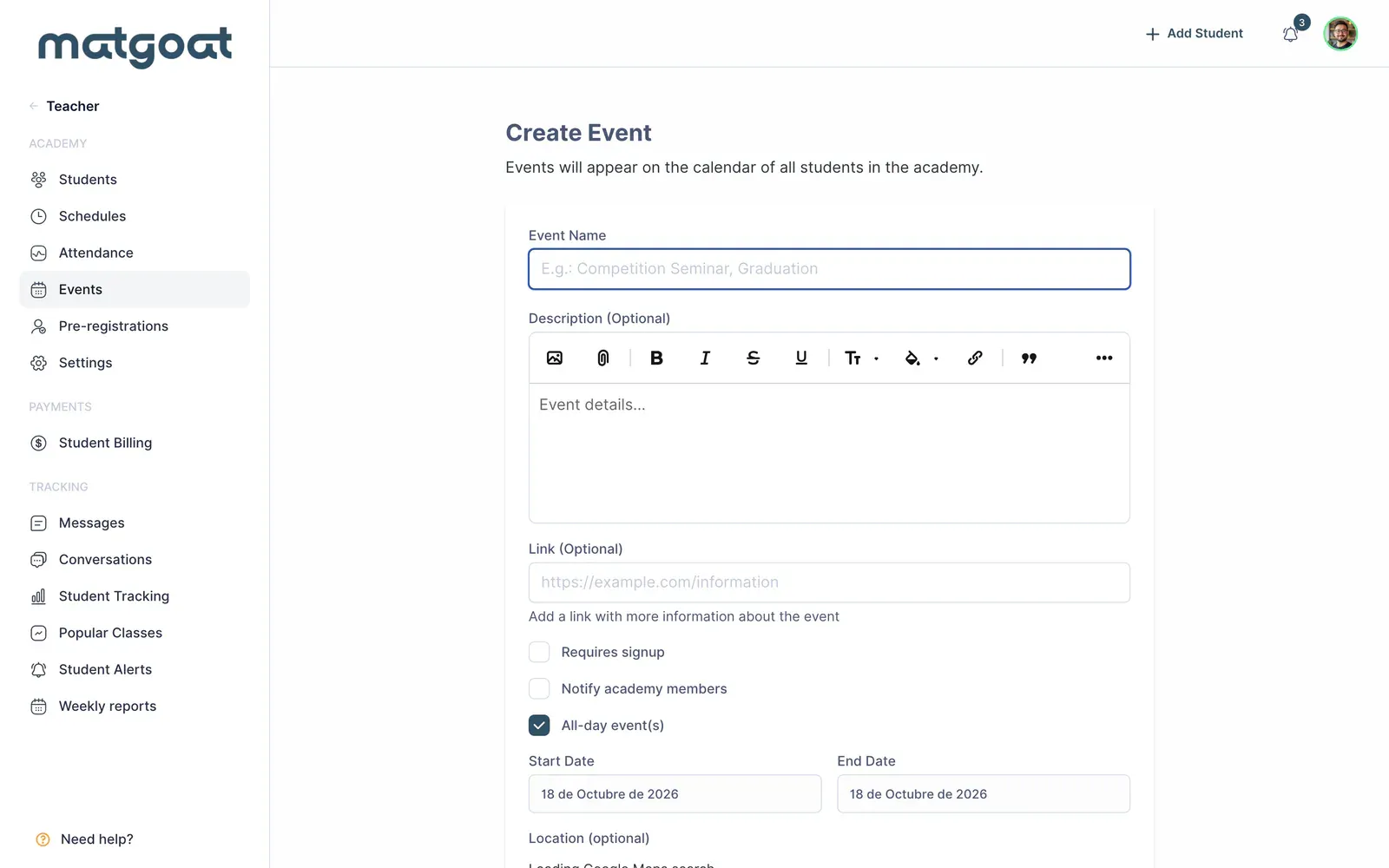
- Event name and a description containing practical information
- An external link, if you want to include more information
- Start and end dates, plus times when it is not an all-day event
- The colour used in the calendar
- A venue, where applicable: select an address suggestion to save the complete location
The All-day event(s) option lets you work with dates without specifying a time slot. For a seminar at a specific time, turn it off and check the start and end in the academy’s time zone.
You do not need to enable registration to publish an informational date. To count participants, define capacity or charge admission, use the registration options in the same form.
Decide whether to send a notice
When creating the event, you can select Notify academy members. It starts unchecked, so review its state before saving.
Creating the event and sending a notice are separate decisions. If you are still preparing the details, leave the notice unchecked until the information is ready to share. Submitting the form saves the event; it has no draft state that hides it.
Review, edit or delete
After saving, open the event in the calendar and check its name, dates, description and venue. Members can view the details from their calendar. Staff have edit and delete actions on the event page.
Editing an event does not automatically resend its creation notice. If you change relevant details after announcing it, communicate the change to students.
Before sharing it, open the event page and check the start date as though you were one of the participants.
Related articles
Still have questions?
Write to us and a real person will answer, in your language.