
Require an active plan to book classes
An administrator can open Settings > Payment options and choose what happens when a student tries to register without the required coverage. Before enabling blocking, review the assignments
Where: Payment options
Updated on
Open in MatGoatConfigure plan enforcement
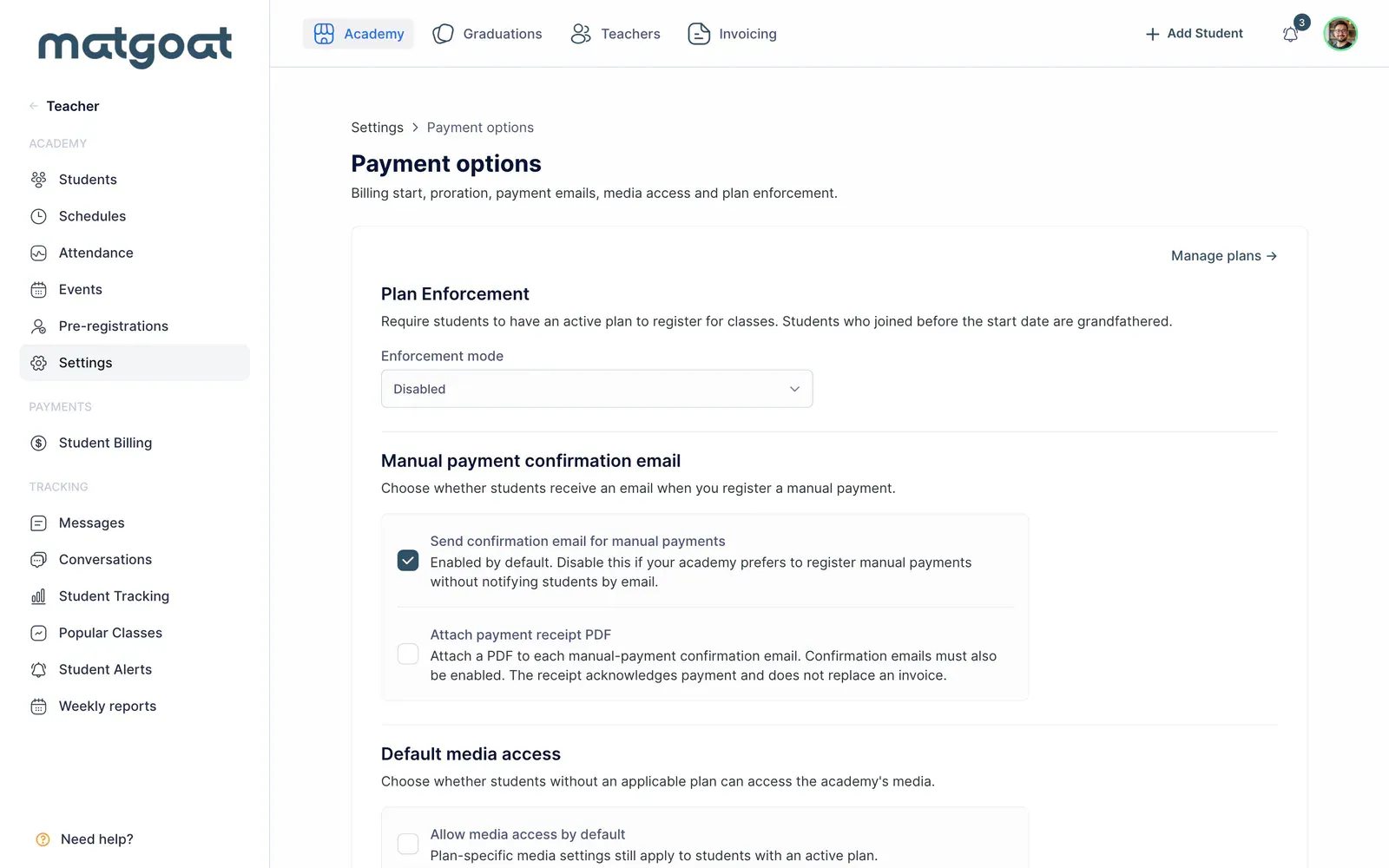
An administrator can open Settings > Payment options and choose what happens when a student tries to register without the required coverage. Before enabling blocking, review the assignments and payments of students already training at the academy.
Enforcement combines the student’s situation with the conditions of their product. A visible assignment does not always prove that a manual fee has been paid. Likewise, the absence of a monthly subscription does not mean access is missing when a valid voucher or pass provides coverage.
Choose the enforcement level
- Disabled: does not require general plan-and-payment enforcement, although restrictions of an assigned plan still apply
- Alert only (allow + notify): allows certain registrations without a plan or with an unpaid manual fee and creates an alert for review
- Block registration: prevents registrations that do not satisfy access checks
Alert mode does not remove a plan’s activity or class limits. A student who reaches their weekly allowance or selects an excluded activity can still encounter a restriction. A student pause also has its own effect on bookings.
Review the date and grace days
The settings include a reference date for applying enforcement according to when the student joined. Review which members are included before saving. A child’s coverage can depend on their representative, so check that relationship as well.
Grace days at the beginning of the month adapt enforcement to the academy’s collection arrangements. They do not mark a fee as paid. Once the grace period ends, checking again depends on the relevant coverage and payment records.
Trials, waivers, paid periods, vouchers and passes can explain why a student retains access. Review the whole profile instead of deciding solely from a subscription’s name or date. Where several products coexist, the one permitting the class may provide the applicable coverage.
Resolve a registration alert
- Open student alerts and locate the attempt without a plan
- Check the student, date and displayed reason
- Review the plan, payments and any family or voucher coverage
- Correct missing information and check access again
The alert records an attempt requiring review; it is not itself an invoice or proof of debt. If the student has already paid, record the actual collection through the proper procedure. If they selected the wrong plan, review the assignment before adding a payment.
Start with Assign, change or remove a student’s plan and How to create a subscription plan. Enable the appropriate level once access conditions are clear to both staff and students.
Related articles
Still have questions?
Write to us and a real person will answer, in your language.